BeatViz Workflow 2.0 Tutorial: Studio Create From Song to Music Video
Workflow 2.0 is the Studio Create · 2.0 path on BeatViz Workflow. You upload a song, review how the lyrics break into captions, edit a scene-by-scene storyboard, approve an opening keyframe for every clip, generate MiniMax H3 Max video, then export one MP4.
Start creating: open /create, choose Studio Create · 2.0, and select Start Creating. Studio Create is a paid exclusive. Free and logged-out accounts stay on Workflow 1.0.
Workflow 2.0 is not Workflow 1.0, Editor, or AI Director. A Studio task lives in its own workspace at
/create-2/[taskId]. It does not become an Editor project, and it does not open a Workflow 1.0 task. Workflow 1.0, Editor and AI Director are separate creation paths.
Start here
New to Studio Create? Follow these guides in order:
- Create Your First Studio Task — upload audio, select a section, and start Music Analysis.
- Workflow 1.0 vs 2.0 — pick the path that matches the control you need.
- Video Concept, Style & Characters — optional lookbook style and up to five uploaded characters.
Plan your video before spending video credits
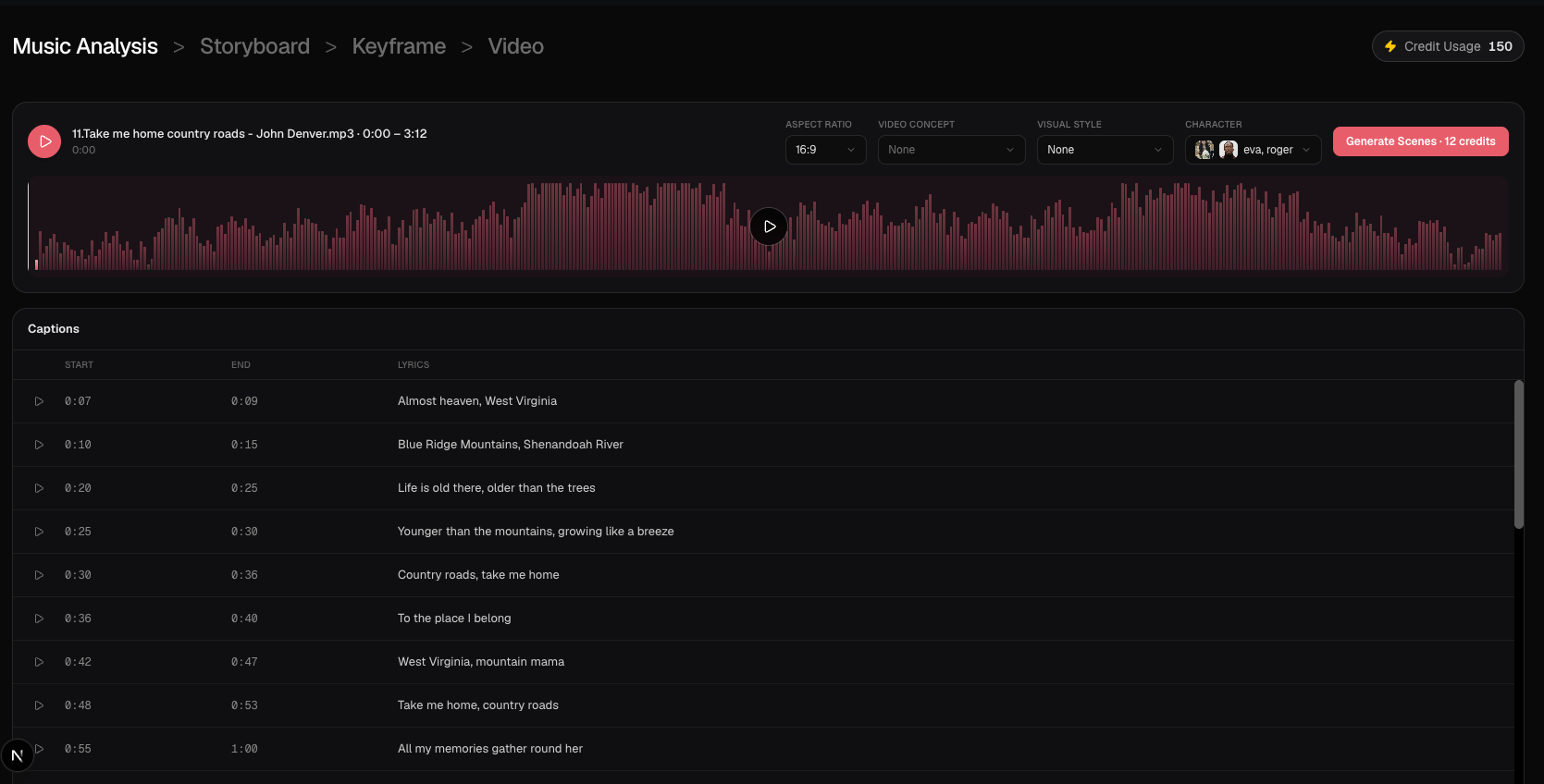
After Start Creating, Workflow 2.0 opens Music Analysis. It does not render moving footage yet.
- Music Analysis & Captions — review lyric lines, times and the waveform, then choose Generate Scenes.
- Storyboard Scenes & Clips — read the planned scenes and shot list.
- Edit Cuts & Clip Descriptions — drag cuts, split or delete clips, and mention characters with
@Name.
Generate and refine your clips
- Generate Keyframes — create an opening still for every clip before video credits are spent.
- Generate Video Clips — render MiniMax H3 Max clips at 768P or 1080P.
- Regenerate a Frame or Clip — fix one opening frame or one video without rebuilding the task.
- Keep Characters Consistent — use reference photos,
@mentionsand per-clip repairs.
Finish and manage your work
- Workflow 2.0 Credits & Costs — see when credits are charged for analysis, scenes, frames and video.
- Recover Drafts — reopen a Studio task from Drafts.
- Export Your Video — compose finished clips with your selected audio into an MP4.
The complete Workflow 2.0 process
- On
/create, select Studio Create · 2.0. Upload a supported song and choose a section of at least 10 seconds. - Set 16:9 or 9:16. Optionally add a Video Concept, a Visual Style and up to five character photos.
- Select Start Creating. BeatViz creates a Studio task, charges 2 credits for Music Analysis, and opens
/create-2/[taskId]. - Review Captions. Select Generate Scenes (12 credits) to build the storyboard.
- Edit clip descriptions and cuts. Select Generate Keyframes (6 credits for prompts, plus 3 credits per opening frame with GPT Image 2.5).
- Check every opening frame. Repair failed or drifted frames before you spend video credits.
- Choose 768P or 1080P on the Keyframe toolbar, then Generate Videos. Video credits use 20 credits/s at 768P or 40 credits/s at 1080P, billed on the integer duration sent to MiniMax H3 Max (minimum 5 seconds per clip).
- When every clip has a video, select Export to compose the final MP4.
Workflow 2.0, Workflow 1.0, or Editor?
Choose Workflow 2.0 when you want lyric-aware captions, an editable storyboard, per-clip keyframes and a timeline to inspect MiniMax clips. Choose Workflow 1.0 when you want Content Modes (including automatic Singing lip sync), Standard / Pro / Premium models, or a faster guided first-frame flow. Choose Editor when you need a manual timeline, LipSync, or clip arrangement that is not driven by a Studio storyboard.
Workflow 2.0 does not include Lip Sync, Content Mode, or Standard / Pro / Premium model cards.
Frequently asked questions
Can I paste a Suno, Spotify or YouTube URL?
No. Workflow 2.0 requires a supported audio file uploaded from your device: MP3, AAC, M4A, FLAC or WAV, up to 200 MB.
Is Workflow 2.0 available on the free plan?
No. Studio Create · 2.0 is paid exclusive. Free and logged-out users stay on Workflow 1.0. Open Pricing to unlock Studio.
Does Start Creating render the whole music video?
No. That click creates the task and starts Music Analysis. Storyboard, keyframes, video clips and Export are later steps, each with its own credit charge.
Does Workflow 2.0 include Lip Sync?
No. There is no automatic or manual Lip Sync on Studio clips. For singing performances, use Workflow 1.0 Singing or Editor LipSync.
Ready? Create a music video with BeatViz Workflow 2.0.
Related guides
Try BeatViz Workflow 2.0
Upload a song, choose Studio Create · 2.0, and move through Music Analysis, Storyboard, Keyframes, and MiniMax clips.