How Music Analysis and Captions Work in BeatViz Workflow 2.0
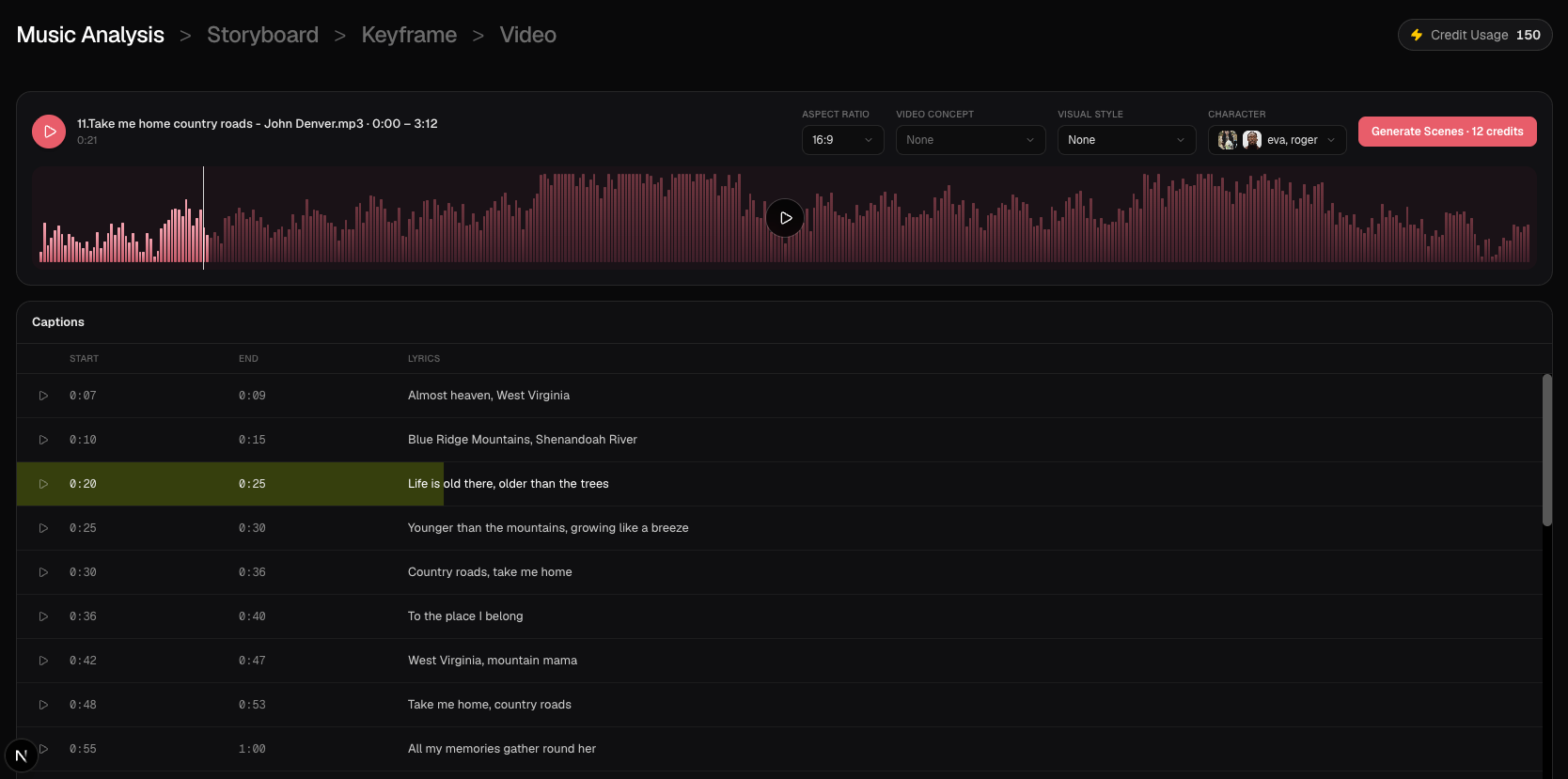
Music Analysis is the first workspace step after Start Creating. BeatViz listens to your trimmed song and fills a Captions table of lyric lines with start and end times. You review that table, then select Generate Scenes to build the storyboard.
This step does not create keyframes or video. The 2 credits for analysis were already charged when the task was created.
What Music Analysis does
For a new Studio task with audio and no saved analysis, analysis starts automatically. While it runs, the waveform and caption rows show a loading state, then lines appear one after another.
Each caption row has:
- Start and End times (minutes and seconds)
- Lyrics text
Meaning, emotion and internal lyric groups stay in the engine. The table you edit is Start / End / Lyrics only.
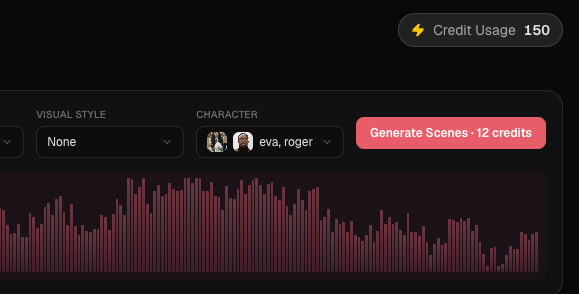
The same toolbar lets you keep Aspect Ratio, Video Concept, Visual Style and Characters in sync with the task. Those settings are used when you generate scenes, not to re-analyze the audio.
How to read the Captions table
Play from a line with that row's play button. Playback highlights the active line on the table and on the waveform. Clicking the time fields or the lyrics does not start playback.
Use the waveform to seek. A paused seek does not auto-play.
Read through the lines before generating scenes. Captions drive how densely the storyboard can plan shots. A song with many lyric rows can produce more scenes than a sparse instrumental section.
Edit lyric times
Click a Start or End value to edit m:ss. Nudge ±1 second, or hold Shift for ±10 seconds. Adjacent lines cannot overlap: a line cannot start before the previous line ends, and it cannot end after the next line starts.
If an end time would land on or before the start, the table extends the end to at least one second after the start.
Caption text and time edits in the table are local to the current view. They are not written back into the saved analysis used to generate scenes. If a timestamp is clearly wrong, use it as a review aid, then describe the intended timing in clip descriptions after the storyboard exists, or retry analysis only when you need a fresh lyric pass.
Retry analysis
If lyrics are empty or clearly wrong, retry with force. A retry charges Music Analysis again (2 credits) and replaces the caption set.
Opening a task that already has lyrics reuses that analysis: no new model call, no extra 2-credit charge, and the task status does not change.
Generate Scenes
When captions look usable, select Generate Scenes (12 credits). That button starts the Storyboard step. You can still change concept, style and characters on the Storyboard toolbar before or after the first board.
You cannot skip Music Analysis. Storyboard stays locked until analysis has lyrics.
FAQs
Does editing a caption save permanently?
No. Start, end and lyric edits in the Captions table are not persisted into the analysis JSON that Storyboard reads. Treat them as a review surface.
Why did analysis reuse my previous lyrics?
Reopening the task, or generating scenes without force, reuses a completed analysis so you are not charged again. Use retry / force only when you want a new lyric pass.
Can I skip Music Analysis?
No. Generate Scenes needs a finished analysis. If analysis failed, retry it before you continue.
Continue learning: ← Previous: Concept, Style & Characters · Next: Storyboard Scenes & Clips →
Related guides
Try BeatViz Workflow 2.0
Upload a song, choose Studio Create · 2.0, and move through Music Analysis, Storyboard, Keyframes, and MiniMax clips.