How to Generate MiniMax Video Clips in BeatViz Workflow 2.0
Video is the last generation step. Each storyboard clip becomes a MiniMax H3 Max shot, using the opening keyframe as Image 1 and your character photos as extra references. Entering the Video step loads existing results. It does not start a new billed run by itself.
Video Model: 768P or 1080P
Pick resolution on the Keyframe toolbar before you generate:
- 768P — default. Strong motion and faces. 20 credits per billed second.
- 1080P — highest fidelity. 40 credits per billed second.
The Video step does not have a resolution picker. Change 768P / 1080P on Keyframe, then generate.
Aspect ratio is the 16:9 or 9:16 you set at the start. It is not changed here.
Generate all clips or one clip
Generate Videos on Keyframe renders every clip that has an opening frame, then opens Video.
On the Video timeline, an empty clip shows No video yet and Generate. That button renders only that clip.
Generate Clip in the Keyframe inspector also renders one clip and then opens Video.
A one-clip run stays a one-clip run. Visiting Video later does not enqueue the rest automatically. Generate the remaining clips when you are ready.
Failed clips do not auto-retry. Use Generate on that clip again. If MiniMax fails after credits were charged, those credits are refunded.
The Video timeline
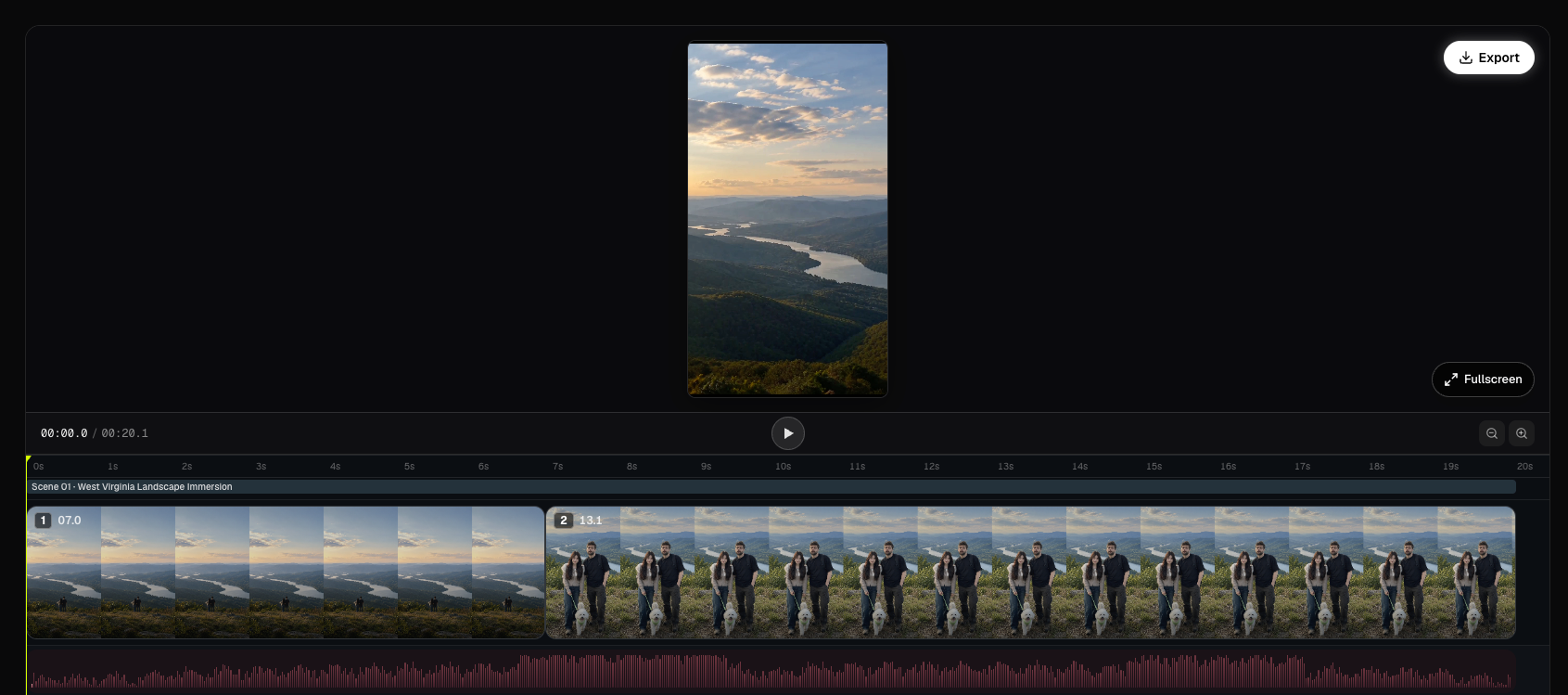
The Video workspace is a monitor plus tracks:
- Top: sequential playback of ready clips, muted, with the song as the clock. Fullscreen expands the preview stage.
- Bottom: time ruler, scene labels, video track, music waveform, playhead, zoom.
Click a clip to seek to it and open the clip editor. Playback starts at the beginning of each generated file and loops the keep-window that matches the storyboard duration. There is no user trim handle on this timeline; shot length stays on the Storyboard cuts.
Keep the page open while clips generate. Reopen Video to resume polling if you left.
Clip editor: Image and Video tabs
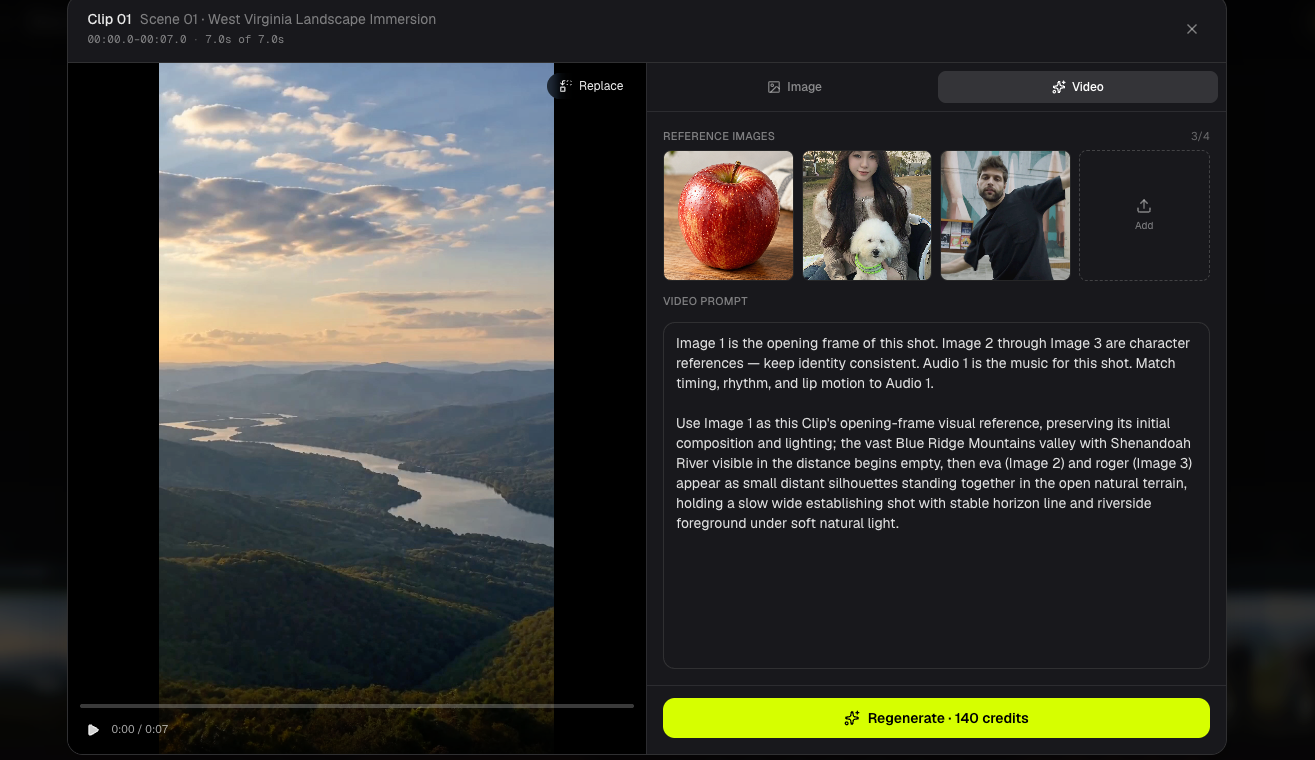
The right panel has Image and Video tabs (default Video).
Video tab
- Reference grid: opening frame plus character refs (up to 4 images sent to MiniMax)
- Editable Video Prompt
- Generate / Regenerate for that clip
- Replace to bind a previous video from this clip or another clip (0 credits)
Image tab
- Current opening still
- Optional extra refs and an image prompt
- The same four image models as Keyframe Edit Image
- Generating a new still updates the opening frame. It does not automatically regenerate the video.
Upload extra refs as JPG/PNG/WebP/GIF, 10 MB or smaller.
There is no Lip Sync control on this editor.
FAQs
Why is a short clip billed as 5 seconds?
MiniMax H3 Max accepts integer durations from 5 to 15 seconds. A 4.8-second storyboard clip is sent as 5 seconds and charged as 5 seconds (100 credits at 768P, 200 at 1080P). The export keep-window still uses the storyboard length.
Does entering Video start generation automatically?
No. Generate on Keyframe (Generate Videos) or on a clip (Generate / Generate Clip). The Video step only fetches and plays what already exists.
Continue learning: ← Previous: Generate Keyframes · Next: Regenerate a Frame or Clip →
Related guides
Try BeatViz Workflow 2.0
Upload a song, choose Studio Create · 2.0, and move through Music Analysis, Storyboard, Keyframes, and MiniMax clips.