How to Generate Opening Keyframes in BeatViz Workflow 2.0
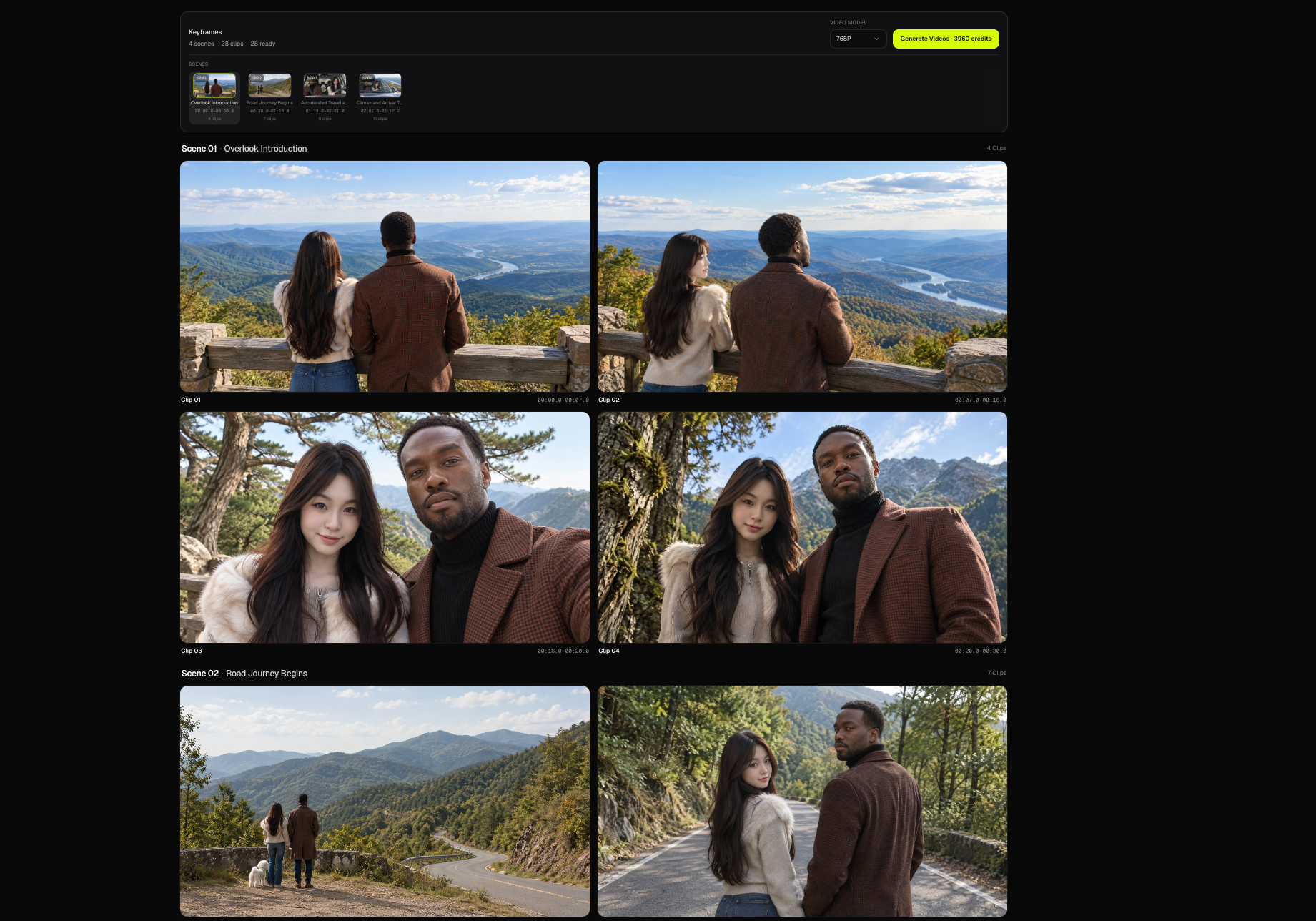
A keyframe in Workflow 2.0 is the opening still of a clip. MiniMax video uses that still as Image 1. Generate Videos stays disabled until every clip has a ready opening frame.
This is the Studio equivalent of checking first frames in Workflow 1.0, with one still per clip instead of per scene card.
What a keyframe is
Each storyboard clip gets:
- A video prompt (motion for MiniMax)
- A frame prompt (the opening still)
- A generated opening frame image
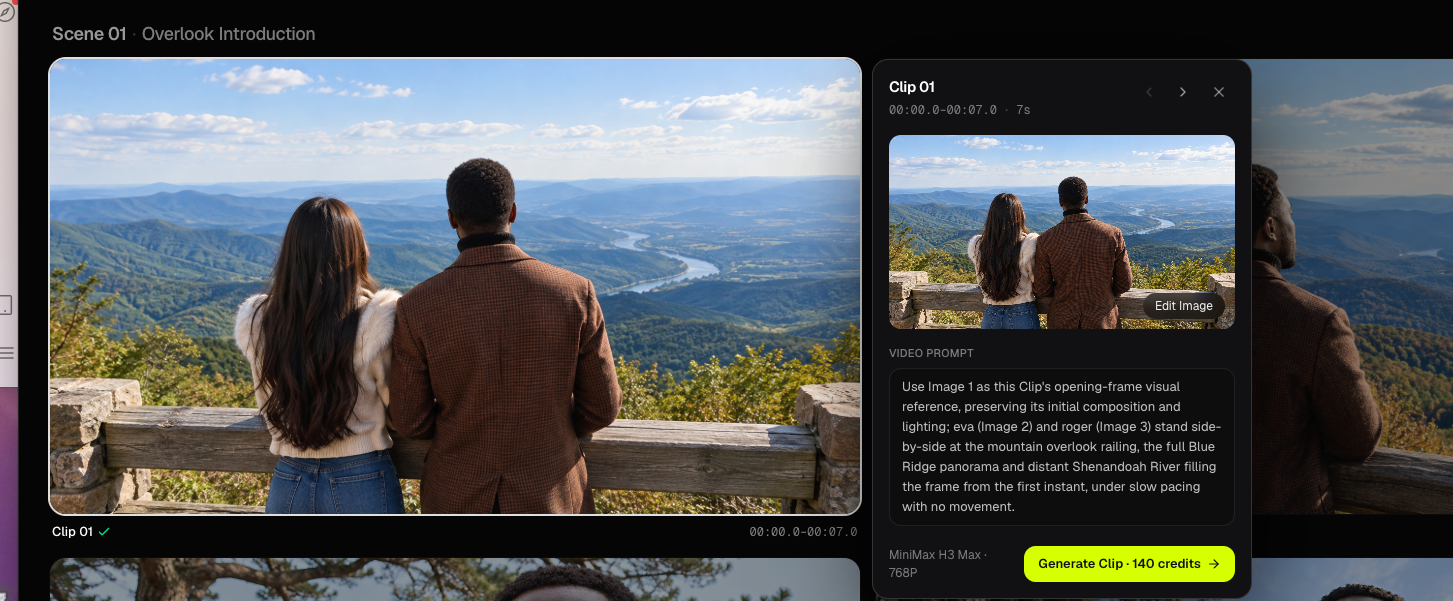
The inspector shows the still and the Video Prompt. It does not show the storyboard paragraph or the frame prompt until you open Edit Image.
Character photos are references. They are not the opening frame until an image job has finished.
Generate Keyframes
On Storyboard, select Generate Keyframes. Studio charges 6 credits for the whole-song video + frame prompt pack, then 3 credits per opening frame with GPT Image 2.5 (the first-run model).
A 10-clip board is 6 + 30 = 36 credits for that first keyframe run, before any video.
Stay on the Keyframe step while frames generate. The page polls until stills are ready. Closing the tab does not cancel already submitted image jobs; reopen Keyframe to keep polling.
If you click Generate Keyframes again with force, a new run starts and is billed again. The first click from Storyboard already uses force so a stuck run is not reused.
Review opening frames
The Keyframe grid is grouped by scene. Tiles shimmer until the opening frame is ready. Failed tiles show the error and Retry (3 credits for GPT Image 2.5 when only the image is retried).
Click a tile to open the inspector:
- Browse Previous clip / Next clip
- Read the Video Prompt
- Edit Image to change the still
- Generate Clip to render only this clip once its opening frame is ready
Check identity, wardrobe, location and framing on every still before you spend video credits.
Edit Image
Edit Image opens a regen panel:
- Frame prompt — describe the still
- Reference images — character photos are prefilled; add or remove stills (uploads use the same 10 MB image rules)
- Model — GPT Image 2.5, Nano Banana 2.1, Seedream 5.0, or Nano Banana Pro
GPT Image 2.5 and Nano Banana 2.1 cost 3 credits. Seedream 5.0 and Nano Banana Pro cost 5 credits. Confirm starts an image-only regen for that clip. It does not rewrite the video prompt and does not generate video.
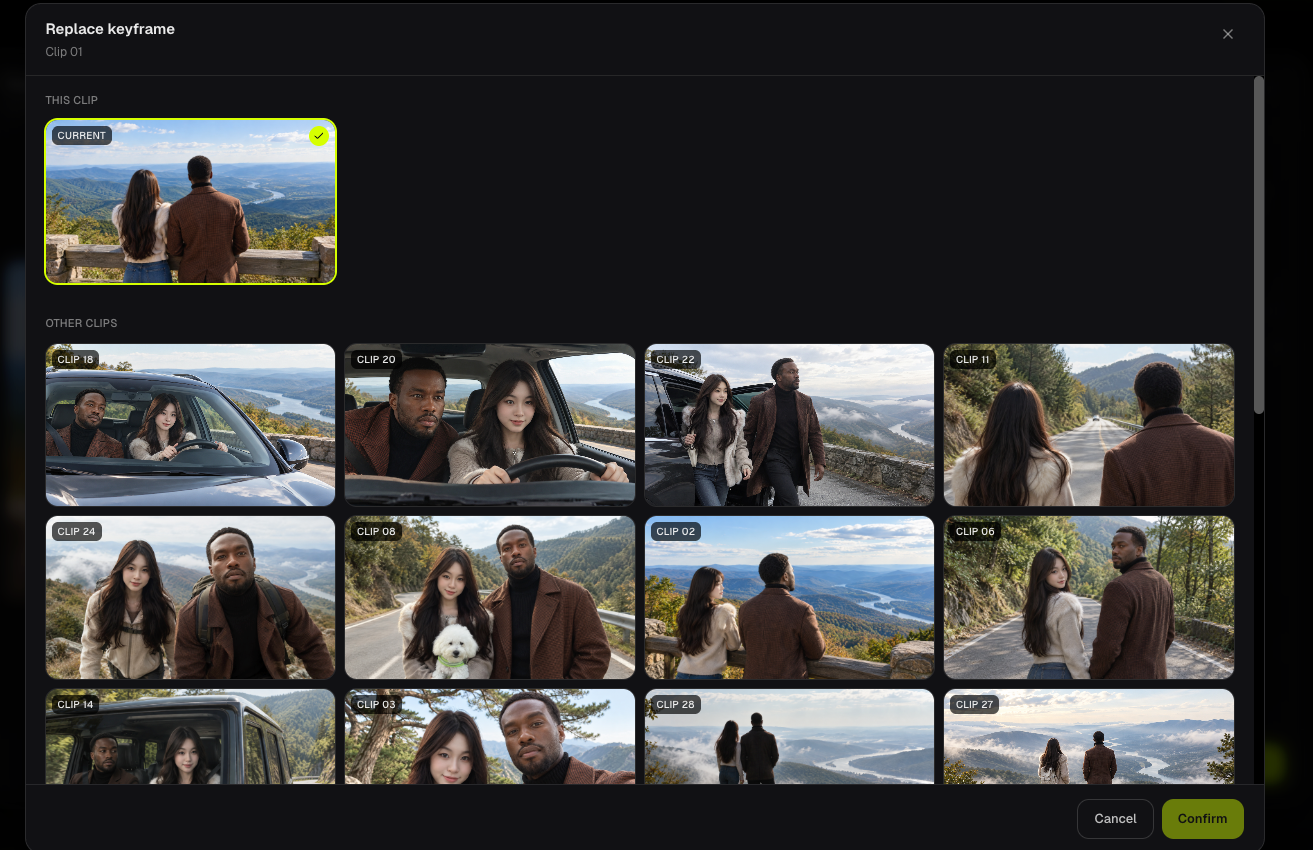
Replace a frame from history
On the regen preview, Replace opens this clip's ready frames and frames from other clips on the task. Confirming a replace rebinds the opening frame. It costs 0 credits and does not call the image model. The bound still becomes Image 1 the next time you generate that clip's video.
Replacing a frame does not regenerate an existing video. Generate that clip again if the motion should follow the new still.
Generate Videos from Keyframe
The Keyframe toolbar holds Video Model (768P default, or 1080P) and Generate Videos. Generate Videos is enabled when every opening frame is ready. It posts a full video run and switches to the Video step. See Generate Video Clips.
FAQs
Why is Generate Videos disabled?
At least one clip is missing a ready opening frame. Wait for generation, tap Retry on failed tiles, or use Edit Image.
Which image model is used first?
The first Generate Keyframes run uses GPT Image 2.5 at 3 credits per still. Other models are available on Edit Image for a single clip.
Continue learning: ← Previous: Edit Cuts & Descriptions · Next: Generate Video Clips →
Related guides
Try BeatViz Workflow 2.0
Upload a song, choose Studio Create · 2.0, and move through Music Analysis, Storyboard, Keyframes, and MiniMax clips.