How to Regenerate a Keyframe or Video Clip in Workflow 2.0
You do not need to rebuild the Studio task to fix one shot. Repair the opening frame, the video, or both. Replace from history when a previous take is already better.
Regenerate an opening frame
From Keyframe, click the clip, then Edit Image. From Video, open the clip editor Image tab.
You can:
- Edit the frame prompt
- Add or remove reference images
- Switch model: GPT Image 2.5, Nano Banana 2.1 (3 credits), Seedream 5.0 or Nano Banana Pro (5 credits)
Confirm runs an image-only job. Failed tiles also offer Retry, which retries the image when a frame prompt already exists.
A new still is stored in history. The clip's bound opening frame updates to the new row. Old stills remain available in Replace.
This does not charge the 6-credit prompt pack again. It does not regenerate the MiniMax video.
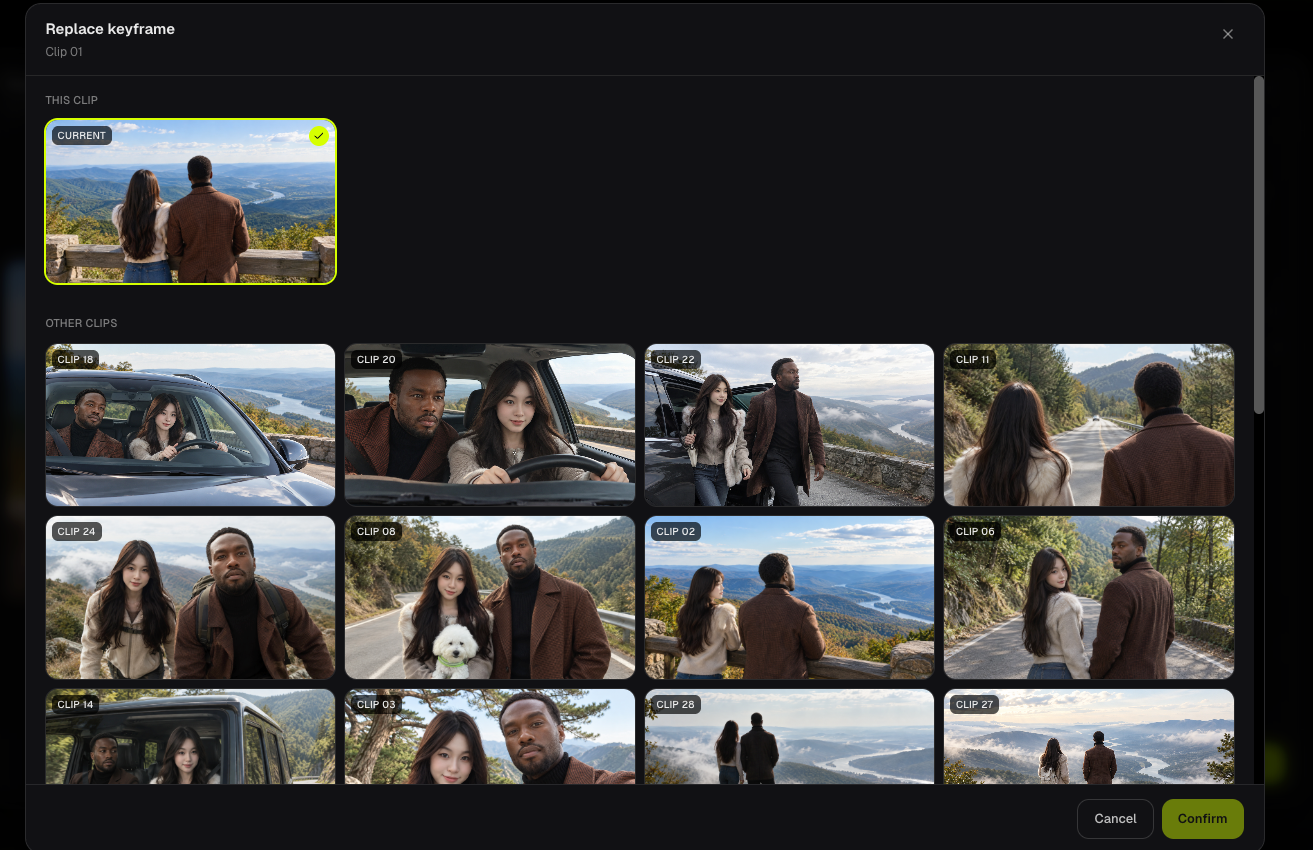
Replace a frame without regenerating
Replace on the image preview lists:
- This clip — stills generated for this clip (the bound one is Current)
- Other clips — ready frames from the rest of the task
Confirm binds that still as the opening frame. 0 credits. No image model call.
Use this when an earlier take already has the right face or framing.
Regenerate a video clip
Open the clip editor Video tab. Edit the Video Prompt and the reference grid if needed. Image 1 should be the opening frame you want MiniMax to start from.
Generate / Regenerate charges that clip's video credits at the current 768P or 1080P rate, using the integer duration sent to MiniMax (minimum 5 seconds).
The previous ready video is archived into history when a new one starts. Failed MiniMax jobs that already charged are refunded.
If generation never starts because of insufficient credits, missing opening frame, or remaining audio under 2 seconds, that attempt is not charged.
Replace a video from history
Replace on the video preview binds a previous take from this clip or another clip's ready video. 0 credits. Confirm is disabled when the selection is already current.
Replacing a video does not change the opening frame. Replacing a frame does not change the video already on the timeline. Generate video again when both should match.
FAQs
Does replacing a frame regenerate the video automatically?
No. The timeline thumbnail can still show the last video's Image 1 until you generate that clip again.
Are failed generations refunded?
Yes, when a billed MiniMax or opening-frame job fails after the charge. Insufficient-credits stops, missing keyframes, and audio that is too short to trim are not charged. Open Credit Usage on the workspace header to see analysis, images, videos and refunds for this task.
Continue learning: ← Previous: Generate Video Clips · Next: Keep Characters Consistent →
Related guides
Try BeatViz Workflow 2.0
Upload a song, choose Studio Create · 2.0, and move through Music Analysis, Storyboard, Keyframes, and MiniMax clips.