How to Set Video Concept, Visual Style and Characters in Workflow 2.0
Video Concept, Visual Style and Characters are optional inputs. You can set them on the /create start form and again on Music Analysis and Storyboard. Empty values display as None. None is a real choice: the storyboard does not secretly fall back to Cinematic Realism.
Video Concept
Video Concept is a short brief for the story you want. Example:
A lonely night walk through neon rain. One singer in a long coat, city reflections on wet streets.
Leave it empty for None. The text is saved on the task and sent when you generate or regenerate scenes. Changing the concept after a storyboard exists does not rewrite that board until you select Regenerate Scenes.
Visual Style
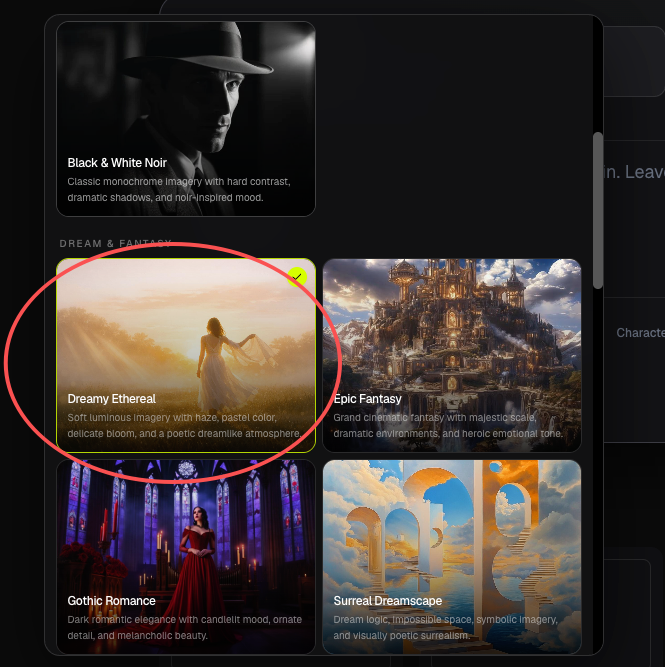
Open Visual Style to pick from the lookbook. Styles are grouped as Cinematic, Dream & Fantasy, Retro & Future and Stylized. Examples include Cinematic Realism, Dark Cinematic, Dreamy Ethereal and Epic Fantasy.
Each style is a named look with a cover image. Selecting one stores that style on the task. The storyboard and later frame/video prompt writers follow it.
Choose None when you do not want a catalog look. Music Analysis itself does not restyle the audio; style is consumed from Storyboard onward.
A style change on an existing board applies the next time you Regenerate Scenes. Keyframe prompts snapshot the style from the current storyboard, so regenerating scenes is the reliable way to change the look of later frames.
Characters
Workflow 2.0 has no preset characters. You upload every reference.
- Maximum 5 characters.
- File types: JPG, PNG, WebP or GIF, 10 MB or smaller.
- Display names: letters and digits only, no spaces or punctuation, up to 40 characters.
Evais valid;Eva Chenis not. Duplicate names get a suffix such asEva2.
Use a clear face (or full-body) photo with even light. These photos become reference images on keyframes and MiniMax clips. They are not the opening keyframe of a clip.
On Storyboard and clip descriptions, mention a character as @Name using that exact display name. See Keep Characters Consistent.
Renaming a character updates the cast. It does not rewrite storyboard text that already used the old @Name.
When these settings are used
| Setting | Used when |
|---|---|
| Video Concept | Generate Scenes / Regenerate Scenes |
| Visual Style | Scene planning and later keyframe/video prompt writers |
| Characters | Scene planning, @mentions, keyframe references, video references |
| Aspect ratio | Keyframe stills and MiniMax clips |
You can edit concept, style and characters on Music Analysis and on the Storyboard toolbar. Generate Keyframes uses the storyboard that already exists; update the board first if the cast or look changed.
FAQs
What happens if I leave Concept, Style and Character as None?
Scenes still generate from the song and captions. The model does not invent named characters you did not upload, and it does not apply a hidden default style.
Can I change style after the storyboard is generated?
Yes. Update Visual Style, then Regenerate Scenes (12 credits). Existing keyframes and videos stay until you generate them again.
Why was my character name rejected?
Names allow Unicode letters and digits only. Remove spaces, underscores and punctuation. Confirm the name after you pick the photo; the default name comes from the file name with illegal characters stripped.
Continue learning: ← Previous: 1.0 vs 2.0 · Next: Music Analysis →
Related guides
Try BeatViz Workflow 2.0
Upload a song, choose Studio Create · 2.0, and move through Music Analysis, Storyboard, Keyframes, and MiniMax clips.