How to Generate and Review a Workflow 2.0 Storyboard
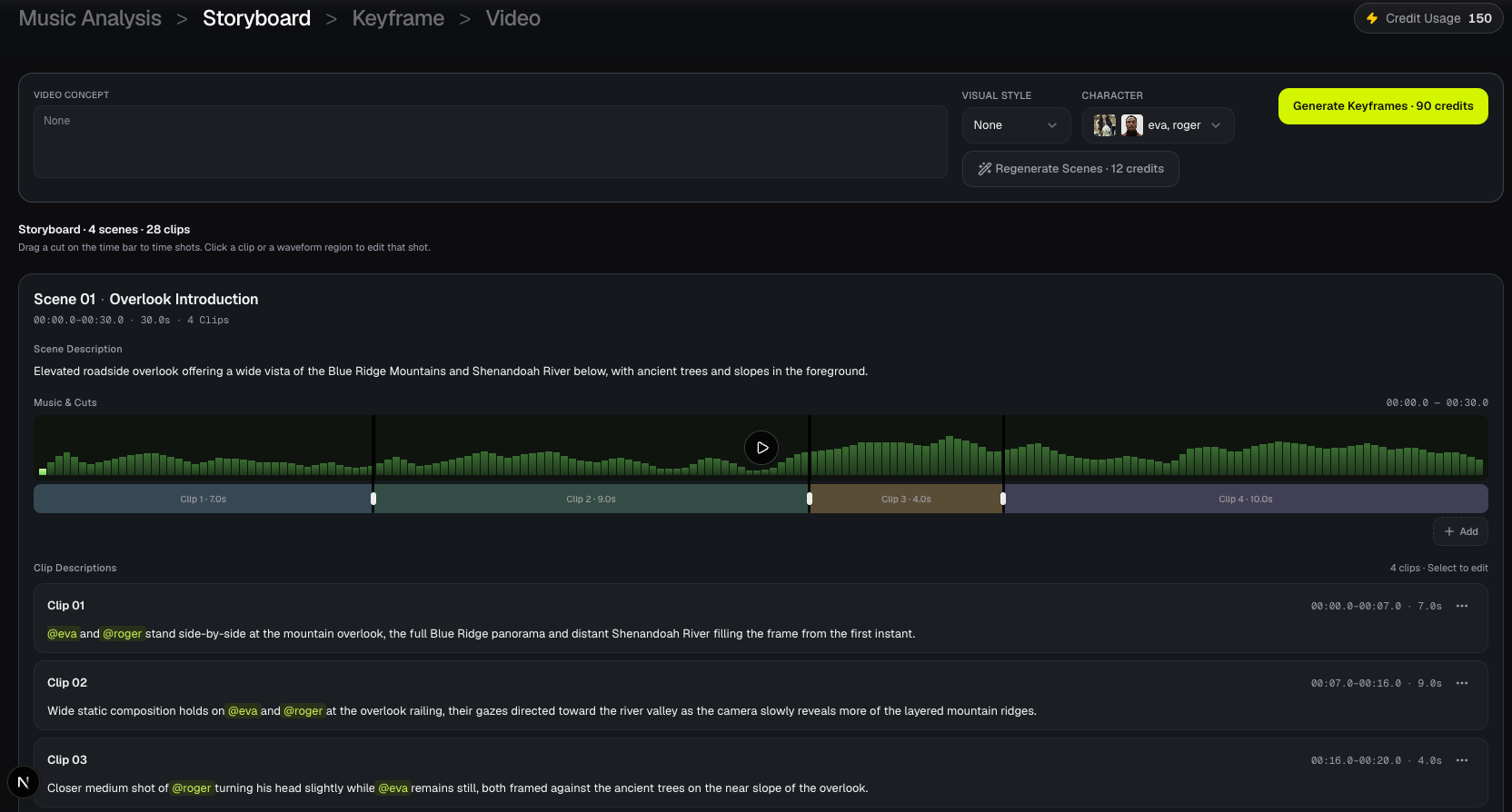
The Storyboard turns captions into a shot list. Scenes are locations and story beats. Clips are the timed shots inside a scene. You generate this board before any opening frame or MiniMax clip is billed.
Scenes and clips
A scene groups clips that share a place and a stretch of the song. Each clip has a start time, end time and a description of what should happen on screen.
Clips are packed on the music: they meet at cuts with no gaps. A clip is planned up to 15 seconds. The planner aims near 8 seconds when it can. Video generation later bills a minimum of 5 seconds even when a clip is shorter. See Credits & Costs.
Scene Description is read-only in the Studio UI. You edit clip descriptions, not the scene paragraph.
Generate Scenes
Select Generate Scenes from Music Analysis, or open the Storyboard step after analysis is ready. The first visit generates a board automatically.
- 12 credits on a new generate.
- Opening the same valid board again reuses it: no extra 12-credit charge.
- Regenerate Scenes on the Storyboard toolbar runs a new board with force and charges 12 credits again. There is no confirmation dialog.
While a board is generating, skeleton rows appear. When it finishes, the heading shows the scene and clip counts, and each scene shows a Music & Cuts waveform plus clip descriptions.
Keep Video Concept, Visual Style and Characters set the way you want before you regenerate. Those fields live on the Storyboard toolbar as well as on Music Analysis.
Review the storyboard
For each scene:
- Read the scene description so you know the location.
- Play the scene waveform. The center control plays that scene's slice of the song; clicking the waveform seeks and plays.
- Click a clip (or its strip on the waveform) to select it. The selected clip gets an accent border.
- Check that
@Namementions match characters who should be on screen. See Edit Cuts & Clip Descriptions.
There are no scene stills or clip-background plates on the live Storyboard. The board is a script plus a time bar.
Generate Keyframes
When the shot list looks right, select Generate Keyframes. That button moves you to the Keyframe step and starts opening-frame generation. Storyboard does not pick 768P / 1080P; Video Model lives on Keyframe.
If a generate fails validation (for example an unknown @mention), fix the clip text and regenerate scenes, or edit the description and try keyframes again after the board is valid.
FAQs
Why did Generate Scenes fail validation?
Typical causes are @tokens that do not match a character name, a required character missing from every clip, or leftover timing issues. Use the exact @DisplayName from your cast. Empty cast means no @ tags.
Do I pick a video model on Storyboard?
No. 768P and 1080P are on the Keyframe toolbar as Video Model. Storyboard only plans scenes and clips.
Continue learning: ← Previous: Music Analysis · Next: Edit Cuts & Descriptions →
Related guides
Try BeatViz Workflow 2.0
Upload a song, choose Studio Create · 2.0, and move through Music Analysis, Storyboard, Keyframes, and MiniMax clips.