How to Export a Complete Music Video in BeatViz Workflow 2.0
When every timeline clip has a ready video, Export composes those shots with the audio section you selected at the start into one MP4. Export is a separate step. Generating the last clip does not download a file by itself.
Step 1: Finish every clip
On the Video step, confirm every storyboard clip shows a ready take. Export stays unavailable while any clip is empty, generating or failed.
Preview the sequence on the monitor. If one shot is wrong, regenerate or replace that clip before you compose.
Export requires the selected video run to cover the selected storyboard: same clip count, every row ready with a video file.
Step 2: Select Export
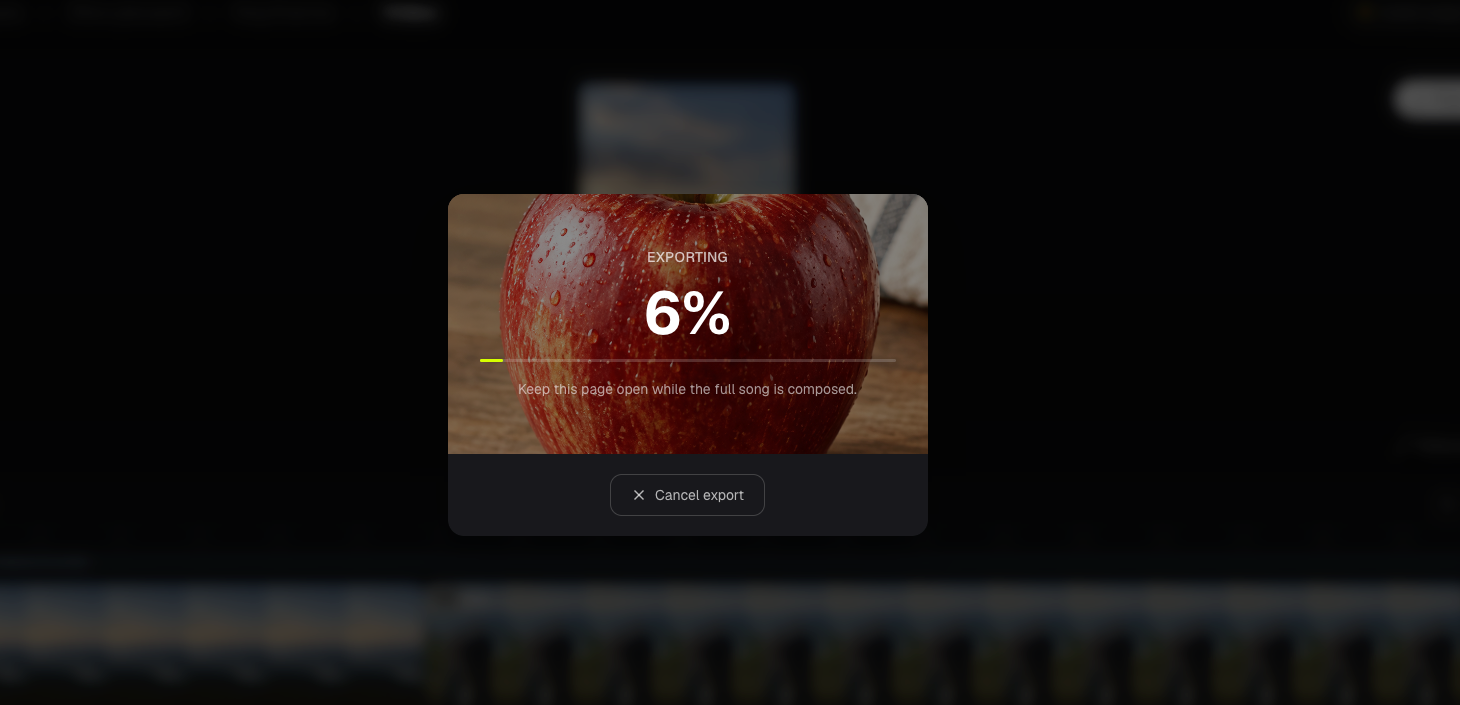
Export sits at the top-right of the Video monitor. Keep the page open while the full song is composed. Progress stays on that request.
Studio stitches clips in storyboard order. Each clip contributes its keep-window (from the start of the generated file, for the storyboard duration). The soundtrack is the trimmed task audio, not a new mix, and not Lip Sync audio.
There is no extra credit charge for Export. Watermark behavior follows your plan, the same rule as other BeatViz compose paths.
Step 3: Download or share
When compose succeeds, the export modal offers:
- Playback of the finished MP4
- Download
- Share links (X, Facebook, LinkedIn) and copy of the MP4 URL
Download is only in this success modal, not as a separate header button. If export fails, use Retry.
Completed Studio videos also appear in Creations under Workflow with a Studio badge.
Workflow 2.0 export vs Editor export
Workflow 2.0 export follows the storyboard timeline. You cannot leave gaps or rearrange clips on the Video step. Shot order and duration stay on Storyboard cuts.
For a manual timeline, LipSync, or mixing clips you generated elsewhere, use Editor export.
Common export questions
Why is Export disabled?
At least one clip is missing a ready video, or the ready count does not match the storyboard. Finish or retry those clips first.
Is the selected song section included automatically?
Yes. Export uses audio already trimmed to the waveform range you confirmed at Start Creating. You do not attach a second soundtrack.
Continue learning: ← Previous: Recover Drafts
Related guides
Try BeatViz Workflow 2.0
Upload a song, choose Studio Create · 2.0, and move through Music Analysis, Storyboard, Keyframes, and MiniMax clips.