How to Use Lip Sync on Workflow 2.0 Clips
Workflow 2.0 lip sync is a per-clip switch at video generation. It is on by default. When it is on, MiniMax receives that clip's song audio so a visible mouth can follow the vocal. When it is off, the job is images and prompt only.
This is not Workflow 1.0's post-process Lip Sync and not Editor LipSync. Studio does not run a second billed lip-sync pass after the clip is already generated.
Turn lip sync on or off per clip
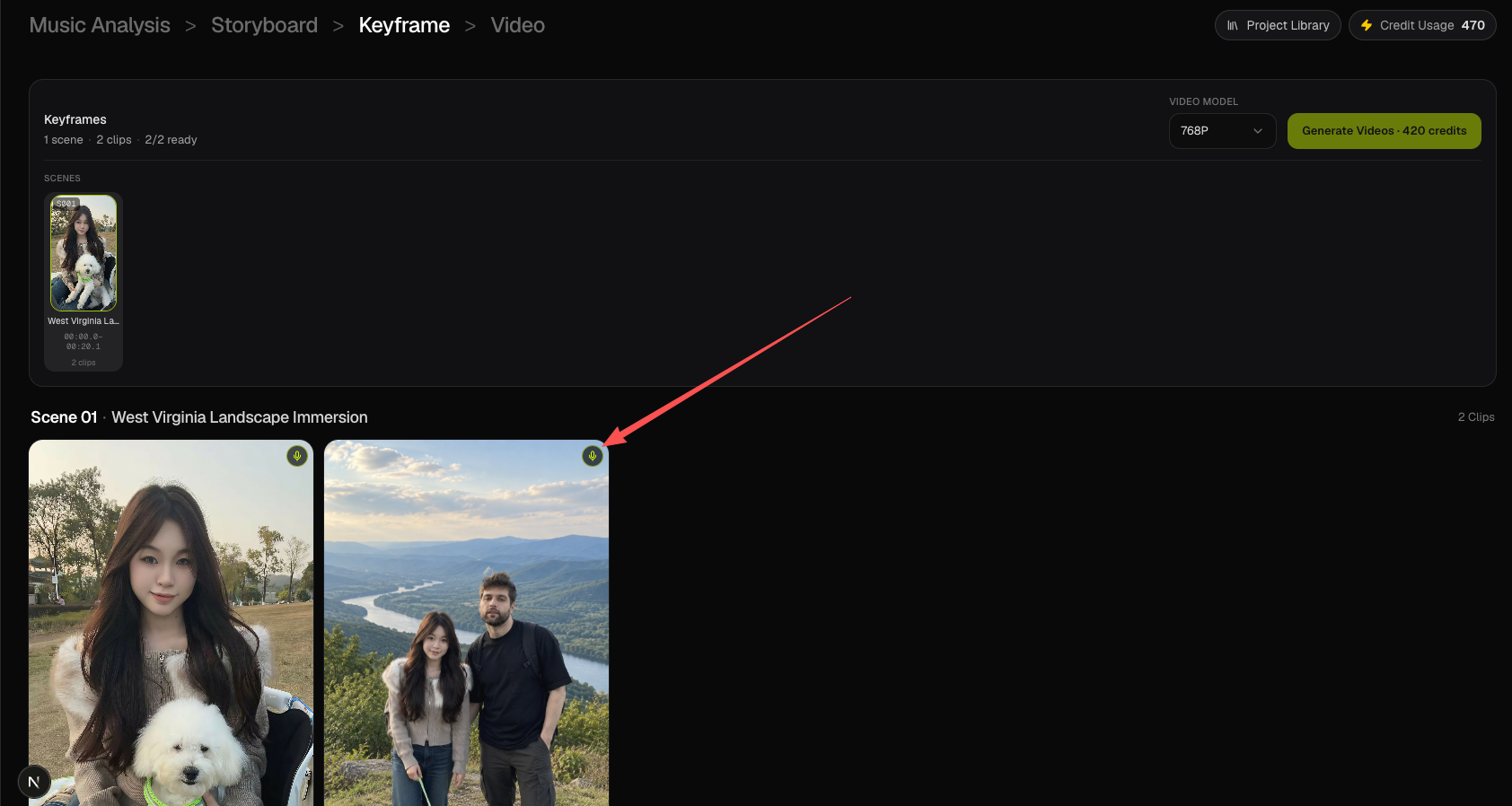
On Keyframe, every clip tile has a microphone in the top-right corner.
- Bright mic — lip sync is on for that clip.
- Dim mic — lip sync is off for that clip.
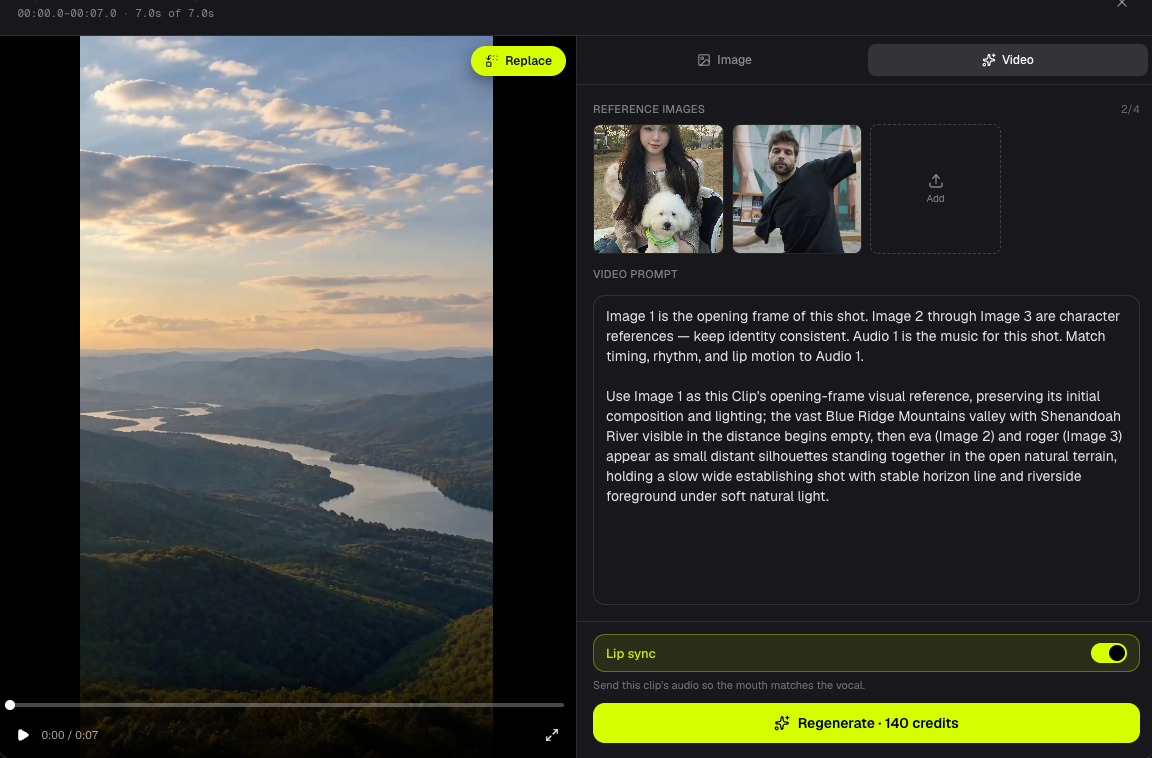
Click the microphone to toggle. The same switch is in the Keyframe inspector, above Generate Clip, and on the Video step clip editor Video tab, above Generate / Regenerate.
Turn it off for wide shots, B-roll, or any clip where a face should not sing. Leave it on when a character is singing on camera.
The setting is stored per clip. Generate Videos and per-clip Generate / Generate Clip each use that clip's own switch.
What happens when lip sync is on
This is the original MiniMax path:
- Studio trims the task song to this clip's time window (Cloud Run).
- The MiniMax prompt includes the Audio 1 block: keep the soundtrack unchanged, lip-sync when vocals are audible, and keep the mouth relaxed when they are not.
- The trimmed clip audio is sent as
reference_audio_urlswith the Fal MiniMax H3 Max job.
What happens when lip sync is off
- The Audio 1 / lip-sync prompt block is not added.
- Cloud Run does not trim clip audio.
- The Fal request has no
reference_audio_urls.
The clip still uses the opening keyframe as Image 1 and any character references. Video credits do not change.
Workflow 2.0 vs Workflow 1.0 and Editor
| Path | How lip sync works |
|---|---|
| Workflow 2.0 | Per-clip switch at MiniMax generation. On sends clip audio with the job. Off skips audio. No extra credits. |
| Workflow 1.0 | Singing can run a billed lip-sync pass after the base clip. Other Content Modes have a scene-card Lip Sync button. |
| Editor | Timeline LipSync on a finished clip, billed per second, up to 15 seconds. |
Export still uses the original selected song as the soundtrack, not MiniMax's generated audio. See Export Your Video.
FAQs
Does turning off lip sync save video credits?
No. MiniMax is still billed on the integer clip duration at 768P (20 credits/s) or 1080P (40 credits/s). The switch only controls whether that clip's audio is trimmed and sent with the job.
Can I change lip sync after a clip is already generated?
Yes. Toggle the microphone or the Video-tab switch, then Generate / Regenerate that clip. The new job follows the new setting. Replace from history does not re-run MiniMax.
Is this the same as Workflow 1.0 Singing?
No. Studio does not have Content Mode and does not run a second lip-sync model after the video exists. For that path, use Workflow 1.0 Singing or Editor LipSync.
Continue learning: ← Previous: Generate Video Clips · Next: Regenerate a Frame or Clip →
Related guides
Try BeatViz Workflow 2.0
Upload a song, choose Studio Create · 2.0, and move through Music Analysis, Storyboard, Keyframes, and MiniMax clips.