First Frames vs Reference Images: Which Should You Use?
BeatViz Workflow supports several image roles, and they are not interchangeable. Understanding the difference helps when your character changes appearance or a generated clip does not begin with the shot you expected.
Three different image roles
| Image type | Where you use it | What it controls |
|---|---|---|
| Character reference | Character slots during setup or later scene adjustments | Supplies identity context for first-frame generation |
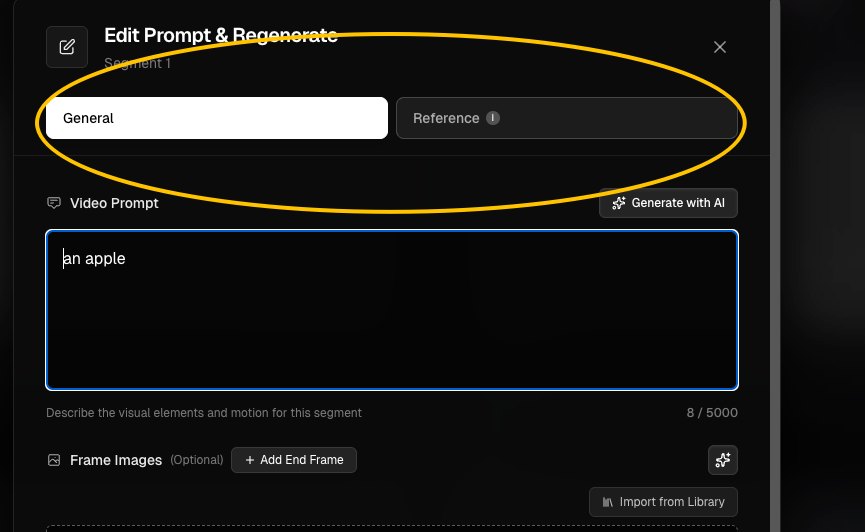
| Start Frame | A scene's storyboard image or General video-regeneration controls | Defines the actual opening visual of the generated clip |
| Reference image | Reference tab when regenerating a Standard clip | Guides appearance, composition or mood without a fixed first-frame requirement |
There is also an optional End Frame in the General video-regeneration controls, used to steer the shot's ending. End frames are not automatically produced with the original storyboard.
Use a Start Frame to control the opening shot
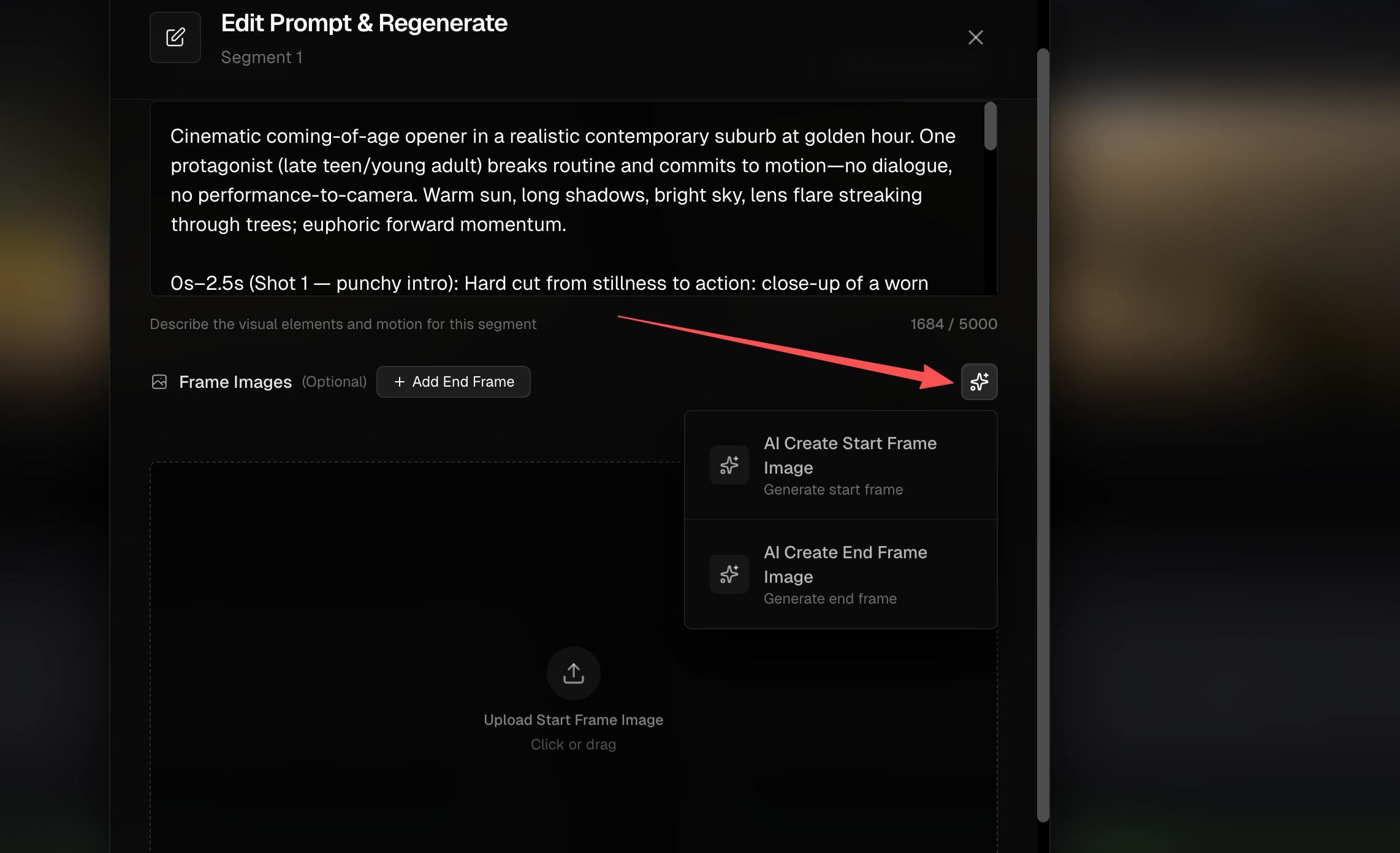
The Start Frame should clearly show the person, location and framing you need at the start of the clip. If the Start Frame contains an incorrect face, fixing the text prompt alone may not correct it. Replace the image from the current task's library, upload an appropriate image, or regenerate that frame where your plan allows it.
Use Reference images for looser visual guidance
On Standard video regeneration, switch to Reference to provide up to three images. These can guide the look of the subject and the overall composition, but there is no guarantee that one reference appears as the literal first frame. A reference can focus on the person without showing the background of the final scene.
Pro and Premium do not have the Reference tab in the current Workflow regeneration flow. Use their General start/end-frame controls instead.
Using images from your task's library
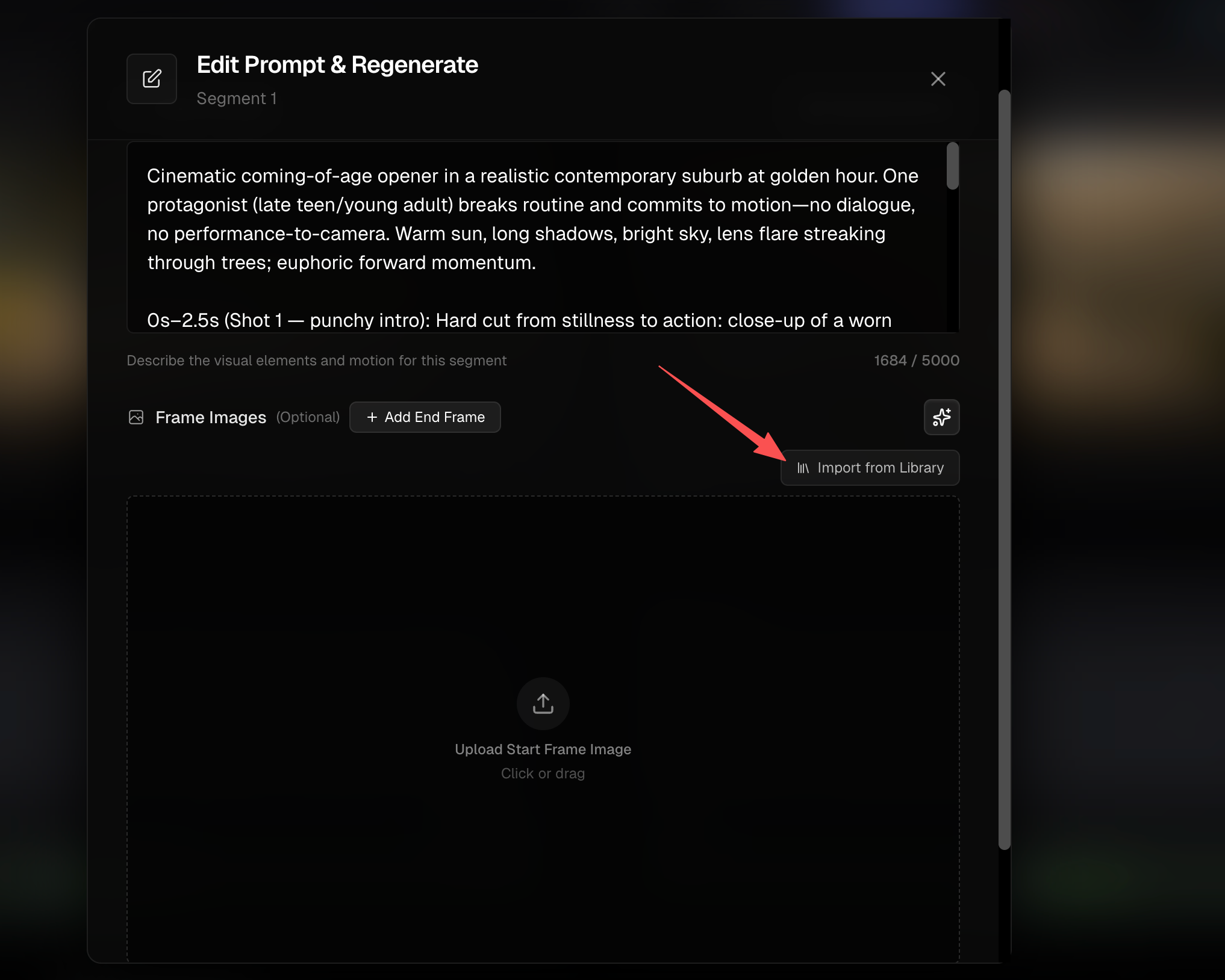
Choose Import from Library within the relevant scene or regeneration controls to reuse images already generated for the current Workflow task. The picker includes the task's scene first frames and the current scene's last-used image. It should not be described as a sitewide or cross-task image library.
If your own image is better, upload it (up to 10 MB for the custom first-frame path). You can also generate a new first frame with the AI image tool and pay the appropriate first-frame generation charge.
A practical decision guide
Need the video to open on an exact pose and location? Use Start Frame. Need to suggest a character's appearance but allow the opening shot to vary? Use Reference, available only in Standard regeneration. Need the same person across many scenes? Add a character in task setup, then verify and repair each scene's actual Start Frame.
FAQs
Is an uploaded character automatically the video's first frame?
No. It is used as a reference during first-frame generation.
Can I use references in a Premium video regeneration?
Not through the dedicated Reference tab described here. Premium uses the General start/end-frame path.
Does replacing a first frame also regenerate the video automatically?
Changing the frame prepares a different starting image for subsequent video generation. Run the relevant video generation or regeneration action to produce new moving footage.
Continue learning: ← Previous: Regenerate a Clip · Next: Keep Characters Consistent →
Related guides
Try BeatViz Workflow
Upload a song, choose a Content Mode, and let Workflow plan scenes, first frames, and clips for you.