Storytelling, Singing, Dancing or Abstract: Choose a Workflow Content Mode
Content Mode tells BeatViz what the visuals should respond to in your music. It affects audio analysis, creative directions, the storyline and scene prompts. Choosing a Content Mode is not the same as choosing a generation model or resolution.
The four Content Modes
| Content Mode | Best starting point | What changes in the workflow | Automatic lip sync? |
|---|---|---|---|
| Storytelling (default) | Narrative music videos with scenes and a story | Analysis and prompts favor scenes and narrative progression | No |
| Singing (Beta) | Visible vocals and singing performances | Analysis pays attention to singing and lyric timings; a lip-sync step follows video generation | Yes |
| Dancing | Rhythm-focused motion and dance sequences | Analysis and prompts emphasize movement and rhythm | No |
| Abstract | Atmosphere, textures and nonliteral visual ideas | Analysis and prompts emphasize aesthetic and mood | No |
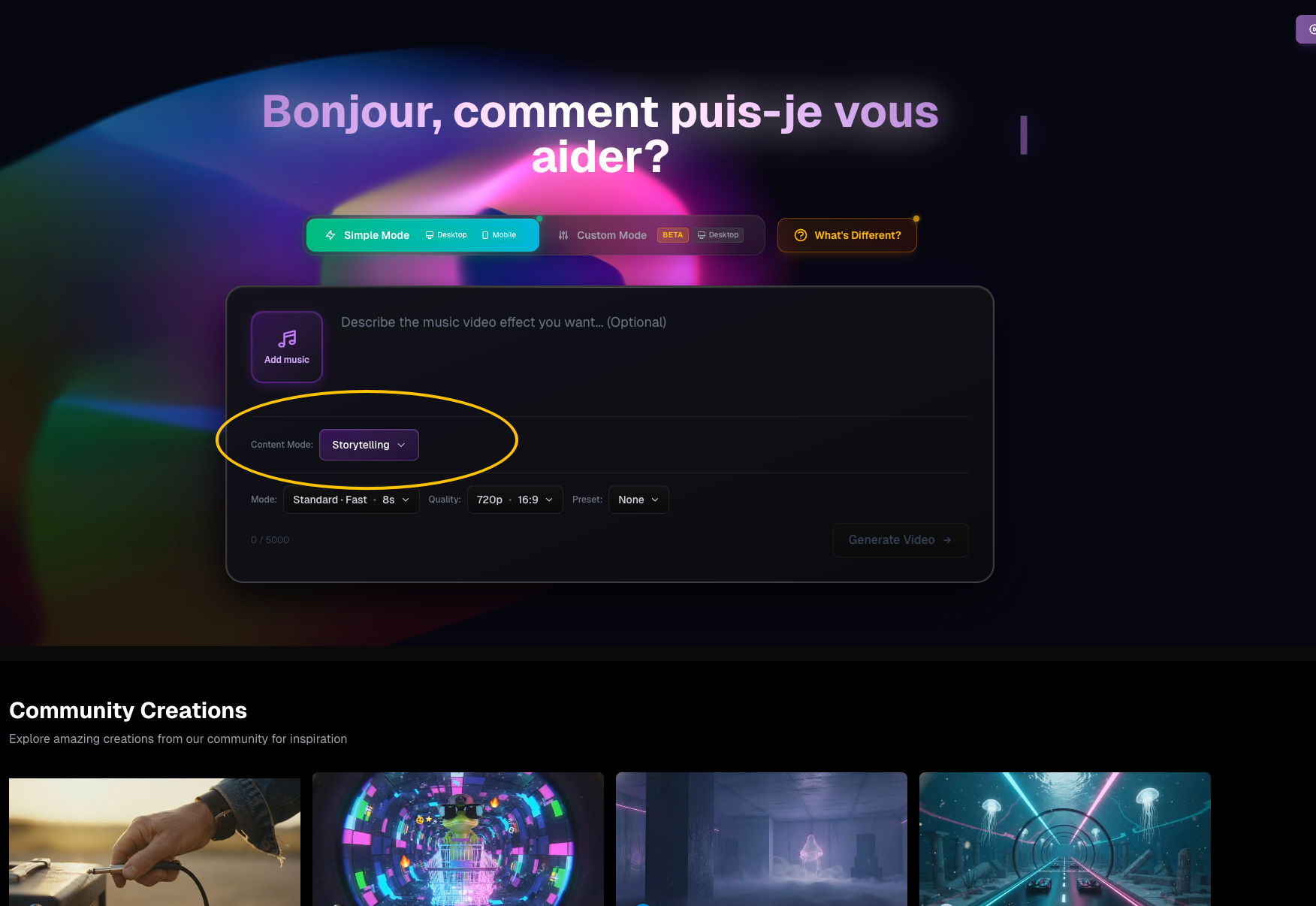
How to select a Content Mode
- Open Workflow and upload your audio.
- Find Content Mode on the setup screen.
- Choose Storytelling, Singing, Dancing or Abstract.
- Review the other settings, including generation tier and aspect ratio.
- Start with Generate Video and review the concepts and storyline the mode produces.
The selected mode is one of the settings carried into the task, so choose it based on what you want the video to communicate.
When to choose Storytelling
Use Storytelling if the song suggests a character arc, a series of locations or changes of mood. For instance, an emotional ballad might move from a quiet room to a nighttime city and finally to a hopeful sunrise. You will still review three creative concepts and a scene-by-scene storyline before generating first frames.
When to choose Singing
Choose Singing (Beta) when showing a performer delivering vocals is important. The workflow can identify lyric timings during its analysis. When you later select Generate All Videos, BeatViz includes the additional lip-sync credits in the amount charged and performs lip sync after the video clips render.
Important: Singing is not a guarantee that every facial movement will match perfectly. Your first frames should clearly show the person whose mouth needs to move. Standard Mode does not offer its 1080p option when Singing is selected.
When to choose Dancing or Abstract
Choose Dancing for movement-led scenes: choreography, rhythmic actions, performance energy or other motion-driven visuals. Choose Abstract when shapes, color, light, textures and mood are more important than a consistent onscreen character. Neither mode automatically performs lip sync; you may use a scene's Lip Sync control manually after its video is ready.
A common source of confusion: mode vs video model
A Content Mode controls the creative analysis and prompt direction. A generation Mode—Standard, Pro or Premium—controls the video model, eligible clip duration, resolution and credit rate. These are separate choices. See Generation Modes.
FAQs
Can I add lip sync to a Storytelling video?
Yes. Once the scene's video has finished generating, use the card's Lip Sync button. That is a separate credit-charged step.
Does Dancing add automatic lip sync?
No. Only Singing includes the automatic post-generation lip-sync workflow.
Is Singing more expensive?
It includes additional lip-sync credits charged when you start video generation. Use the Credits guide to understand the breakdown.
Continue learning: ← Previous: Create Your First Task · Next: Standard, Pro & Premium →
Related guides
Try BeatViz Workflow
Upload a song, choose a Content Mode, and let Workflow plan scenes, first frames, and clips for you.