How to Keep the Same Character Across AI Music Video Scenes
For a music video featuring the same singer, band member or lead actor in several scenes, the most important check in BeatViz Workflow is usually the actual first-frame image used for each clip. A character upload helps, but it does not guarantee that the model reproduces the same person perfectly every time.
Step 1: Add a recognizable character reference
During Workflow setup, upload, choose or generate a character. Workflow supports up to two characters. Uploaded images can be up to 10 MB, and the character is stored with its background removed.
Avoid group photographs for a single character slot. A clear image of one identifiable person gives the first-frame model more direct identity information than a complicated scene with multiple faces.
Step 2: Check the first frame of every scene
After the storyline is confirmed, Workflow generates a first frame for each scene. Look at every image before selecting Generate All Videos. Check the face, the number of people and whether the intended character is actually present.
If the first frame does not contain the correct person, do not rely on a video prompt such as “show the same singer” to repair the error. The later video model may continue from the incorrect face or produce another person.
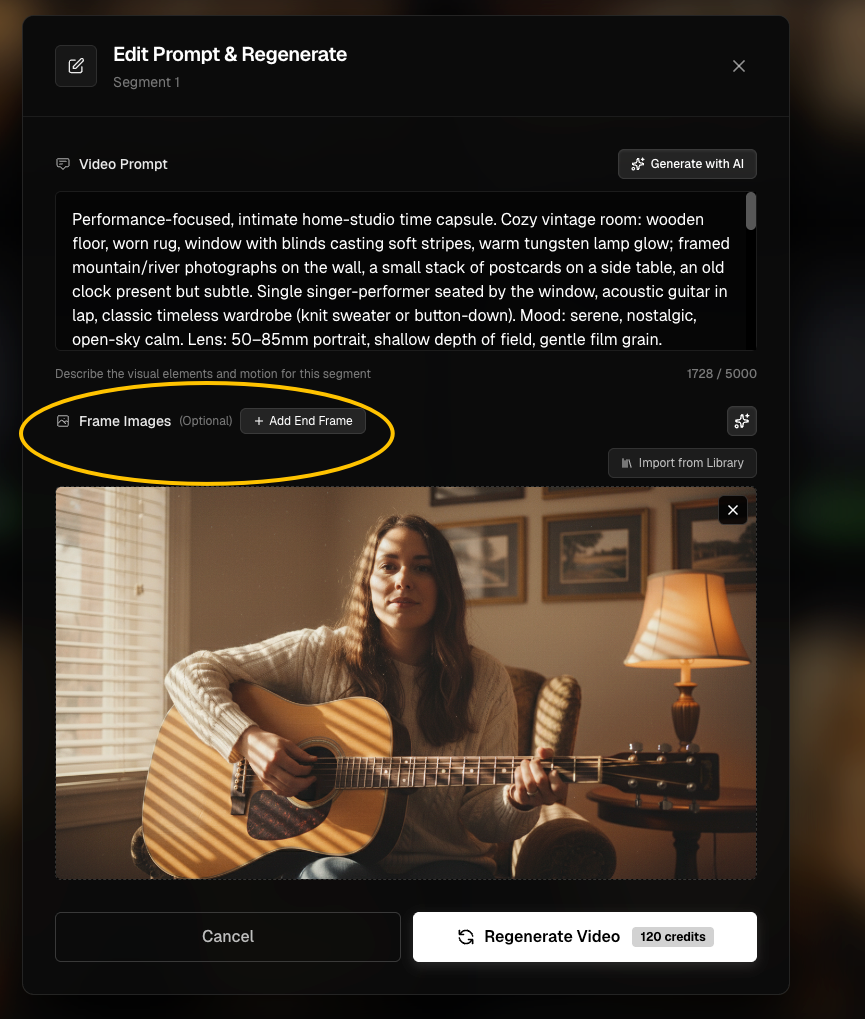
Step 3: Repair the specific scene, not the entire video
Open the incorrect scene and use the available controls to:
- Regenerate its first frame with a better prompt and suitable references (paid feature).
- Replace the frame using another image from this task's library.
- Upload a custom first-frame image where the regeneration interface offers that control.
- Adjust the scene's character slots when necessary.
When two consecutive clips show noticeably different people, compare their start frames first. Fixing only the affected scene is usually more efficient than rerunning the complete task.
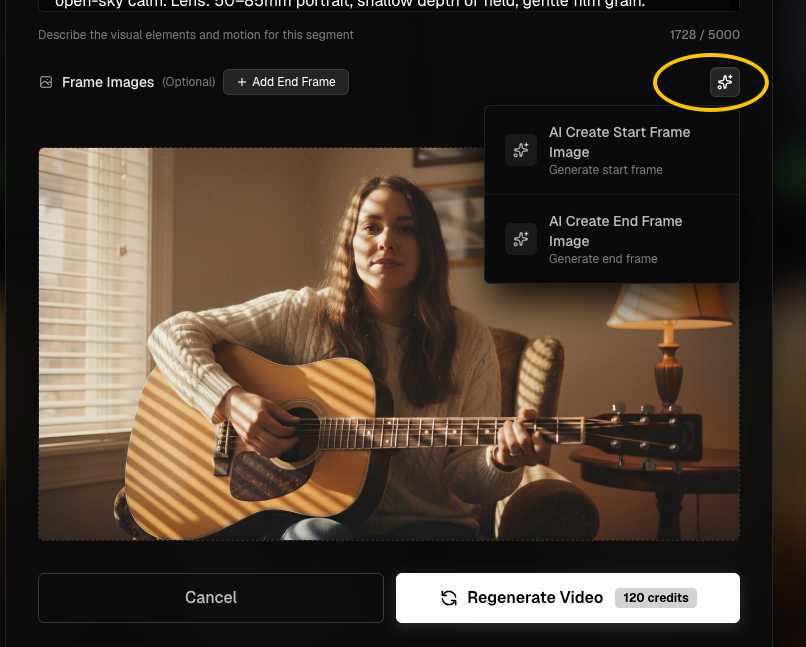
Step 4: Treat a two-character scene carefully
For two characters, refer to them by the order of their supplied references where possible—for example, character in reference image 1 and character in reference image 2. Inspect both faces in the first frame. Avoid long, contradictory appearance descriptions that conflict with the reference images.
Step 5: Know the limits of a character reference
Visual identity is probabilistic in generative video. Consistency can vary across scenes, angles, poses, lighting and the selected video model. Treat higher-quality modes as alternative generation paths, not a perfect identity lock. Review a corrected first frame before using credits on another video generation.
Troubleshooting
The same singer looks different in Scene 4
Inspect Scene 4's Start Frame. If it has the wrong face, regenerate or replace that frame, then regenerate the scene video if it had already been produced.
The video prompt names the right person, but the clip shows someone else
The first frame may not contain the intended reference character. Correct the visual source first.
Can I import a useful frame from a different task?
Not directly through Import from Library, which is scoped to the current task. Use an available upload control if you have the correct image saved on your device.
Related controls
See Add Characters for setup and First Frames vs Reference Images to choose the right image type.
Continue learning: ← Previous: First Frames vs References · Next: Add Lip Sync →
Related guides
Try BeatViz Workflow
Upload a song, choose a Content Mode, and let Workflow plan scenes, first frames, and clips for you.