How to Choose a Music Video Style in BeatViz Workflow
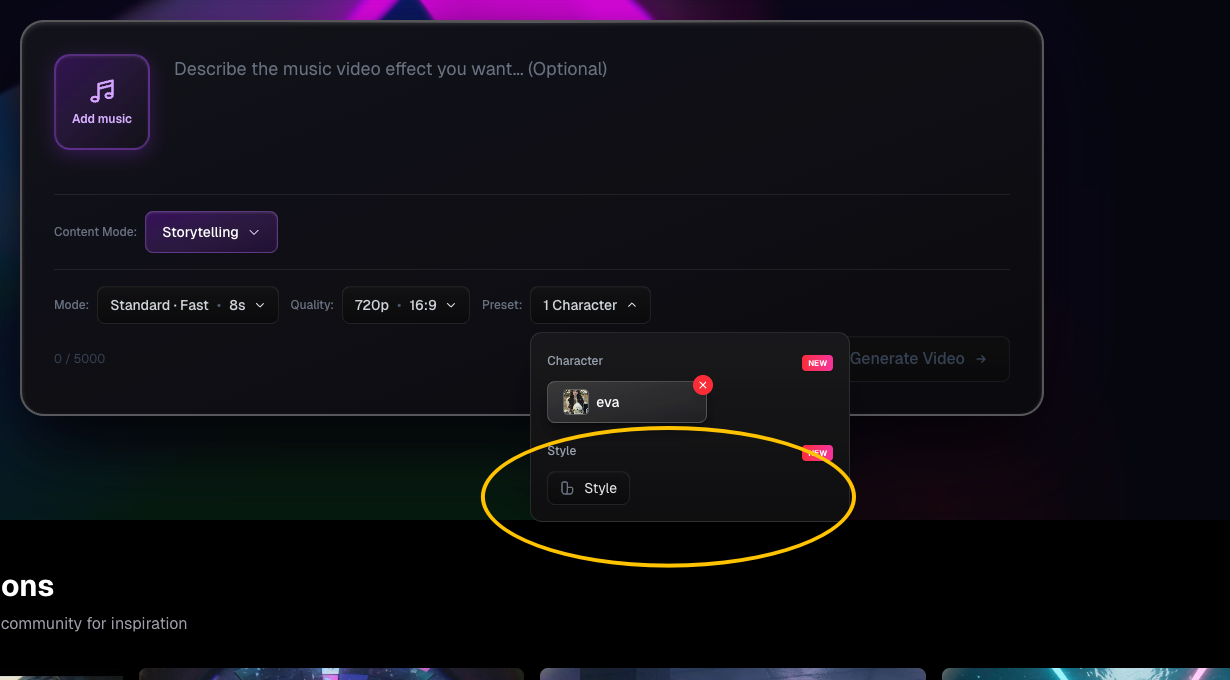
Style is an optional preset that helps Workflow maintain a creative direction across its concepts, storyline and first-frame prompts. Rather than relying on a single word like “cinematic,” the current style selector combines an Emotion step with a Visual step.
Step 1: Choose an Emotion
Select Style during Workflow setup. The first step is Emotion, grouped into Emotional, Vibe and Attitude categories. Each choice has a thumbnail to help you judge its direction. You can also explore recommended combinations if you need inspiration.
Think about what you want a viewer to feel: intimacy, intensity, energy, nostalgia or mystery. Do not confuse the emotion category with Content Mode. Content Mode changes how the music is analyzed; Style describes its look and emotional character.
Step 2: Choose a Visual look
Next, open Visual and choose the visual treatment. Available examples include Fairy Tale, Anime, Realistic, Oil Painting, Cyberpunk, Retro VHS, Watercolor and Minimal. You can also select None if you do not want a particular visual treatment.
Workflow combines the selected emotion and visual options into a style name and uses it when generating the creative directions, storyline and first-frame prompts.
Example combinations
These are illustrative creative ideas, not additional button names or guaranteed presets:
- Reflective mood + Realistic: a grounded, human-centered music video with everyday locations.
- Energetic mood + Retro VHS: a performance-led piece with vintage-video texture.
- Dreamlike mood + Fairy Tale: a fantasy visual arc for an atmospheric song.
- Reserved mood + Minimal: sparse locations, shapes and restrained visual changes.
Choose your actual options using the current Emotion and Visual menus.
How to know whether the style is working
After audio analysis, review each creative direction card for its Concept, World, Style and Mood. Then examine the storyline. If the selected visual direction does not fit your song, choose a different suggested direction or—if your plan allows it—regenerate directions with a preference. Once first frames are available, inspect their lighting, composition and palette before moving to videos.
FAQs
Are Epic, Funny, Happy and Sad current menu options?
Those terms appeared in an older tutorial. The current Workflow selector is organized around Emotion and Visual choices; use the labels presented in the product.
Is setting a style mandatory?
No. It is optional, but a clear direction can make a multi-scene video feel more coherent.
Can Style replace a character reference?
No. Style guides the visual treatment; a character reference guides identity. Use both when you want a consistent performer and a consistent look.
Continue learning: ← Previous: Add Characters · Next: Creative Directions →
Related guides
Try BeatViz Workflow
Upload a song, choose a Content Mode, and let Workflow plan scenes, first frames, and clips for you.