How to Generate AI Video Clips With First and Last Frames
A finished music video is assembled from generated video clips. BeatViz Classic Editor lets you write a video prompt, choose an available model, set its duration and output options, and optionally guide a shot with a first frame. Some models also support a last frame.
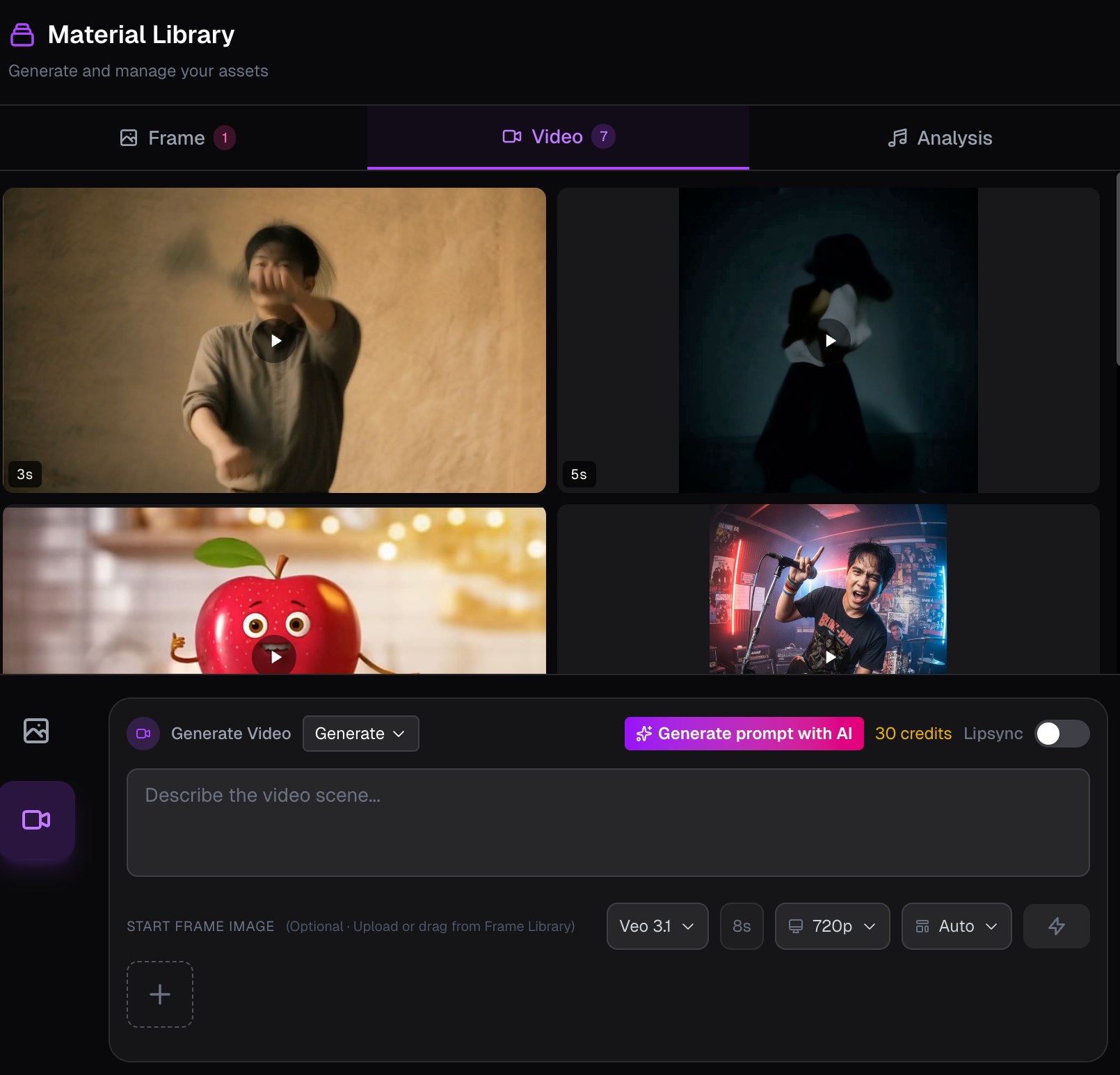
Step-by-step: generate a video in Classic
- Open your project in Classic Editor.
- In the generator, select Video. The default video workflow is Generate.
- Describe what happens in the shot: subject, action, movement, camera direction, and any important visual details.
- Select a video model and an available duration and resolution option.
- If useful, select a first-frame image. For models that support it, you may also select a last-frame image.
- Click Generate. Credits are charged at submission, based on the selected model and generation options.
The result appears in the Videos library when generation finishes. It is not automatically inserted into the timeline.
Video models and available durations
| Video model | Duration options | Resolution / notes | First + last frames? |
|---|---|---|---|
| Veo 3.1 | 4, 6, 8 sec (default 8) | Standard model setting | Yes |
| Veo 3.1 Quality | 8 sec | Standard model setting | Yes |
| MiniMax H3 | 5, 8, 10 sec | 768p or 2K | Yes |
| Wan 2.6 | 5, 10, 15 sec | Standard model setting | No last frame |
| Kling 2.6 | 5, 10 sec | Submitted at 720p; no manual resolution selection | No last frame |
| Kling 3.0 | 5, 8, 10, 12, 15 sec | Standard model setting | Yes |
| Sora 2 Pro | 10, 15 sec (default 10) | Standard model setting | No last frame |
The first-frame image is optional. The additional last-frame image is available with Veo 3.1, Veo 3.1 Quality, MiniMax H3, and Kling 3.0. Model availability and credit costs should always be checked in the current generator.
What does a first frame change?
A first frame defines the visual starting point of your clip. It can influence framing, character appearance, and the overall artistic direction. For example, start from a generated close-up of your singer, then instruct the video model to move the camera slowly toward the stage lights.
In Classic, the project character image is not automatically passed to the video generator. If you want that character in the shot, select an appropriate first-frame or supported visual reference yourself.
When should you use a last frame?
A last frame helps guide the visual destination of a shot on supported models. Use it when you want to move from one planned composition toward another. It is not available with every model, so check the first/last-frame controls before submitting a job.
What about Motion Control?
The same Video generator also has Motion Control, which uses a character image and a reference-motion video to guide generated movement. It is a different workflow from writing a standard video prompt. Follow the controls and limits displayed by the live Motion Control interface. The separate inpainting/person-replacement interfaces are currently hidden and are not part of this tutorial.
Add your result to the music video
Once the generation is complete, open the Videos library, preview the clip, and place it on the music video timeline. You can trim it or change its position after it has been added.
FAQs
Do videos automatically appear on the timeline?
No. Finished videos go into the material library. Add them manually (or use supported Chat timeline commands) when you're ready to assemble your edit.
Can every model use a last frame?
No. Only the models listed above support that option in the documented current interface.
Does Chat have the same video controls?
Chat lets you select a video model and an available duration · resolution choice with the credit cost shown. Its default model is Veo 3.1. See Chat video settings.
Next: Arrange clips on the timeline · Learn about first-frame images · Try BeatViz
Related guides
Try BeatViz Editor
Open a project with your song. Classic and Chat share the same images, videos, and timeline.