Classic vs Chat: Understand the BeatViz Editor Workspace
BeatViz Editor offers two ways to create an AI music video: Classic, where you operate the generators and timeline directly, and Chat, where you ask for shots in conversation. The important detail is that they are two interfaces for one project, not two separate projects or separate libraries.
What is Classic Editor?
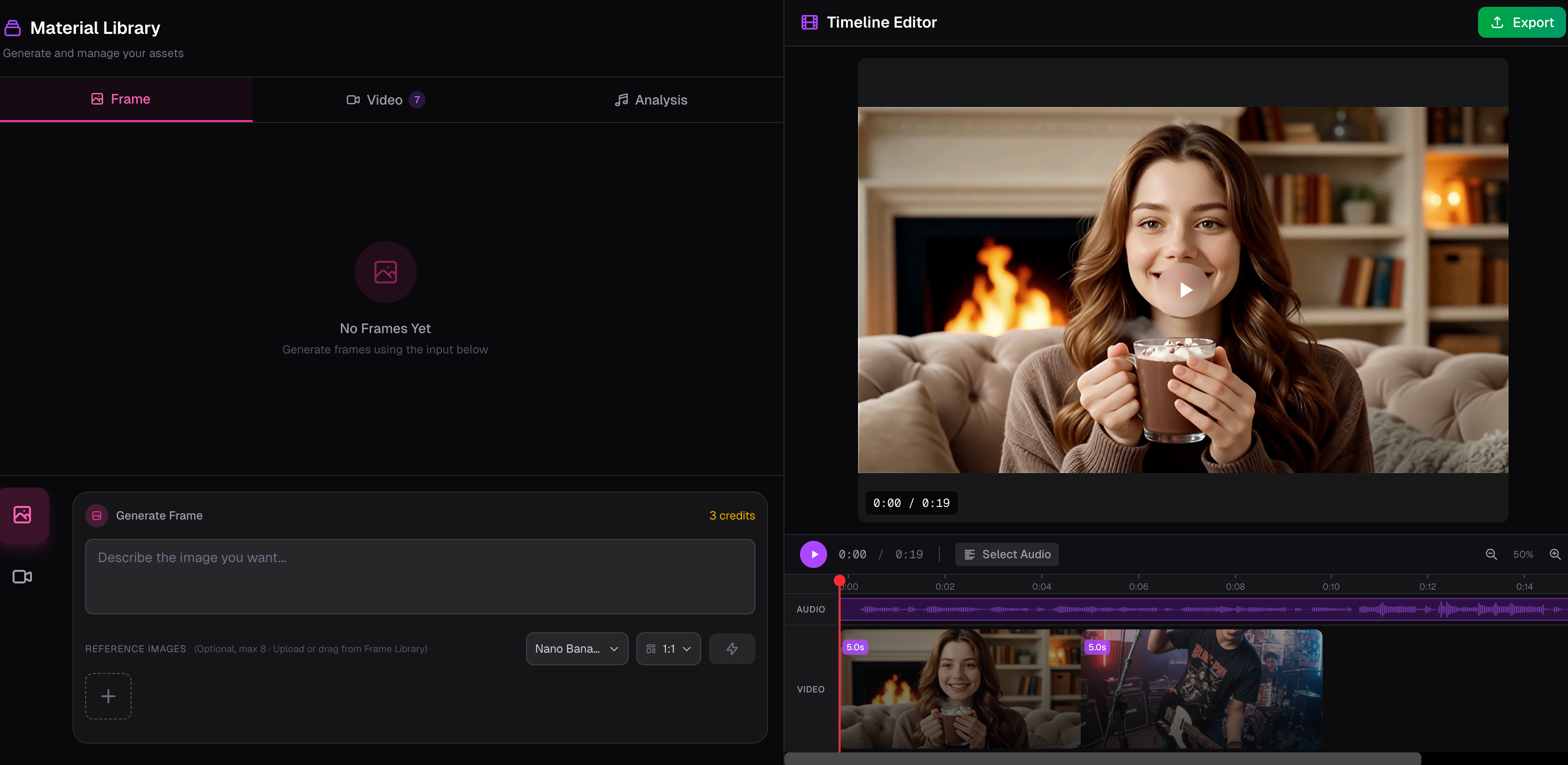
Open Classic when you want direct control over prompts, models, references, Storyboard, and timeline edits. On desktop, the workspace is divided into two main sides:
- Left: The material library at the top and the image/video generator underneath it.
- Right: Video preview with the song's audio timeline below.
The material library has four tabs: Images, Videos, Storyboard, and Prompts. Generated images and videos appear in the library first; they do not automatically become timeline clips.
Storyboard analyzes the uploaded song and helps plan scenes. Prompts turns the storyboard into editable image and video prompts. These are not separate, read-only audio-analysis panels. Learn how they work in Storyboard and Prompts.
What is Chat Editor?
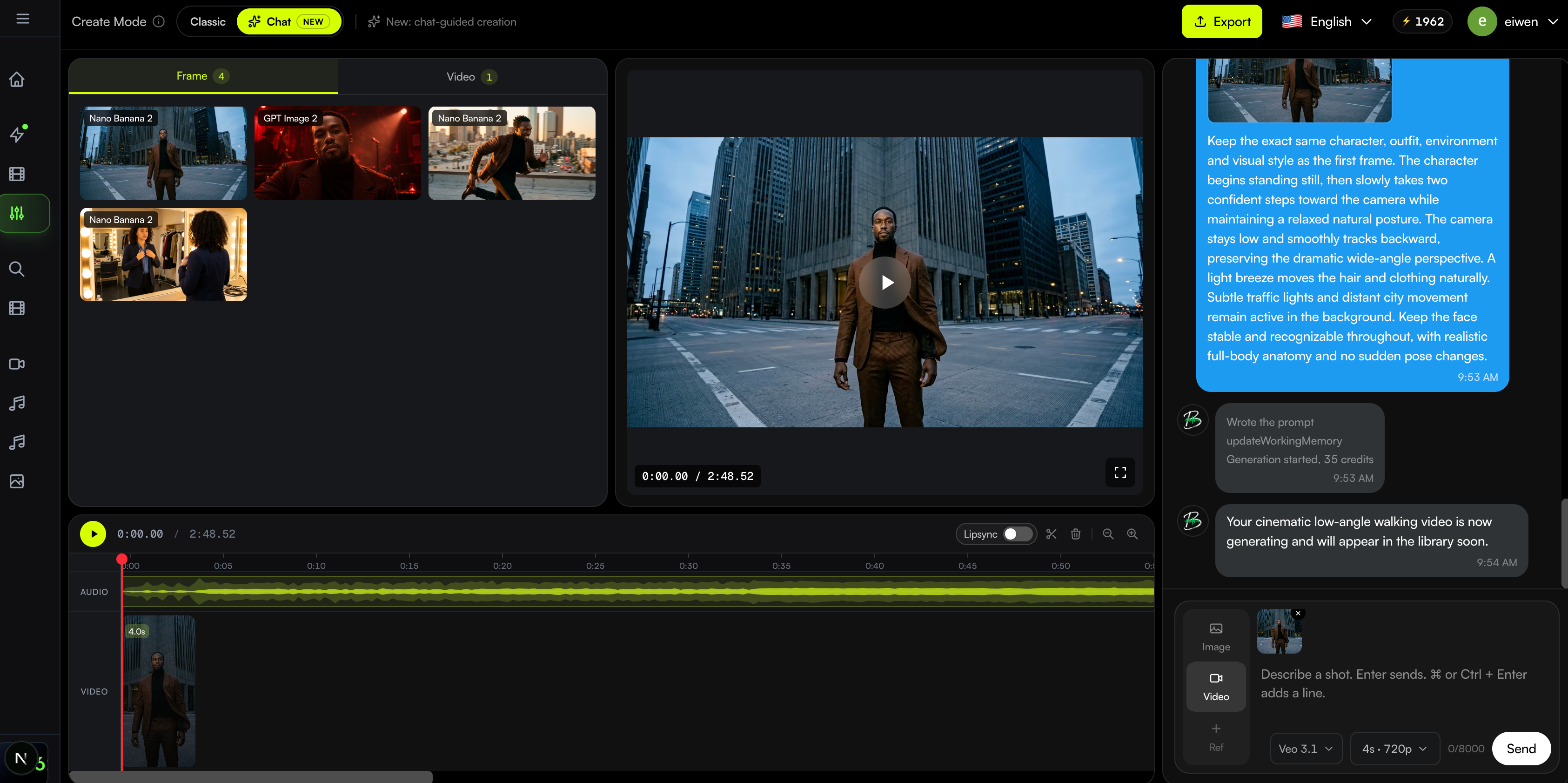
Open Chat to describe the shot you want and let BeatViz prepare the generation request. On a desktop, the library and preview are on the left, the timeline runs along the bottom, and the conversation is on the right. Chat displays Images and Videos in its library; Storyboard and Prompts are available through Classic instead.
Chat shows a confirmation card with the generation settings. A generation starts and charges credits only after you choose Confirm. See How Chat credits and confirmation work.
How to switch between Classic and Chat
On a desktop or tablet, use the Create Mode switch in the top bar. Changing modes preserves your project's song, generated media, and video timeline. The top bar also contains export, language, credits, and profile controls.
On a phone (screen width below 768 px), Editor opens Chat; there is no Classic/Chat switch. Visiting a Classic URL on a phone takes you to Chat for the same project. Read Editor on Mobile for details.
Which mode should you choose?
| Task | Classic | Chat |
|---|---|---|
| Select models and enter prompts manually | Yes | Via chat controls and confirmation |
| Access Storyboard and Prompts | Yes | Not in the Chat library |
| Generate images and videos | Yes | Yes |
| Reuse the project's generated media | Yes | Yes |
| Arrange videos on the timeline | Yes | Yes |
| Generate clips on a phone | Chat opens instead | Yes |
Tip: Use Storyboard and Prompts in Classic to organize the story, then Chat for quick shot requests, or stay in Classic for direct generation controls. Switching does not reset your work.
FAQs
Will switching modes delete my clips or prompts?
Switching modes does not create a new project or remove its shared library and timeline. The controls shown on screen change, but both modes use the same project data.
Where is Audio Analysis?
There is no standalone panel named Audio Analysis in the current Classic layout. Audio analysis happens as part of Storyboard creation.
Why can't I switch to Classic on my phone?
Phones use the Chat interface. Use a desktop or tablet to access the Classic/Chat switch.
Next: Plan shots with Storyboard · Create with Chat · Start creating
Related guides
Try BeatViz Editor
Open a project with your song. Classic and Chat share the same images, videos, and timeline.