How to Create a Music Video With Suno AI
Creating the song is no longer the hardest part.
With Suno, you can start with an idea, a few lyrics, a genre, or even a reference image or audio clip and turn it into a finished track. But once the song sounds right, a different question appears:
How do you turn that Suno song into something people can actually watch?
Suno now includes several video-related features. You can download songs as video files, create visual cover art, and use Hooks to pair a Suno song with a video you upload. But Suno is still primarily a music creation platform. Its video features are not the same as producing a complete, multi-scene music video with characters, locations, performance shots, camera direction, lip sync, and a visual story that evolves across the full song.
A more complete AI music video workflow looks like this:
Music idea → Create the song in Suno → Finalize the track → Plan the visual direction → Build scenes → Generate shots → Edit → Export
In this guide, we'll go through that entire process.
You'll learn what Suno can handle on its own, when its built-in video options may already be enough, and how to move from a finished Suno song into a complete AI music video when you want something more ambitious.
Can You Actually Make a Music Video With Suno AI?
Yes—but it depends on what you mean by a “music video.”
Suno has gradually added more visual features around its music platform.
Songs can currently be downloaded as video files. Suno's Cover Art tools can also create an image or video around a song, and Hooks lets creators combine one of their Suno tracks with a video uploaded from their device.
For some releases, that may be all you need.
If your goal is simply to:
- •Put a song on YouTube with artwork
- •Create a visual companion for your track
- •Share a short clip inside Suno
- •Add lyrics to a short social video
- •Give an audio release something visual to accompany it
then a simple video format may be enough.
But there is an important difference between putting a visual around a song and directing a full music video.
Suno's Hooks documentation is particularly clear about this distinction: creators upload the video themselves, while Suno pairs that video with the selected song. Suno does not generate the Hook video for you.
A full AI music video usually involves much more:
- •Multiple scenes that change throughout the song
- •A recurring singer, rapper, band, or protagonist
- •Consistent character appearance
- •Different locations and shot sizes
- •Visual changes between verses and choruses
- •Performance shots
- •Storytelling or narrative progression
- •Camera movement
- •Lip-sync sections
- •Scene-by-scene revisions
- •A complete timeline covering the track
That's a different production problem.
A useful way to think about it is:
Suno creates the music. A music video workflow creates the visual world around that music.
And the better you prepare the song for that second stage, the easier the video becomes.
Step 1: Create Your Suno Song With the Music Video in Mind
Most people start a Suno song by thinking only about sound:
female synth-pop, emotional vocals, 1980s influence, cinematic chorus
That can produce a good track.
But if you already know you want to create a music video afterward, it helps to think about the song visually before it is finished.
Instead of only asking:
What should this song sound like?
also ask:
What could this song look like?
Give the Song a Visual Identity
Imagine the finished track playing with the screen muted.
What would still communicate the same feeling?
Maybe it's:
- •A singer alone in an empty hotel
- •Two people driving through the desert at night
- •A rapper performing inside an industrial warehouse
- •A fictional band playing in a crowded basement club
- •A character crossing a surreal landscape
- •A dancer moving between several real-world locations
- •A story unfolding from isolation to reunion
You do not need a complete script yet.
You only need enough direction to stop the eventual music video from becoming a random collection of attractive AI clips.
Make the Chorus Feel Different From the Verse
Music videos become much easier to direct when the song itself has clear changes in energy.
A quiet verse might support:
- •Close-ups
- •Slow camera movement
- •Smaller spaces
- •Minimal performance
- •Intimate lighting
The chorus might shift toward:
- •Wider environments
- •More movement
- •Performance shots
- •Faster camera motion
- •Brighter or more dramatic lighting
- •Larger crowds
- •Dance
- •Visual transformations
The chorus does not need to become chaotic.
It simply needs to feel like the song has reached somewhere new.
Think About Lyrics as Visual Material
Lyrics can become scenes—but they do not always need to be interpreted literally.
Suppose the lyric says:
“I'm still living in the rooms you left behind.”
A literal version might simply show someone inside an empty house.
A more visual interpretation could show:
- •Furniture gradually disappearing
- •Old photographs floating through the room
- •The character moving between different memories
- •The same location shifting between past and present
- •A room slowly filling with light as the song progresses
Think about the emotion behind the lyric, not only the nouns inside it.
That gives you more interesting material when it is time to generate the video.
Step 2: Finish the Song Before You Start Generating Video
This sounds obvious, but it can save a surprising amount of time and generation cost.
Do not build a three-minute music video around a Suno version you might replace tomorrow.
First decide:
- •Is this definitely the final vocal?
- •Are the lyrics finished?
- •Is the chorus strong enough?
- •Does the ending work?
- •Is the song the correct length?
- •Are there awkward transitions?
- •Is there another generation you prefer?
This is especially relevant with Suno's current v6 workflow.
Suno v6 can edit parts of an existing song using natural-language instructions, change individual lyrics without rebuilding the entire track, combine material from multiple sources, and generate from text, audio, images, and video references.
That means it is often cheaper and easier to fix the music before you begin building dozens of video shots around it.
For example, if you later decide:
“The second chorus should be bigger.”
changing the music after the entire MV has already been structured may affect scene timing, lip sync, pacing, and the edit.
So lock the song first.
Audio changes are easier before video production begins.
Step 3: Decide What Kind of Music Video You Actually Need
Not every Suno song needs a cinematic three-minute AI music video.
Before choosing tools, decide what you are actually trying to publish.
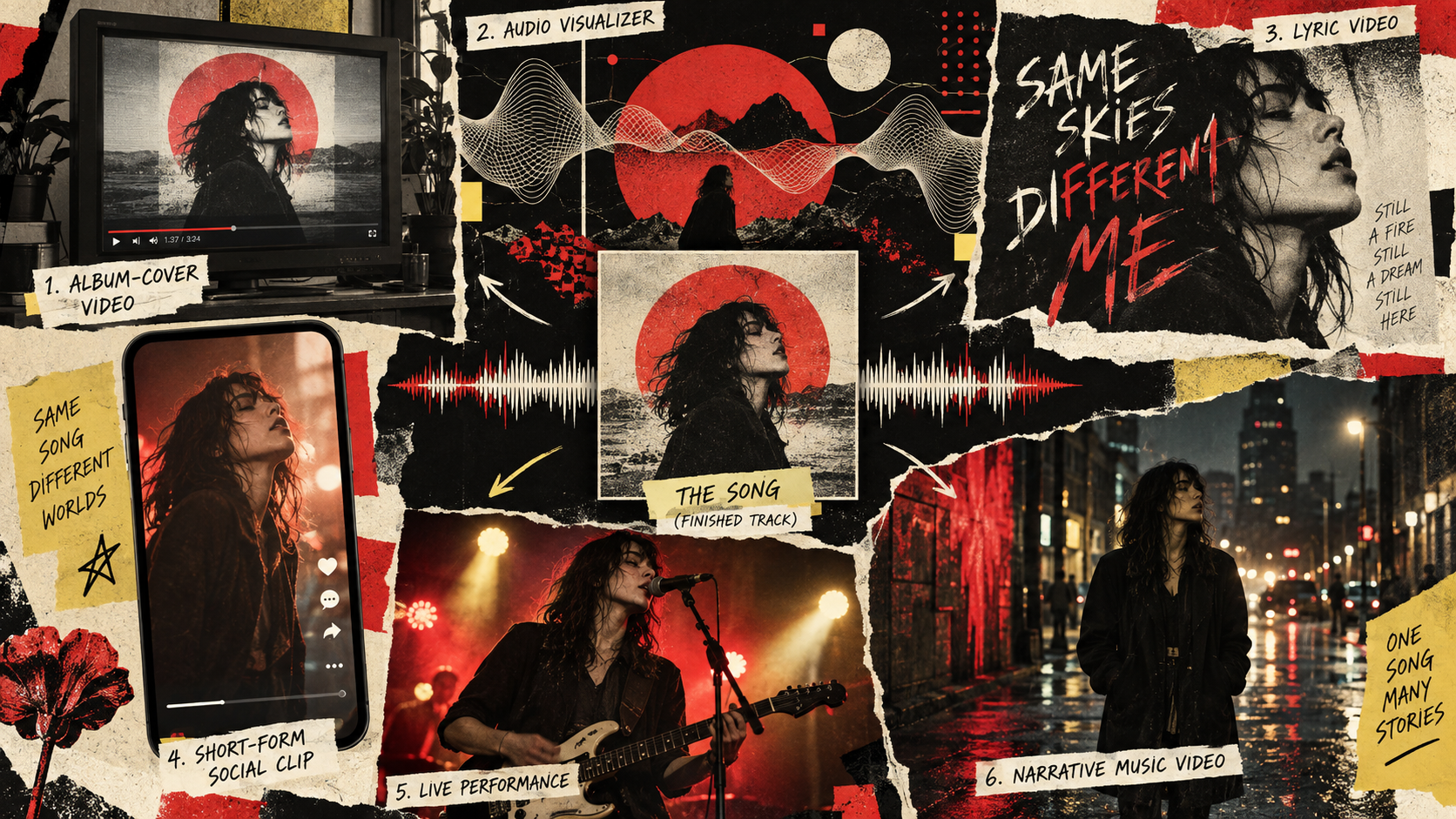
| Video Type | What It Looks Like | Best For |
|---|---|---|
| Cover-art video | Mostly static artwork with the song | Simple YouTube uploads |
| Music visualizer | Waveforms, particles, reactive graphics | EDM, mixes, instrumental music |
| Lyric video | Lyrics are the main visual focus | Vocal and songwriting-focused releases |
| Short social clip | 10–30 second visual built around the hook | TikTok, Reels, Shorts |
| Performance video | Singer, rapper, dancer, or band performing | Artist-focused releases |
| Narrative music video | Characters and scenes tell a story | Emotional or cinematic songs |
| Hybrid music video | Performance + story + cinematic B-roll | Full official releases |
If all you need is a simple YouTube upload with your artwork, Suno's existing video options may already be sufficient.
You do not need a full AI production workflow just because one exists.
Likewise, if your main goal is testing the song on TikTok, generating 20 seconds around the strongest chorus may make more sense than producing the entire track immediately.
But when you want the song to become a complete visual release—with scenes, recurring characters, camera direction, storytelling, and changes throughout the track—you are moving into AI music video production.
If you're still comparing those formats, our guide to AI music video generators versus music visualizers explains when each approach makes sense.
Already know you want more than a visualizer?
A dedicated AI music video generator can start with the finished song and build a scene-based video around its structure instead of placing one animation over the entire track.
Open BeatViz →Step 4: Download the Final Song From Suno
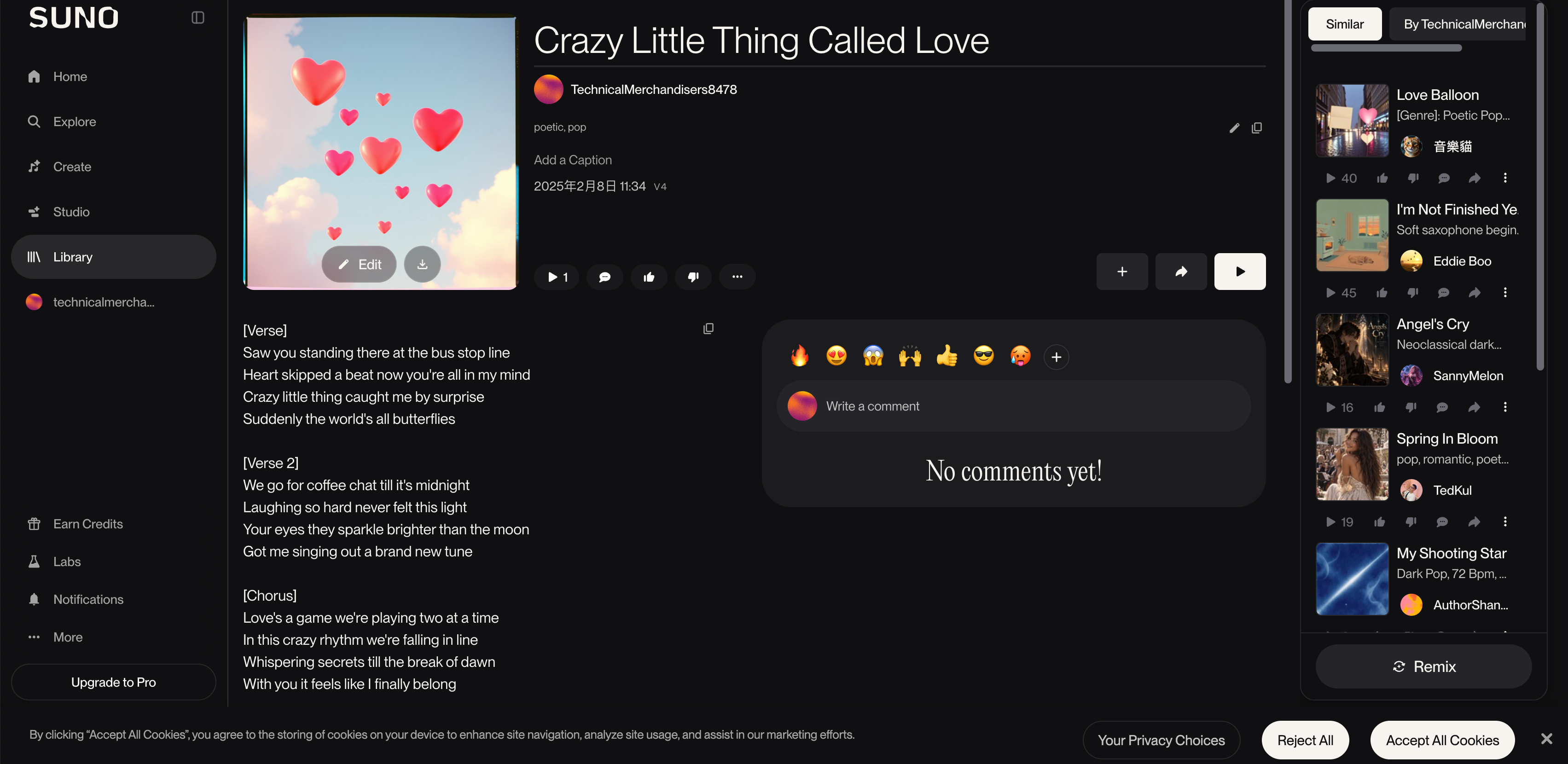
Once you are satisfied with the music, export the final version.
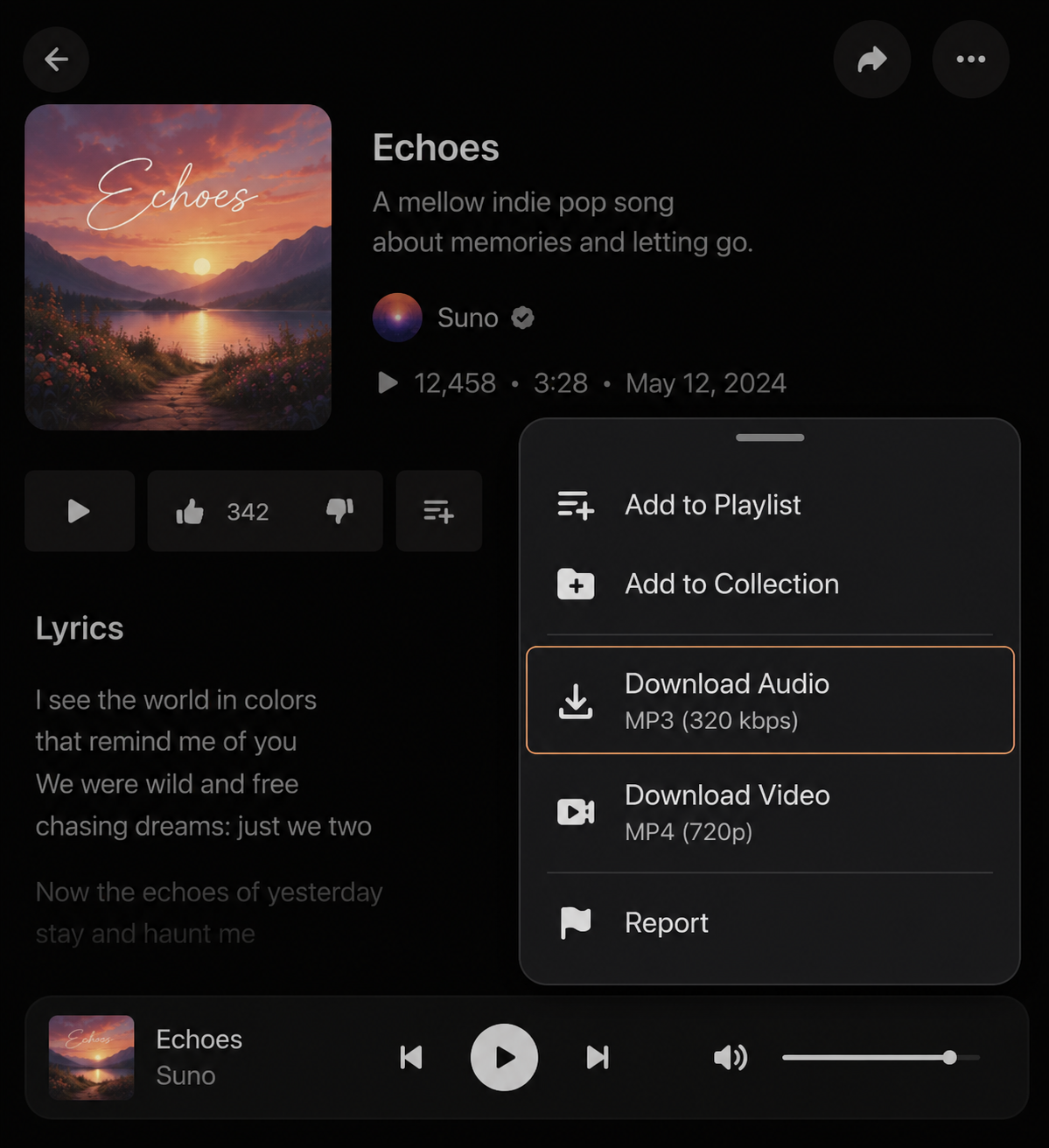
Suno currently supports MP3 song downloads across plans. WAV downloads are available to Pro and Premier users on the web, and songs can also be downloaded as video files. Available formats can vary depending on the song, plan, feature, and device.
For most AI music video workflows:
MP3 is sufficient.
If you have access to WAV and want a higher-quality audio source for the final production, you can use that instead.
The important part is making sure you are working with the final version of the track.
Before moving on:
- 1.Listen to the song from beginning to end.
- 2.Check the start and ending.
- 3.Save the final lyrics separately.
- 4.Confirm the duration.
- 5.Give the audio file a clear name.
- 6.Keep any character artwork or cover art you may want to reference later.
If your Suno track is already finished and you do not need the earlier planning stages in this article, you can skip ahead to our dedicated tutorial on how to turn a Suno song into an AI music video.
Check the Usage Rights Before Publishing
If the project will be monetized, also verify the rights attached to the track.
Suno currently states that songs made while subscribed to a paid plan receive commercial-use rights. Suno also notes that commercial-use permission is not the same thing as guaranteed copyright protection, which depends on the applicable jurisdiction.
Always review Suno's current terms before distributing or monetizing a release, especially because AI music policies can change.
Step 5: Plan the Video Before You Generate Anything
Now the song is finished.
This is where video creation actually begins.
The biggest mistake is immediately typing:
“Create a cinematic music video for this song.”
That instruction does not make enough decisions.
Before generating shots, define at least five things.
1. Who Are We Watching?
Choose the primary subject.
Maybe it is:
- •A fictional singer
- •You as the artist
- •A rapper
- •A couple
- •A band
- •A dancer
- •A completely narrative character
- •No human character at all
If character consistency matters, decide that now.
2. Where Does the Video Exist?
Avoid changing worlds every few seconds without a reason.
You might use:
one main location
such as a hotel, nightclub, apartment, desert, subway station, or stage.
Or build a small connected world:
Apartment → street → subway → rooftop
That still feels like one video.
3. What Is the Camera Language?
A visual style is more than saying “cinematic.”
Think about:
- •Handheld vs stable
- •Close-ups vs wide shots
- •Slow tracking shots
- •Low-angle performance shots
- •Long lenses
- •Wide-angle distortion
- •Static compositions
- •Fast camera movement during the chorus
4. What Changes During the Song?
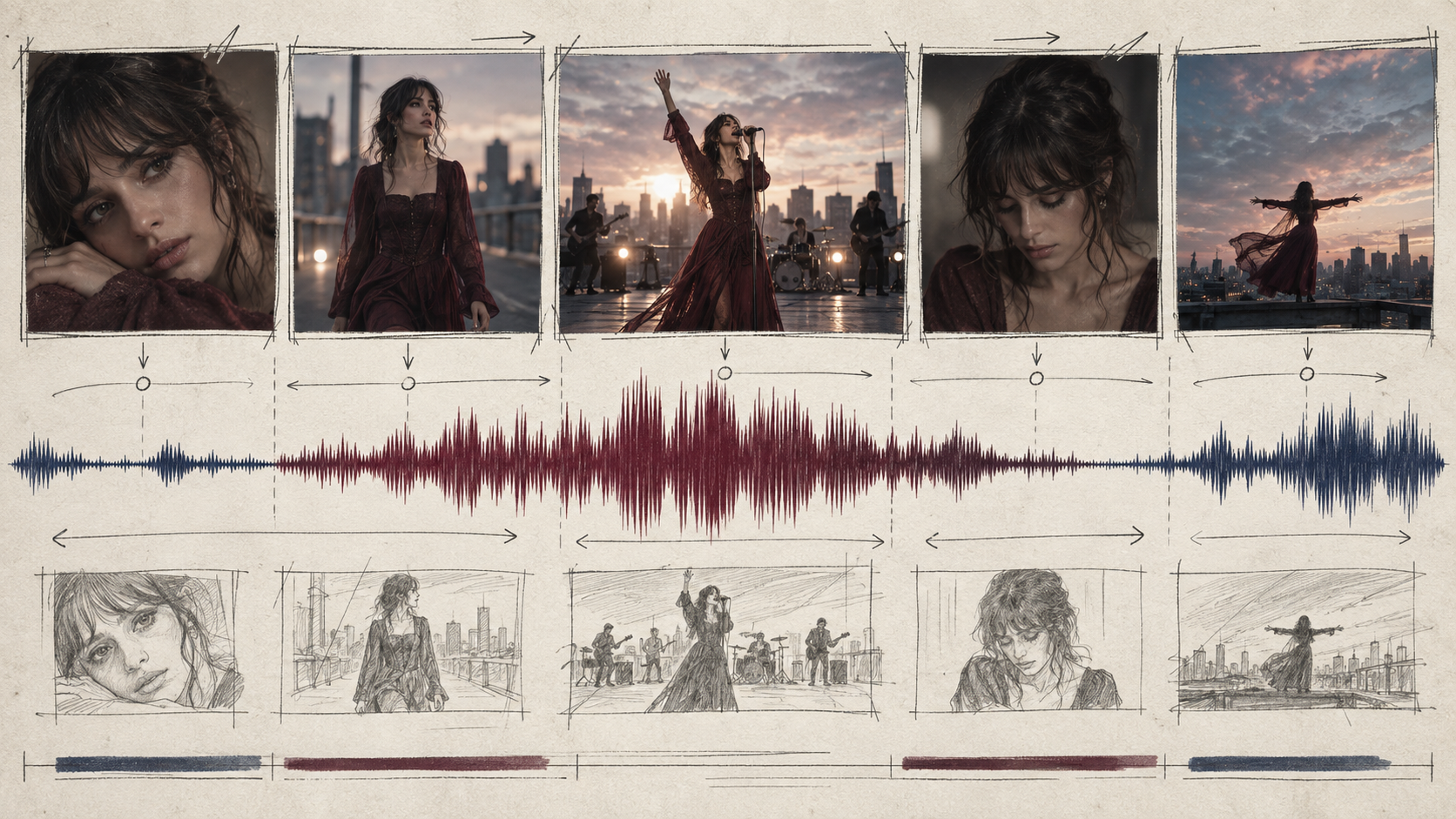
Map the music roughly:
Intro → Verse → Chorus → Verse → Chorus → Bridge → Final Chorus → Outro
Then give each section a purpose.
For example:
- •Intro: Empty city, establish the world
- •Verse 1: Singer walking alone
- •Chorus: Rooftop performance
- •Verse 2: Story develops
- •Bridge: Quiet close-up sequence
- •Final Chorus: Performance + story converge
- •Outro: One final wide shot
5. What Should Stay Consistent?
Decide what cannot change accidentally:
- •Face
- •Hairstyle
- •Clothing
- •Main color palette
- •Time of day
- •Locations
- •Character relationships
- •Film style
This matters because AI generation naturally introduces variation.
The solution is not making every shot identical.
The goal is making every shot feel like it belongs to the same production.
For a deeper breakdown of this planning process, read How to Turn Music Into a Video With AI.
Step 6: Turn the Suno Song Into a Full Music Video With BeatViz
At this point, Suno's job is mostly complete.
You have:
the song.
Now you need:
the production around the song.
You could build this manually with several tools.
For example:
Suno → image generator → AI video model → lip-sync tool → Premiere Pro or CapCut
That approach gives you flexibility, and many AI video creators work this way. Our guide to the AI music video tool stack used by YouTube creators explains how those workflows are usually assembled.
The downside is that every stage becomes a separate project.
You have to decide:
- •Which part of the song does this shot belong to?
- •Which character reference should I use?
- •How long should this clip be?
- •How do I keep the character consistent?
- •How do I assemble 30 different clips?
- •Where should lip sync appear?
- •How do I replace one bad scene without breaking everything else?
A music-first platform such as BeatViz approaches the problem from the song instead.
The current BeatViz music video generator offers three creation paths—Workflow, AI Director, and Editor—designed around different levels of automation and control.
Start With BeatViz Workflow for a Full Song
For a complete Suno music video, BeatViz Workflow is usually the simplest starting point.
Instead of immediately generating unrelated clips, the project moves through stages such as:
Music → Analysis → Creative Direction → Characters → Scenes → Segments → Storyboard → First Frames → Video
The important difference is that the song comes first.
A quiet verse and an energetic chorus should not necessarily receive the same visual treatment.
Likewise, a three-minute song should not feel like one eight-second prompt repeated twenty times.
The aim is to create a visual structure that develops with the track.
BeatViz currently describes Workflow as a guided process where AI analyzes the song and helps build the concept, story, shots, keyframes, and video clips while the creator reviews important stages.
That review process matters.
AI should accelerate the production.
It should not make every creative decision for you.
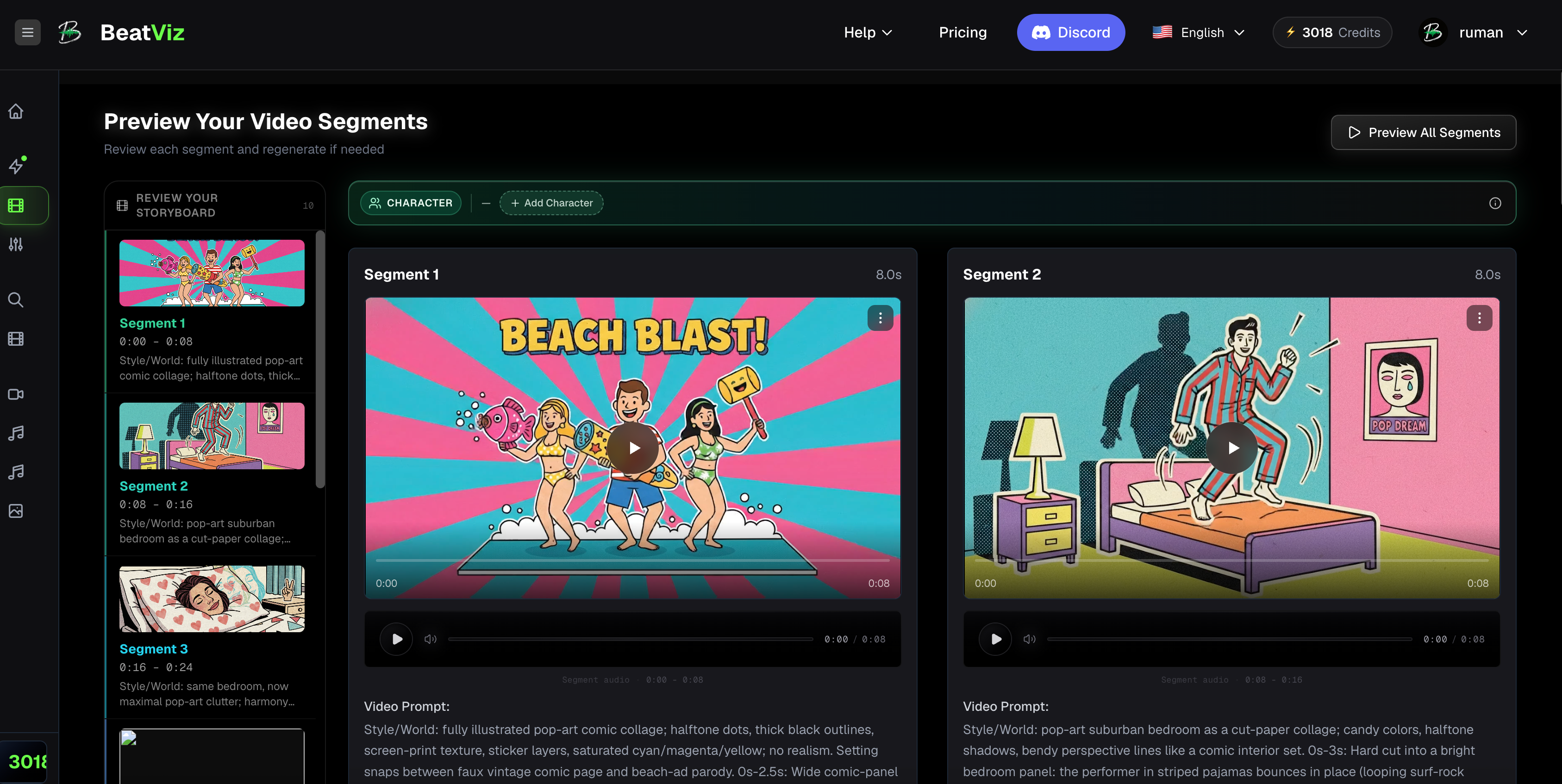
Want AI to build the first visual structure around your Suno track?
Upload the finished song to BeatViz Workflow, review the proposed creative direction and scenes, and refine the project before generating the complete video.
Start in Workflow →Step 7: Choose How Much Creative Control You Want in BeatViz
There is no single correct workflow for every creator.
The easiest way to choose between BeatViz's three creation modes is to ask:
How much of the directing do I want to do myself?
BeatViz Workflow: Best When You Want the Complete Structure First
Use Workflow when:
- •You have a finished Suno song
- •You want a complete video
- •You want AI to help structure the project
- •You need multiple scenes
- •You do not want to design every clip manually
- •You still want opportunities to review the result before continuing
This is usually the most direct path for full-length music videos.
AI Director: Best When You Want to Direct Through Conversation
Sometimes you know what feels wrong but do not want to rebuild the project manually.
You might want to say:
Make the chorus feel larger.
Keep the same singer but move the performance outdoors.
Replace this scene with a nighttime subway station.
Use more close-ups in the second verse.
Make the final chorus feel more emotional.
BeatViz AI Director is designed around that kind of conversational workflow.
You upload music and guide the video through chat rather than treating every change as an isolated generation prompt. BeatViz currently describes it as an AI music video director that uses the uploaded track and conversational instructions to develop the video.
BeatViz Editor: Best When You Want Shot-by-Shot Control
Automation is useful until one particular shot is wrong.
Maybe:
- •The singer's face changes
- •A movement looks unnatural
- •The clip does not fit the song
- •You need a different first frame
- •Only one vocal section needs lip sync
- •One scene should be replaced
- •The timing needs adjustment
You should not have to rebuild the entire video because one clip fails.
The BeatViz Editor provides a timeline-based workflow for individual assets and clips.
Its current workflow includes uploading music, generating starter frames and video clips, using a dedicated lip-sync area, and arranging clips on the timeline.
A useful way to think about the three tools is:
| BeatViz Mode | Best For |
|---|---|
| Workflow | Building the first complete version |
| AI Director | Developing and changing the creative direction through conversation |
| Editor | Precise scene, timing, clip, and lip-sync control |
You do not necessarily need to choose only one.
A practical workflow can be:
Workflow → AI Director → Editor
Start broad.
Then refine.
Then fix the details.
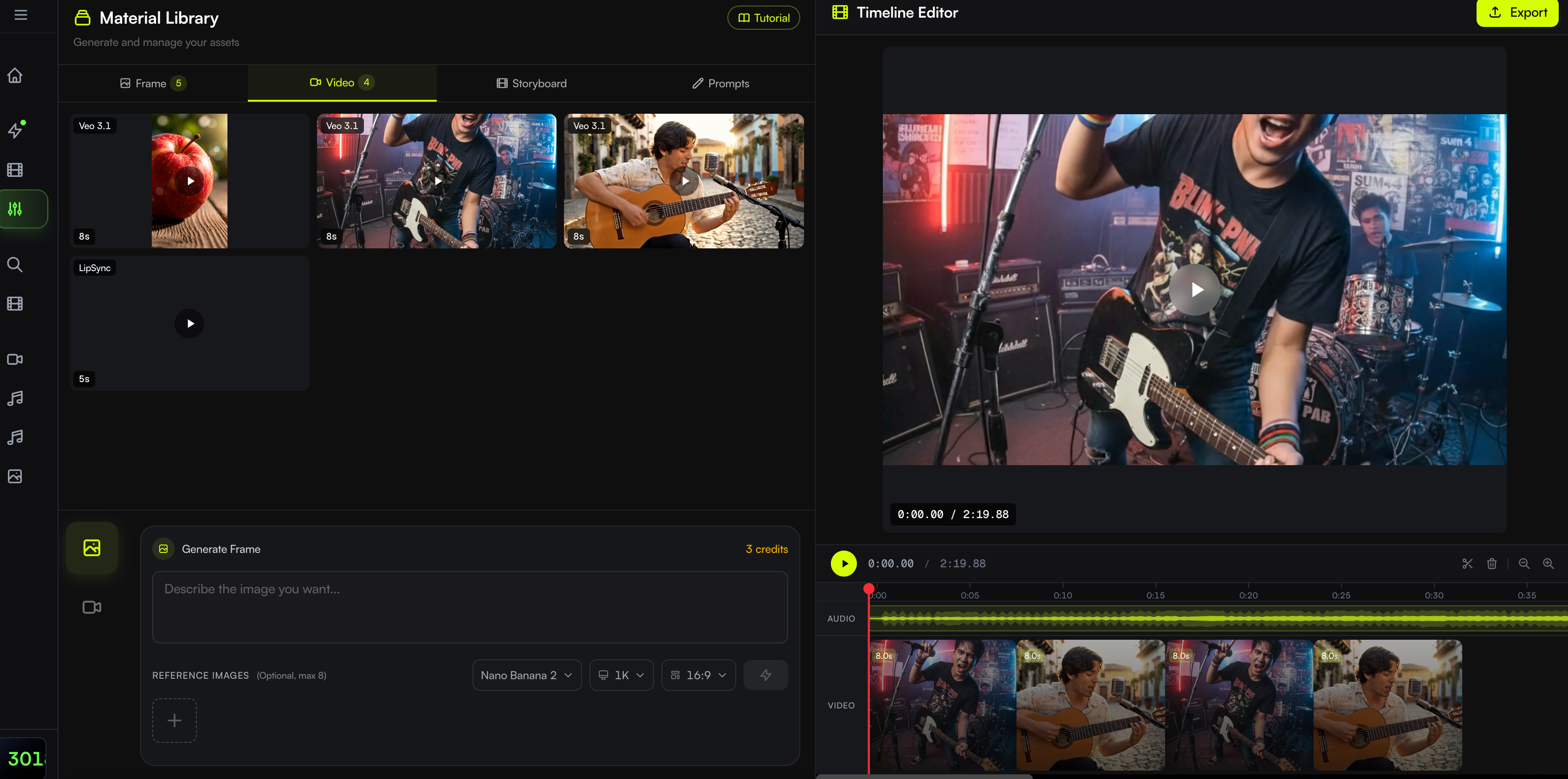
Prefer to direct rather than auto-generate everything?
Start the concept in AI Director, then move into the Editor when individual shots need more precise control.
Open AI Director →Step 8: Make the Video Feel Like It Actually Belongs to the Song
AI can generate beautiful footage that still makes a bad music video.
The difference is usually direction.
Do Not Give Every Section the Same Energy
If the verse is quiet, allow the visuals to breathe.
Use:
- •Longer shots
- •Close-ups
- •Slower movement
- •Smaller spaces
- •Simpler compositions
Then let the chorus expand.
The contrast gives the bigger moments impact.
Keep the Character Consistent—but Change the Shot
Character consistency does not mean repeating the same portrait.
The same singer can appear in:
- •Extreme close-up
- •Medium performance shot
- •Wide stage shot
- •Profile
- •Walking shot
- •Overhead shot
- •Rear three-quarter shot
Change the camera, not the identity.
Fix the First Frame Before Generating Motion
If the character already looks wrong in the first image, turning that frame into motion rarely solves the underlying problem.
Check:
- •Face
- •Hands
- •Clothing
- •Pose
- •Composition
- •Background
- •Lighting
before spending additional generation on motion.
Do Not Lip-Sync Every Shot
A common AI music video mistake is turning every lyric into a close-up of someone singing.
That quickly becomes repetitive.
Use lip sync where performance matters most:
- •Chorus
- •Important lyric
- •Emotional close-up
- •Rap verse
- •Hook
Then mix those sections with:
- •Narrative scenes
- •Environmental shots
- •Walking shots
- •Dance
- •Details
- •Wide shots
- •Abstract imagery
- •Establishing shots
The singer does not need to face the camera for three straight minutes.
Let Important Parts of the Song Earn the Best Shots
Do not make every five seconds spectacular.
If every scene contains a transformation, camera orbit, explosion, dance sequence, drone move, and impossible environment, nothing feels important.
Save the strongest visual moments for:
- •The first chorus
- •The drop
- •The bridge
- •The final chorus
- •The most memorable lyric
That is closer to directing than simply generating.
For more fundamentals beyond Suno specifically, see our complete guide on how to make a music video.
Step 9: Test the Strongest 15–30 Seconds Before Building the Full Video
A three- or four-minute music video can require dozens of scenes.
Do not discover after scene 30 that you dislike the main character.
Before committing to the full production, test the strongest section of the song.
Usually:
- •Chorus
- •Hook
- •Beat drop
- •Memorable lyric
- •Strong instrumental section
Create 15–30 seconds first.
Then evaluate:
- •Character: Does the singer look right?
- •Style: Does the visual world match the song?
- •Camera: Does the movement feel intentional?
- •Lighting: Does the mood work?
- •Performance: Does lip sync or body movement look believable?
- •Consistency: Can this direction survive another three minutes?
If the answer is no, change direction early.
That is much easier than repairing an entire completed project.
Step 10: Export for the Platform You Actually Plan to Use
Do not wait until the music video is finished to think about where people will watch it.
The format affects framing from the beginning.
YouTube
Use 16:9 for a traditional full music video.
This gives you more horizontal space for:
- •Wide environments
- •Multiple characters
- •Performance stages
- •Landscape shots
- •Cinematic composition
TikTok, Instagram Reels and YouTube Shorts
Use 9:16 when the video is intended primarily for vertical feeds.
Vertical videos benefit from:
- •Larger faces
- •Central subjects
- •Less empty horizontal space
- •Closer camera framing
- •Clear movement inside the center of the frame
Do not assume you can always make a 16:9 video first and crop it later.
A close-up may survive the crop.
A carefully framed wide shot may not.
Full Music Video vs Promotional Version
You can also treat the two as separate creative products.
For example:
- •YouTube: Complete 3:30 narrative music video
- •TikTok: 18-second chorus performance
- •Instagram Reels: 25-second story moment
- •YouTube Shorts: Strongest visual transition
The social versions do not have to be random extracts from the full video.
They can be designed specifically to sell the strongest moment of the song.
If you are planning a longer project, check the current BeatViz pricing and generation options before committing to the entire track.
Ready to build the full version?
Upload your finished Suno track to BeatViz, choose the format you actually plan to publish, and build the scenes around that format from the beginning.
Upload Your Track →Suno + BeatViz: One Workflow, Two Different Jobs
Suno and BeatViz solve two different parts of the same creative problem.
| Suno | BeatViz |
|---|---|
| Create the song | Create the music video |
| Develop lyrics | Turn lyrics and emotion into visuals |
| Generate vocals | Create performance scenes |
| Build the arrangement | Build the visual structure |
| Edit musical sections | Edit visual scenes |
| Export the finished audio | Export the finished video |
The simplest way to remember the workflow is:
Suno decides what the song sounds like.
BeatViz helps decide what the song looks like.
The tools do not need to compete with each other.
They can sit at different stages of the same production.
Frequently Asked Questions
Can Suno AI create a music video?
Suno offers several video-related features, including video downloads, video-based cover art, and Hooks for pairing Suno songs with user-uploaded video. However, these are different from a dedicated scene-based AI music video workflow that generates and directs multiple shots across a complete song.
Does Suno have an AI video generator?
Suno can generate video as part of its Cover Art tools, and songs can be downloaded in video format. However, Suno's main product remains focused on music generation and music editing rather than producing a complete multi-scene music video.
What are Suno Hooks?
Hooks is a Suno feature for creating short-form content around Suno songs. You select a song, choose the starting point, upload a video from your device, optionally display lyrics, and publish the result to the Hooks feed. Suno states that Hooks does not generate the uploaded video itself.
How do I make a full AI music video from a Suno song?
Finish and download the song first. Then define the visual direction, characters, locations, and video format. Upload the track to a music-first video workflow, generate scenes around different song sections, review the first frames and clips, regenerate weak shots, add lip sync where needed, and assemble the final video.
If you already have the finished audio, read the dedicated Suno song-to-video tutorial.
Should I use MP3 or WAV from Suno?
MP3 is suitable for most AI music video workflows. Suno currently makes MP3 downloads available across plans, while WAV downloads are available to Pro and Premier users on the web.
Can I make a YouTube music video from a Suno song?
Yes. Once you have the appropriate rights to use the song, you can use the downloaded audio as the soundtrack for a YouTube music video. For a traditional full-width music video, 16:9 is usually the most practical format.
Can I monetize a music video made with a Suno song?
Suno currently grants commercial-use rights to songs created while the creator is on a paid subscription. That does not automatically guarantee copyright protection, and you should also make sure you have the necessary rights to any third-party lyrics, samples, images, voices, or other material used in the project.
Do I need editing experience?
Not necessarily.
A guided workflow can handle much of the initial structure automatically. If you want more control later, you can move into a timeline editor and adjust individual scenes instead of rebuilding the entire project.
What is the easiest BeatViz mode for a Suno song?
Use Workflow when you want AI to help build the complete structure around the song.
Use AI Director when you prefer directing through conversation.
Use Editor when you want detailed control over individual shots and timing.
You can also combine them rather than choosing only one.
What if I want to compare BeatViz with other AI music video tools?
See our guide to the best AI music video generators for a broader comparison of scene-based generators, audio-reactive tools, automatic video platforms, and visualizers.
Your Suno Song Is Finished. Now Decide What It Looks Like.
Suno has dramatically reduced the distance between a musical idea and a finished track.
But finishing the song is only half of the process when the release also needs a visual identity.
A music video asks a different set of questions:
- •Who is on screen?
- •Where does the story happen?
- •What changes during the chorus?
- •Which lyrics deserve a close-up?
- •What should the camera do?
- •What stays consistent for three minutes?
AI can help generate the images and motion.
But the strongest results still come from treating those decisions like directing—not simply pressing Generate repeatedly.
Create the song in Suno.
Lock the version you actually want to release.
Then build a visual world that gives people a reason to watch it.
Ready to turn your Suno song into a complete music video?
Upload your finished track to BeatViz and turn the music into characters, scenes, storyboards, cinematic shots, lip-sync moments, and a complete visual release.
Start Creating →