How to Turn Your Spotify Song Into a Music Video Using the Original Audio
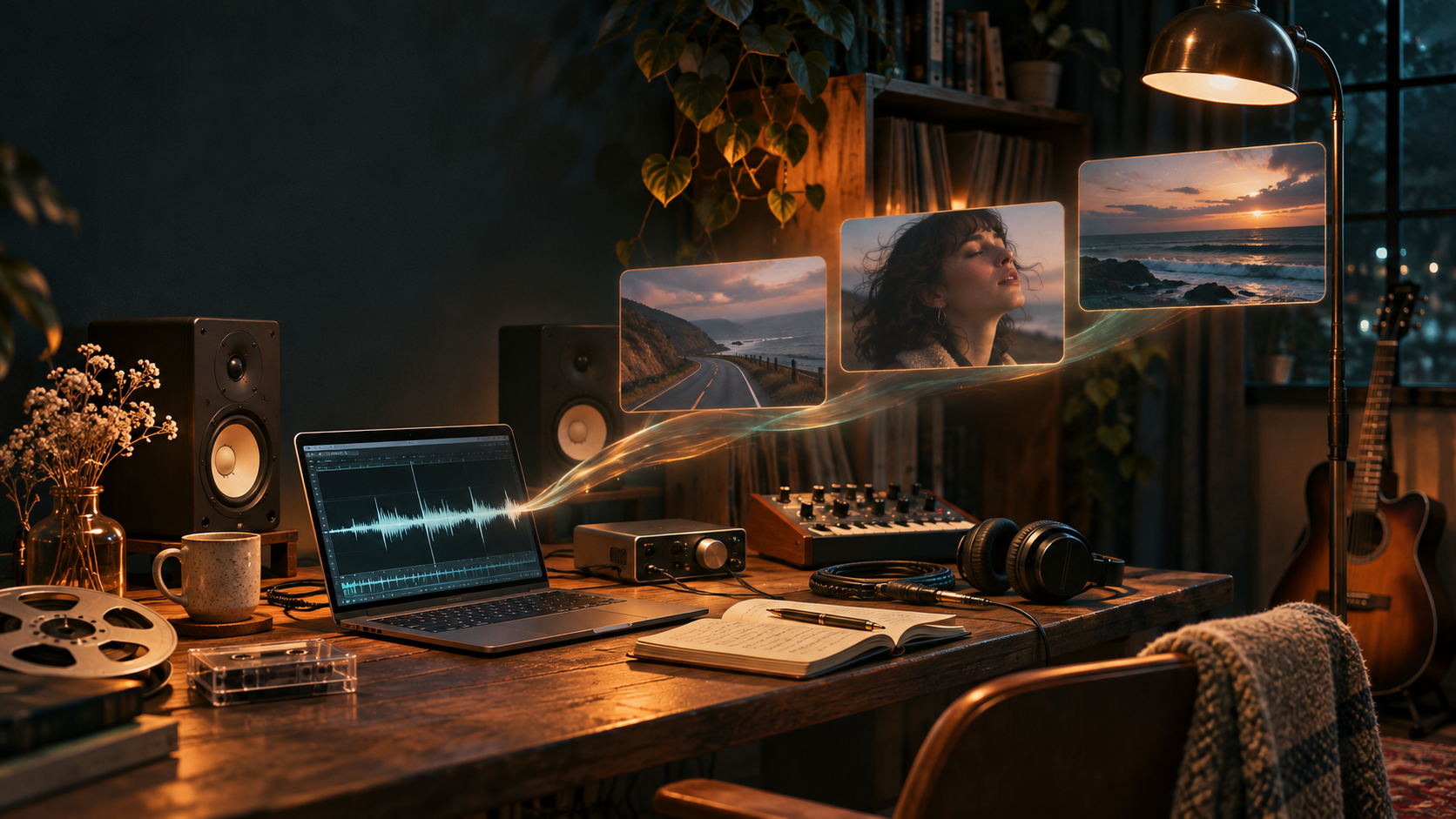
Yes, you can turn a song you've already released on Spotify into a complete music video without recreating the music.
The key is to use your original audio recording—the same version you delivered to your music distributor—and build the visuals around it.
You don't need to record new vocals, remix the track, or replace the music with an AI-generated version.
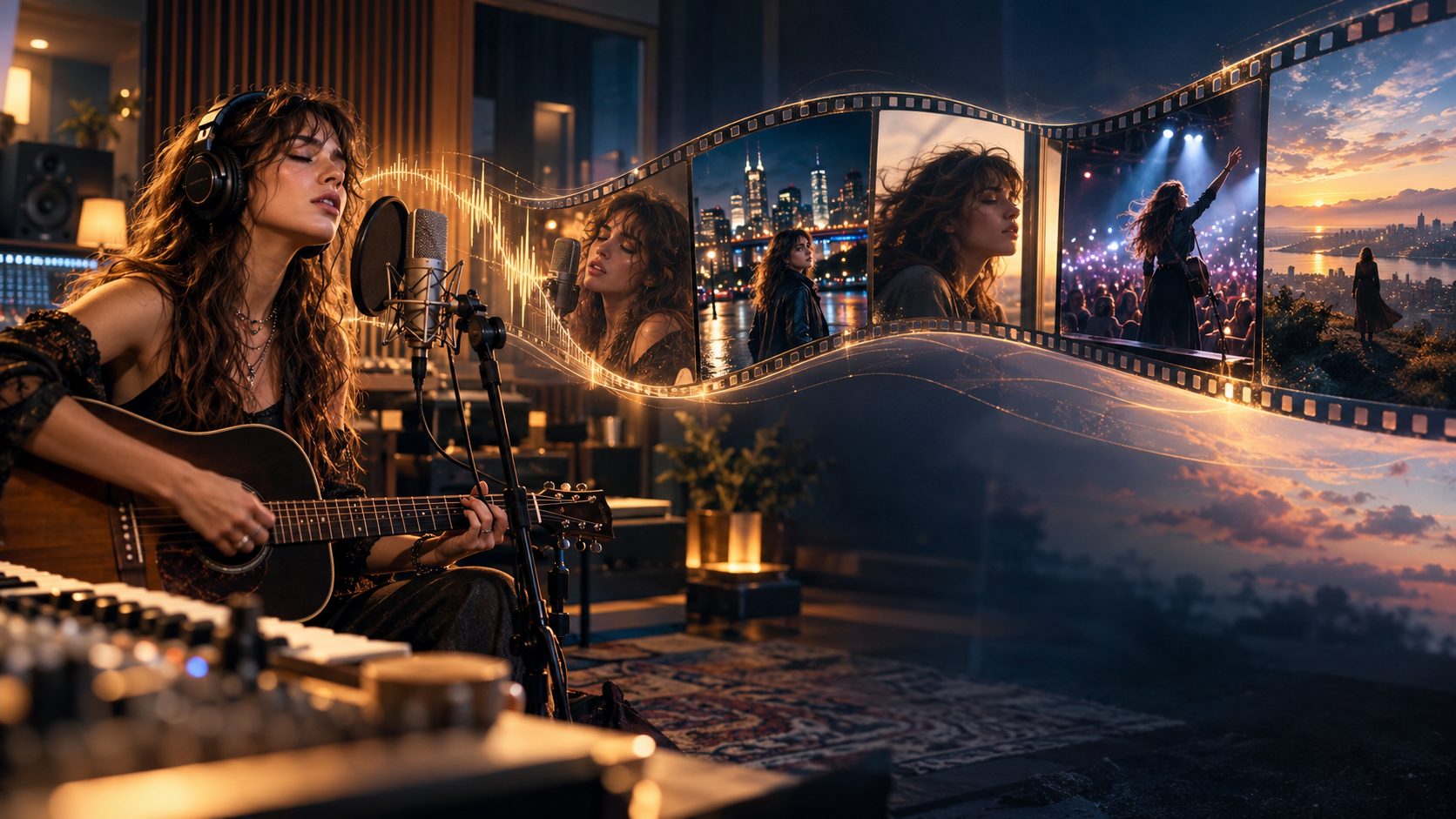
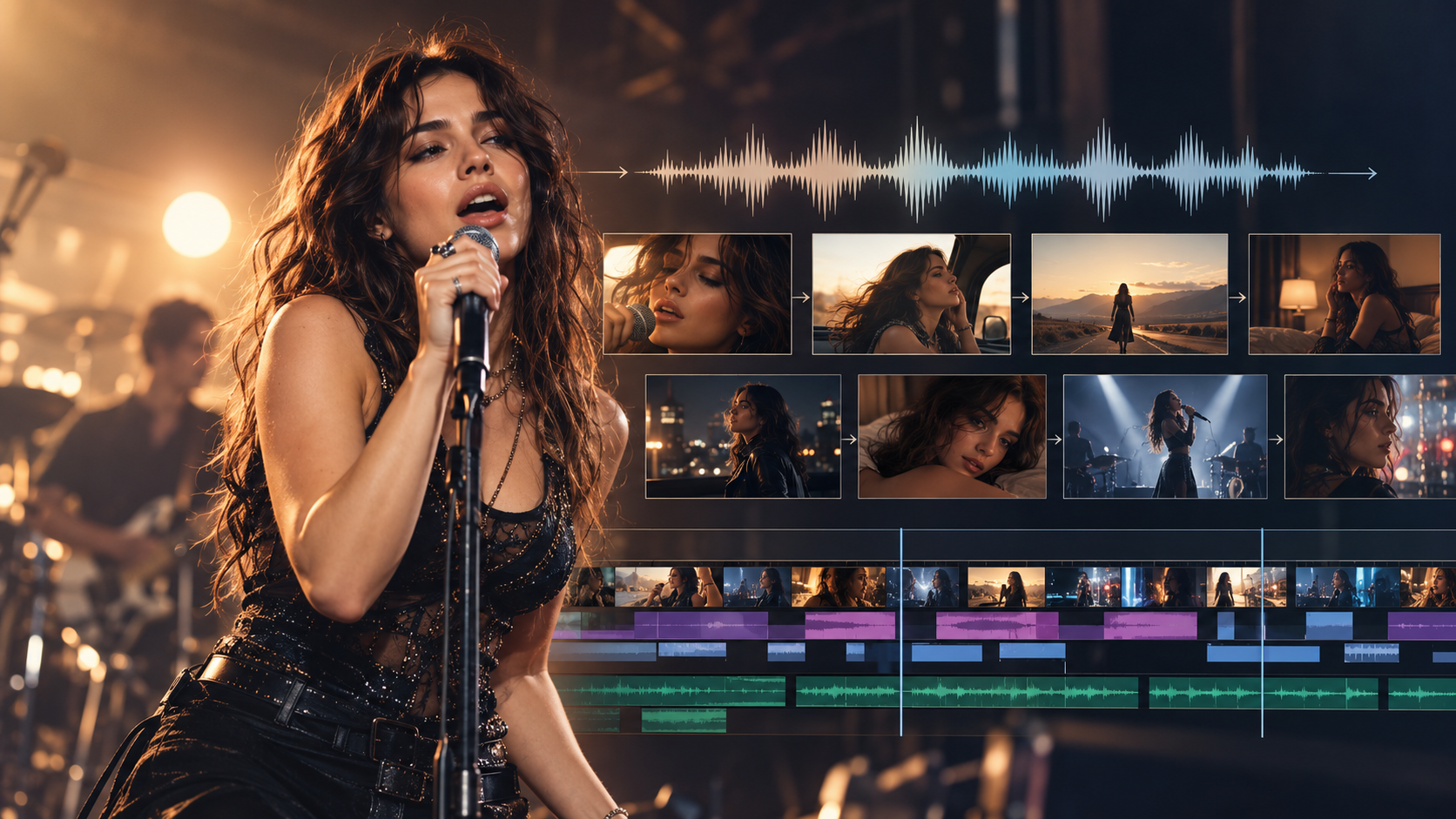
With an AI music video maker like BeatViz, you can upload your finished song, create scenes based on its mood and structure, generate video footage, and export a music video using your original recording as the soundtrack.
In this guide, we'll cover how to prepare your Spotify release, choose a visual direction, create the video, keep the audio and visuals synchronized, and prepare the final result for publishing.
Can You Turn a Spotify Song Into a Music Video Without Changing the Audio?
Yes. If you own the recording or have the necessary permissions to use it, you can create a music video around the original song.
The important distinction is between generating new visuals and generating new music.
An AI music generator creates or transforms audio. An AI music video generator can work with a finished audio file and create visual content to accompany it.
For example, imagine you've released an emotional indie-pop track on Spotify.
You want a video showing a singer traveling through an empty coastal town, with quiet verses, atmospheric landscapes, and a more intense visual sequence during the chorus.
You don't need to change the song to create that video.
The original recording provides the musical foundation. The AI helps create the images, scenes, camera movement, and visual story.
If you're exploring this type of workflow for the first time, you can start with the BeatViz AI Music Video Generator to see the available creation methods.
Why You Need the Original Audio File, Not Just a Spotify Link
A Spotify track link identifies a song on Spotify. It is not the same thing as an audio file you can upload into a video editor.
BeatViz does not currently import audio directly from a Spotify URL.
Instead, you'll need a supported audio file stored on your device, such as the original master you delivered through your music distributor.
Spotify's user guidelines also prohibit unauthorized copying or ripping of its streamed content.
So, rather than trying to extract audio from Spotify, use the recording you already own or are licensed to use.
This also gives you more control over which version appears in the finished video.
You can work with the exact single version, album version, or approved master intended for the release.
Before You Start: Prepare Your Song and Visual Direction
You don't need a finished screenplay or a detailed storyboard before you begin.
However, a little preparation can prevent some common problems later.
Find the Same Master Used for Your Spotify Release
Start by locating the audio file associated with your released track.
Depending on your production process, you might find it in:
- •Your digital audio workstation's export folder.
- •The files you submitted to your music distributor.
- •Your recording studio's final delivery folder.
- •Your label's release assets.
- •An approved master provided by your producer or mixing engineer.
Whenever possible, use the final approved version rather than an earlier demo.
BeatViz supports MP3, AAC, M4A, FLAC, and WAV audio files, up to 200 MB.
Before uploading, listen to the file from beginning to end.
Make sure it contains the correct intro, verses, choruses, instrumental sections, and ending.
Even a small difference in the song arrangement can affect your video's timing.
A note about rights: Having a song available on Spotify does not automatically give you permission to create and commercially publish a video using it. If other songwriters, publishers, labels, or recording owners are involved, confirm that your agreements cover the intended audiovisual use.
Decide Between a Full Music Video and a Short Promo
The next decision is where people will watch the video.
A full-length music video and a short promotional clip serve different purposes.
| Video type | Suggested approach |
|---|---|
| Official music video | Full song, cinematic 16:9 |
| YouTube music video | Full song, 16:9 |
| Instagram Reels | Short vertical highlight, 9:16 |
| TikTok | Memorable verse, chorus, or hook, 9:16 |
| YouTube Shorts | Short vertical promotional edit |
| Spotify Canvas | Separate 3–8 second vertical loop |
If your main goal is an official music video for Spotify or YouTube, start with a landscape composition.
If you're promoting a new single on social media, a short vertical video may be enough to test the visual direction first.
For a deeper explanation of the overall production process, see our guide to turning music into a video with AI.
How to Turn Your Spotify Song Into a Music Video With BeatViz
Let's walk through the process using a song you've already released.
The goal is to turn the existing recording into a visual experience—not to make a new version of the track.
Step 1: Upload Your Original Song
Open BeatViz Workflow.
Start by adding your audio file.
You can select a section of your song to visualize or plan a longer music video, depending on your project and available plan.
For your first attempt, consider testing a 20–30 second section of the chorus.
This makes it easier to evaluate the artistic direction before generating a longer sequence.
You can also choose the video format and other available generation settings.
If you intend to publish a full official music video, 16:9 is a sensible starting point.

Step 2: Choose Workflow, AI Director, or Editor
BeatViz offers different approaches to music video creation.
The right choice depends on how you prefer to work.
BeatViz Workflow
Workflow is designed for creators who want a guided process.
You begin with your music and move through stages such as analysis, visual planning, scene development, keyframes, video generation, and final assembly.
Workflow 1.0 offers a more established creation path with different content and generation options. Workflow 2.0 uses a more advanced storyboard and keyframe-oriented production process.
Choose Workflow when you want to review creative decisions step by step rather than manually constructing every shot.
BeatViz AI Director
If you already have a strong idea for the video but want help developing it, the BeatViz AI Director offers a conversational approach.
For example, you could describe your idea as:
A cinematic music video about someone returning to their hometown after years away. The verses should feel intimate and nostalgic, while the chorus becomes more expansive and emotional. Use natural lighting, quiet streets, and a consistent main character.
You can then work with the AI to develop the concept, visual style, and scenes.
This is useful when your song has a specific emotional meaning but you haven't decided how every shot should look.
BeatViz Editor
If you want direct control over individual clips, use the BeatViz Editor.
The Editor provides a timeline where you can arrange generated footage, review scene timing, replace clips, and work with lip synchronization.
It offers Classic and Chat interfaces within the Editor project. Classic provides direct editing controls, while Chat lets you describe image and video generations conversationally.
These creation paths have different capabilities and project structures, so choose the approach that best fits your production needs.
Step 3: Build a Visual Concept Around the Music
Once the audio is ready, focus on the visual direction.
An effective music video doesn't need to illustrate every lyric literally.
Sometimes the strongest scenes communicate the emotion of the music instead.
Imagine your Spotify single is an atmospheric indie-rock song about leaving home.
One possible visual direction might be:
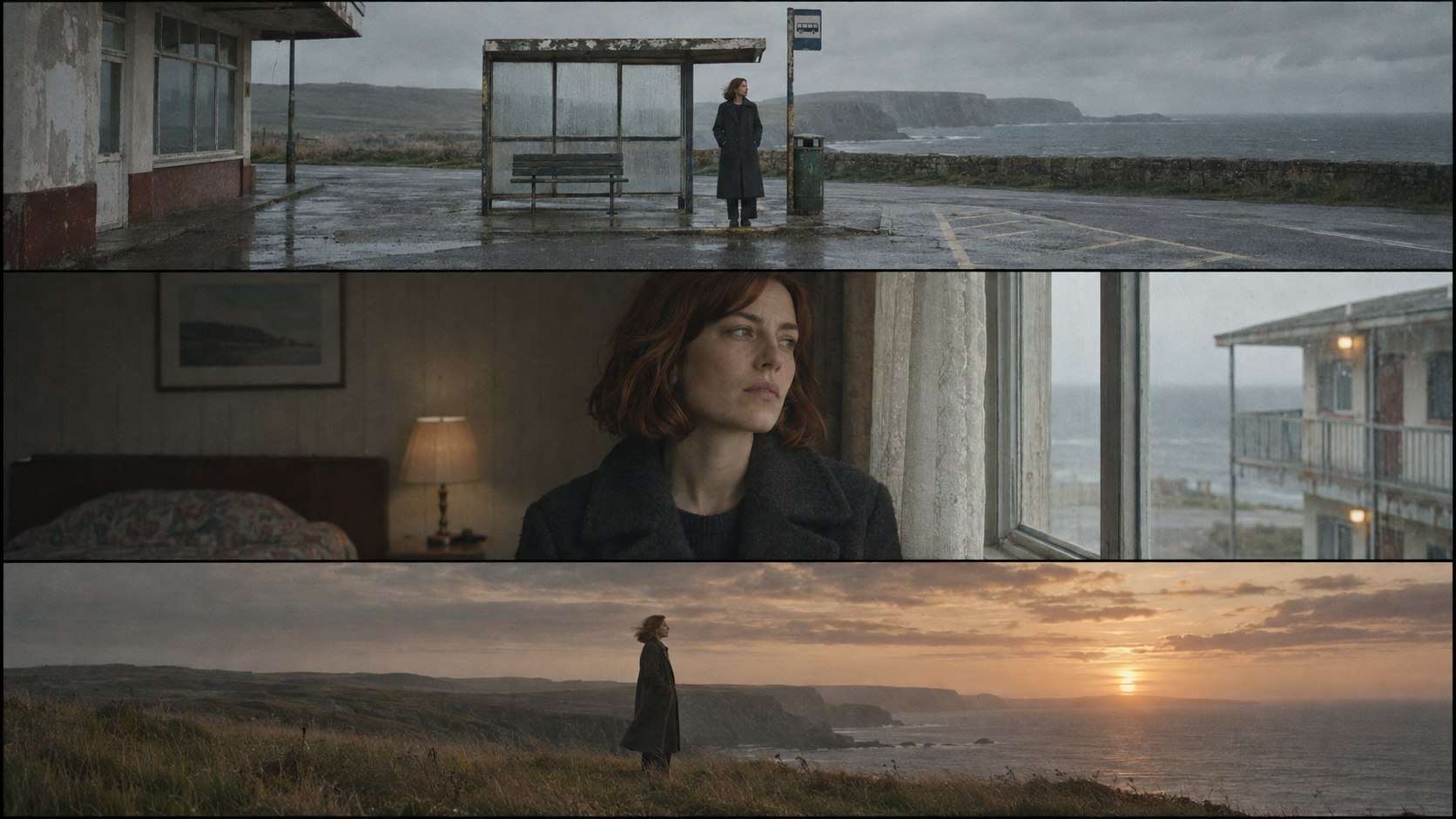
A young musician returns to a quiet coastal town at the end of summer. Empty streets, an old bus station, and fading photographs reveal memories of someone who is no longer there. The video begins with restrained, naturalistic photography and gradually becomes more expressive as the song reaches its final chorus.
This gives the project a consistent subject, setting, and emotional progression.
The music can guide how that progression develops.
A quiet introduction might use an extended establishing shot.
A verse could follow the main character through a familiar location.
A chorus might introduce wider compositions, stronger movement, or a change in lighting.
The important part is to give each section a visual purpose.
Step 4: Review the Storyboard and First Frames
A full song usually needs more than one or two clips.
Rather than generating unrelated footage, divide the music into a sequence of meaningful scenes.
In BeatViz's guided workflows, storyboard planning helps organize those scenes around the audio.
For example:
| Song section | Visual idea |
|---|---|
| Intro | Empty coastal road at dawn |
| First verse | Main character arriving at an old bus station |
| Pre-chorus | Close-up of a photograph held in someone's hand |
| Chorus | Wide shot overlooking the ocean |
| Second verse | Walking through familiar streets |
| Final chorus | A cinematic return to the coast at sunset |
Once the scene structure works, review the opening image, or keyframe, for each shot.
Check the character's face, clothes, body proportions, environment, camera angle, and lighting.
A strong first frame gives the video generator a clearer visual starting point.
If something looks wrong, correct the image before generating the moving shot.
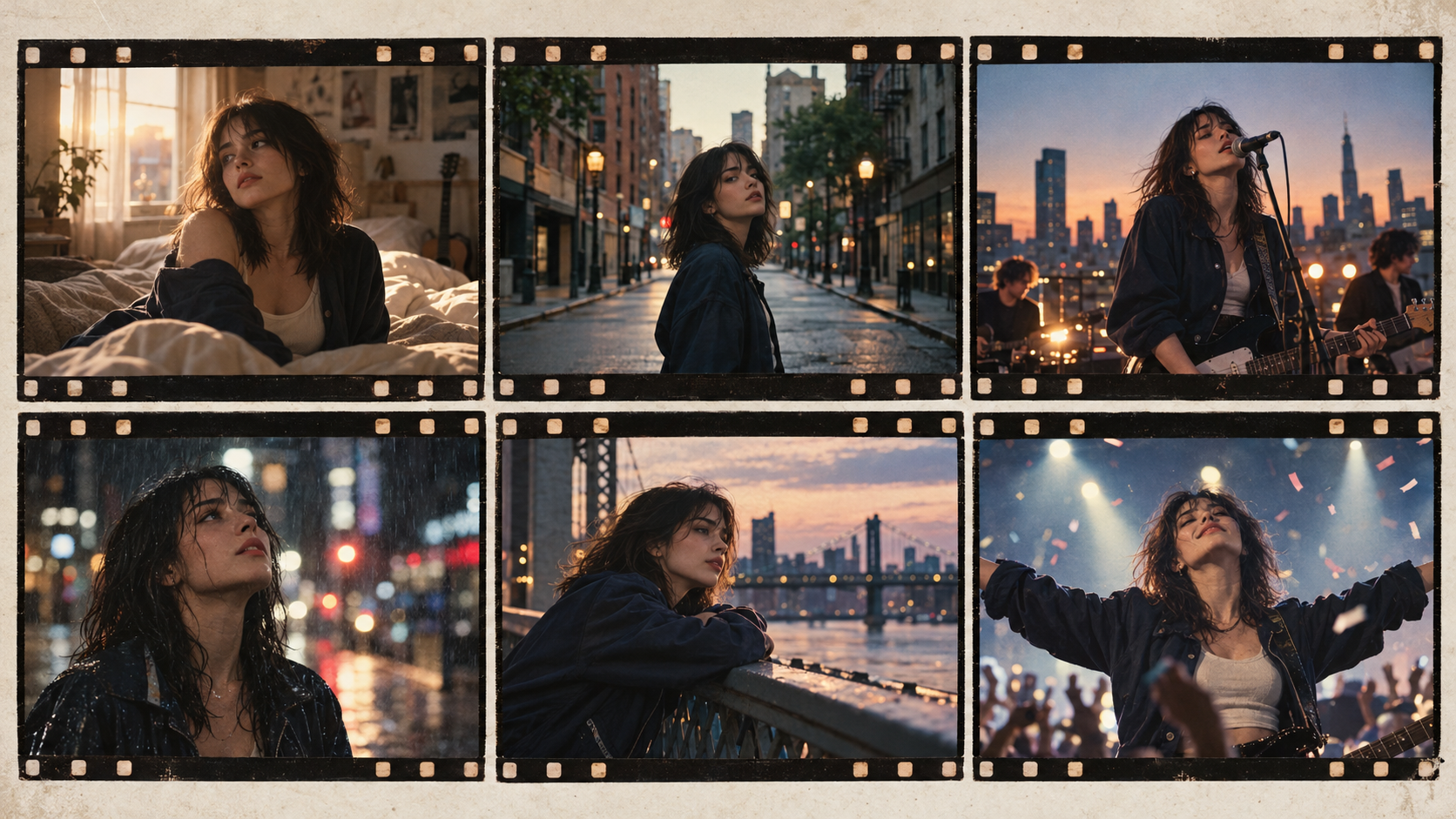
Step 5: Generate and Refine Your Scenes
After approving the visual direction and keyframes, you can begin generating the video clips.
At this stage, focus on movement and pacing.
A beautiful still image doesn't automatically become a convincing moving shot.
For example, a prompt that says only "a musician standing on a road" leaves many important decisions undefined.
A more directed prompt would be:
The musician walks slowly along an empty coastal road. The camera tracks backward at walking speed, maintaining a medium-wide composition. Wind moves naturally through the character's hair and clothing. The distant ocean remains visible behind them. Subtle handheld camera movement and natural overcast light.
The second description explains how the subject, camera, and environment should behave.
Once your clips are ready, watch how they connect.
Does the chorus feel larger than the verse?
Does the main character remain recognizable?
Do the scenes follow the emotional progression of the song?
If one scene feels disconnected, revise that individual shot rather than starting the entire production again.
Ready to build your first scenes?
Open BeatViz Workflow and test your visual concept with a short section of your original track before committing to the full video.
Step 6: Export With Your Original Audio
When the visuals are finished, the last step is combining them with the soundtrack.
The important goal is to use the original uploaded recording as the audio source for the completed video.
In BeatViz Editor, the final MP4 uses the song uploaded when the project was created rather than combining the separate audio tracks embedded in AI-generated video clips.
This means you can generate and edit the visual scenes while keeping the original song as the reference soundtrack.
The exported audio may be encoded for the final MP4, so that does not necessarily mean a bit-for-bit identical audio file. What matters creatively is that you're using the original recording rather than a newly generated song.
Always listen to the exported video before publishing.
Check the beginning, scene transitions, vocal moments, and final seconds to make sure everything is aligned.
How BeatViz Editor Helps Keep Your Music and Video in Sync
When using the original recording, synchronization matters just as much as visual quality.
If a dramatic scene begins before the beat drops, or a singer's mouth moves during an instrumental section, the result can feel disconnected from the music.
The BeatViz timeline Editor gives you more direct control over these details.
Match Scene Changes to the Song
Think of the audio waveform as the foundation of your edit.
You can arrange, trim, and replace video clips along the timeline while listening to the song.
For example, you might want a wide landscape shot to begin exactly when the chorus enters.
Or you may want the camera to cut to a close-up as a particular lyric begins.
Working scene by scene makes it easier to adjust those moments.
You don't necessarily need a cut on every beat. In slower songs, holding a shot for longer can be more effective.
Use Lip Sync Only Where Vocals Need It
If your music video features a singing character, lip synchronization can make the performance more convincing.
However, not every part of a song contains vocals.
An instrumental introduction, guitar solo, or atmospheric bridge may work better without visible singing.
In BeatViz Editor, you can apply lip-sync generation to selected clips and review the result against the corresponding audio.
A useful approach is to identify the sections that genuinely need vocal performance and use other visual treatments for instrumental passages.
For example:
- •During a verse, use a close-up of the singer performing.
- •During an instrumental break, switch to environmental or story-focused footage.
- •During the chorus, return to a performance shot.
- •During the outro, let the character become still as the music fades.
This gives the video a more intentional rhythm and avoids forcing every scene into a singing performance.
Need precise timing or selective vocal performance?
Use BeatViz Editor to refine individual shots against your original soundtrack before exporting.
Spotify Music Video vs. Spotify Canvas: What's the Difference?
A full music video and a Spotify Canvas are not the same thing.
A music video is a complete visual production built around the song. It can include performance scenes, characters, storytelling, and changes in camera direction throughout the track.
A Spotify Canvas is a short vertical visual that loops in the Spotify mobile listening experience.
According to Spotify's official Canvas guidelines, Canvas files should be 3–8 seconds long and use a 9:16 aspect ratio.
Canvas is not designed to synchronize singing performances throughout a song. Spotify recommends visuals that work independently of precise lyric timing.
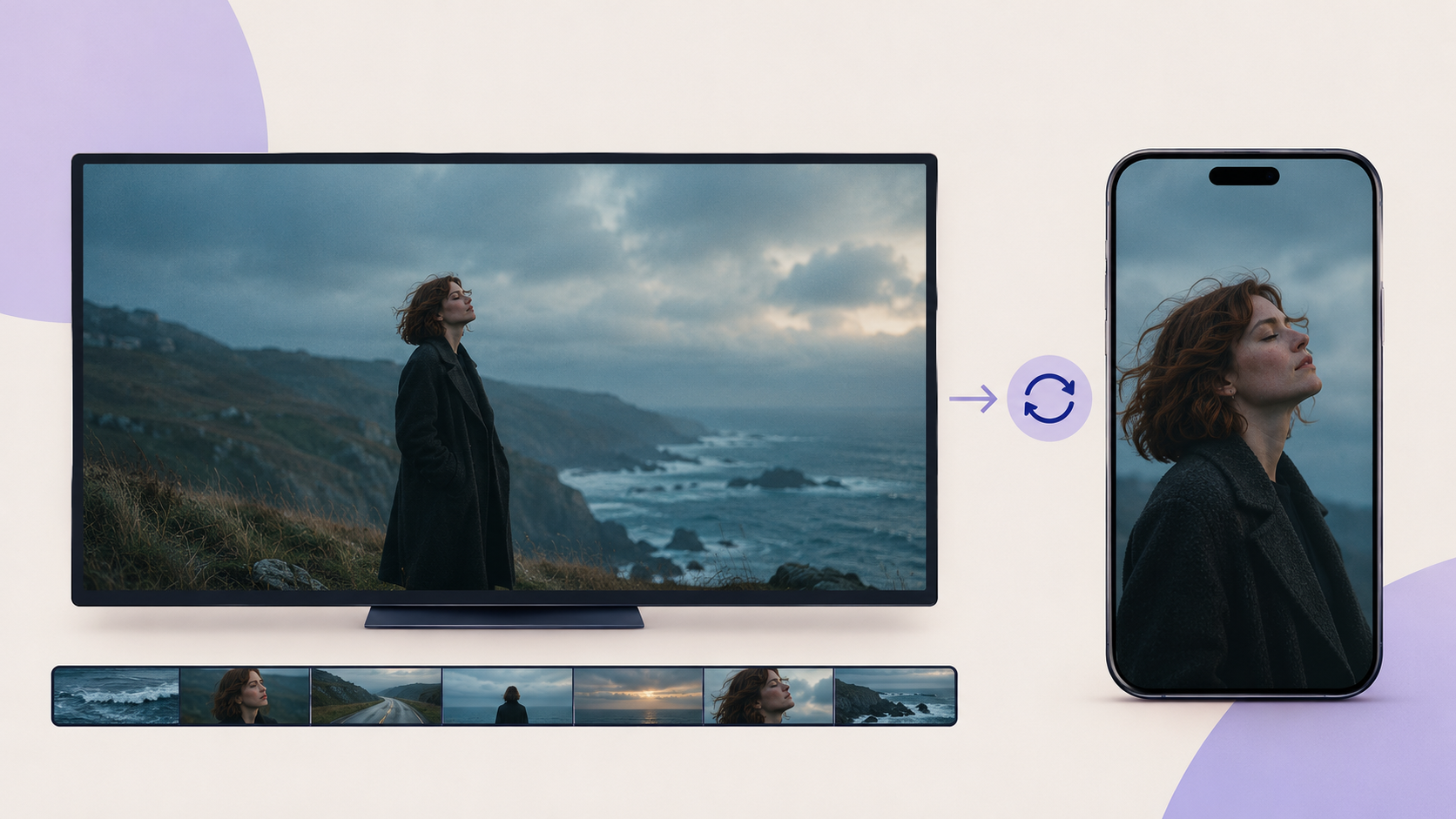
If you've already created a full music video, you can use a visually striking section as the starting point for a separate Canvas.
Choose footage that feels complete as a short loop, such as:
- •A slow camera move through a cinematic location.
- •A character standing in a changing environment.
- •An animated object completing a repeating movement.
- •A subtle visual transformation.
- •An abstract scene connected to the song's artwork.
You may need to trim and reformat the selected clip in a video editor to meet Spotify's Canvas specifications.
If you're deciding whether you need a full music video or simpler animated graphics, our guide to AI music video generators vs. music visualizers explains the difference in more detail.
How to Publish Your Music Video on Spotify
Once your music video is complete, the next step is distribution.
As of 2026, Spotify supports full-length music videos, including official music videos, live performances, studio sessions, and covers.
Spotify introduced direct full-length video uploads through Spotify for Artists in June 2026, although access remains limited to eligible artists as the feature rolls out.
Upload Through Spotify for Artists
If your artist account has access to video uploads, the process is:
- Sign in to Spotify for Artists on desktop.
- Open Video & Visuals.
- Select Upload Video.
- Upload your completed music video.
- Associate the video with the appropriate song in your catalog.
- Add the requested video details.
- Submit the video for processing.
Spotify currently recommends landscape 16:9 videos with a resolution of at least 1920 × 1080 pixels, a duration longer than 30 seconds but shorter than 20 minutes, and a file size under 50 GB.
You should also review the applicable content and music publishing requirements before submitting.
In the United States, Spotify has additional music publishing clearance requirements involving songwriter and publisher information. These requirements may matter even when you own the sound recording.
If direct uploading is not yet available to your account, check with your label or distributor about supported music-video delivery options.
You can find the current requirements in Spotify's official video upload guide and publishing rights guidance.
Make Shorter Versions for Other Platforms
Your official music video can also become the foundation of a broader release campaign.
For instance, you could use the finished video to prepare a short teaser from the chorus, a vertical performance clip, or a sequence of cinematic highlights.
Consider creating different edits for each platform rather than simply cropping the entire widescreen video.
A wide landscape shot might look beautiful on YouTube but lose its composition when squeezed into a vertical frame.
Plan important character positions and camera angles with those different formats in mind.
And remember: Spotify's full-length music video upload process is separate from its Canvas feature. A visualizer or lyric-only video that works well on YouTube may not qualify for Spotify's official music video category.
Common Mistakes When Making a Video for a Spotify Song
Even with AI tools, a few practical mistakes can make the finished video less effective.
Using the wrong audio version
If your Spotify release uses a different edit or master, the video may not match the song your audience recognizes. Begin with the correct approved recording.
Trying to import a Spotify streaming link as an audio file
A streaming link is not an audio master. Use a file you own or have permission to use rather than attempting to rip the recording from Spotify.
Generating the entire song before testing the concept
If the visual style is wrong, regenerating a full-length video can become expensive. Test a short section first, then expand once the direction feels right.
Ignoring the difference between vocal and instrumental sections
Avoid unnecessary lip synchronization during moments without singing. Let the visuals change with the music.
Using a different visual identity in every scene
A consistent character, color direction, and visual environment can make a music video feel more coherent, even when individual scenes change dramatically.
Choosing the wrong video format
A 9:16 vertical clip is useful for social media, but Spotify recommends 16:9 for official full-length music videos.
Forgetting to budget for revisions
AI video generation often requires experimentation. Different models, resolutions, clip lengths, and repeated generations can change the overall cost.
If you're planning a full-length project, review BeatViz pricing and generation options before generating every scene.
FAQ: Spotify Song to Music Video
Can I make a music video from a Spotify song?
Yes, if you have the necessary rights to use the recording and musical composition. Use an authorized copy of the original audio file, upload it to a music video generator, create the visual scenes, and export the finished video.
Can I paste a Spotify song link directly into BeatViz?
No. BeatViz currently requires you to upload a supported audio file from your device rather than importing the song through a Spotify URL.
Can AI make a music video without changing my original song?
Yes. You can use your original recording as the soundtrack and generate visual content around it. BeatViz Editor exports the video using the original uploaded song as its audio source, although the final MP4 may use a different audio encoding.
Do I need to create a new version of my song?
No. If you're satisfied with the released recording, you can create visuals around that existing version. You do not need to generate new vocals or instrumentation.
Can I make a full-length music video instead of a short clip?
Yes. BeatViz supports creating longer music video projects from uploaded music. The available duration, generation options, and cost depend on the workflow and plan you choose.
Is a Spotify Canvas the same as a music video?
No. A Canvas is a short 3–8 second vertical looping visual. A full music video follows the song across a longer sequence of scenes and may include performance, storytelling, and cinematography.
Can I upload my AI music video directly to Spotify?
Eligible artists can upload supported full-length music videos through Spotify for Artists, while labels and distributors remain an important delivery route. Upload availability, content requirements, and music rights clearances still apply. BeatViz itself generates and exports the video; publishing it to Spotify is a separate step.
How much does it cost to make a Spotify music video with AI?
The cost depends on the length of the video, generation model, resolution, lip-sync usage, and number of revisions. A short test clip is a practical way to evaluate the result before investing in a complete music video.
Give Your Released Song a Visual Story
Your song is already on Spotify.
The recording is finished, the arrangement is set, and listeners can discover the music.
The next creative step is deciding what the song should look like.
You can build a cinematic narrative around its lyrics, create an imagined performance, or develop a visual world inspired by its atmosphere.
And you can do that without replacing the recording you've already released.
Start with the original audio file, develop a clear concept, review your scenes, refine the timing, and export the completed music video.
Your music is already out. Now give people something to watch.
Create a music video from your original song
Start with BeatViz — or go directly to AI Director if you want to shape the story through conversation.