How to Make a Music Video From a Udio Song in 2026: Download Limits Explained
You've created a song in Udio. The melody sounds right, the vocals are finally where you want them, and you can already imagine the music video: cinematic locations, recurring characters, and scenes that change with every verse and chorus.
But when you try to take the next step, you run into a problem.
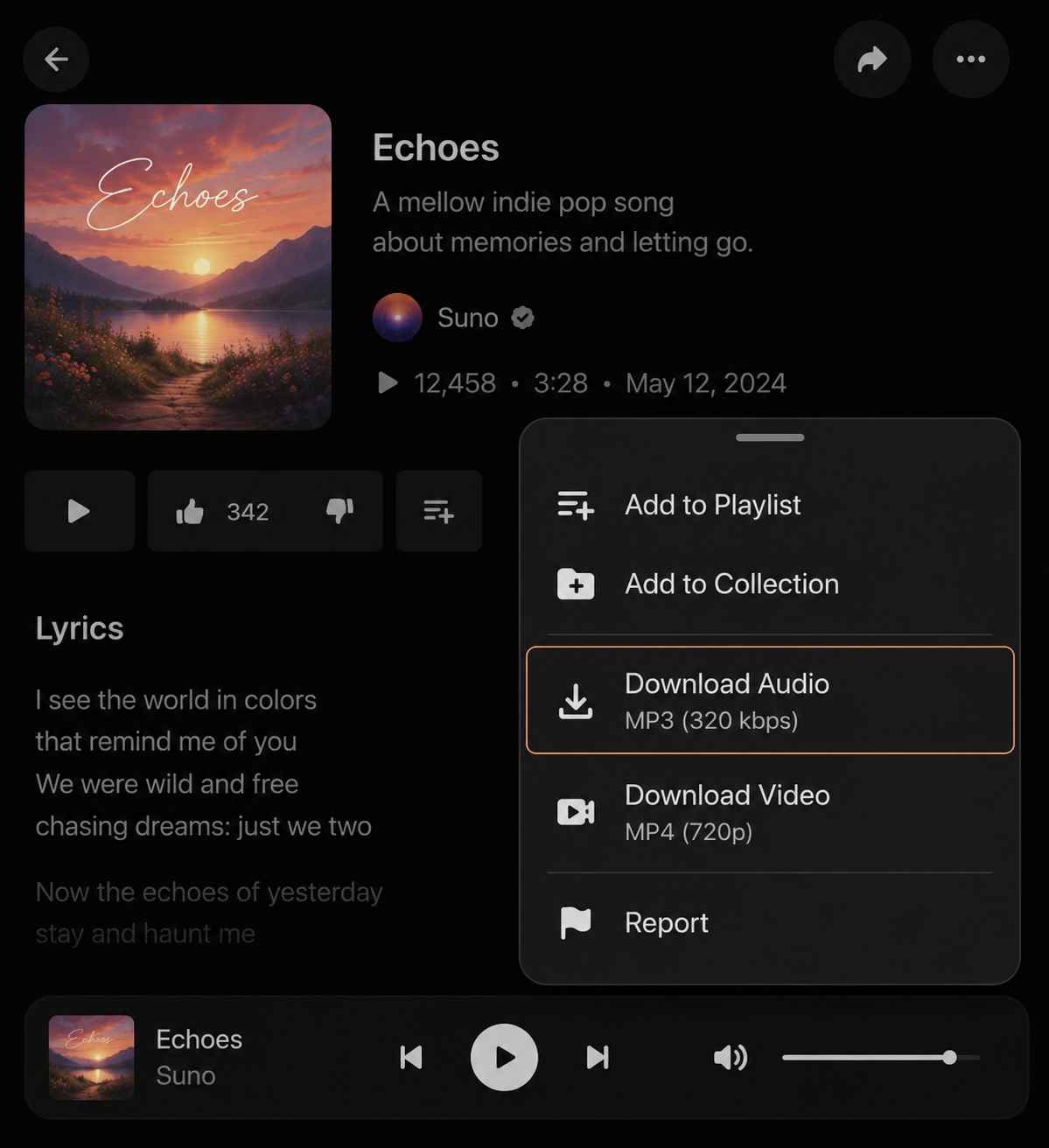
Where is the Download button?
If you're trying to make a Udio music video in 2026, this is the first question you need to answer. Udio's download restrictions have changed the way creators can move songs into external video tools.
The good news is that you can still develop a visual concept, prepare a storyboard, and create music videos from audio you are authorized to use. The important part is knowing which situation applies to you.
This guide explains Udio's current download limitations, what to do if you already have an audio file, and how to use BeatViz to turn an eligible song into a complete AI music video.
Can You Make a Udio Music Video in 2026?
Yes, but only if you have access to an audio recording that you are permitted to use for the intended video project.
As of November 23, 2026, Udio's official Help Center continues to state that audio, video, and stem downloads are disabled.
That creates two different situations.
If you previously obtained an authorized audio file and have permission to use it in a video, you may be able to begin the production process.
If your song exists only inside Udio, you cannot simply follow an older tutorial that tells you to download the MP3 and upload it to a video generator.
There's also an important distinction between having a file and having permission to distribute it. Even a previously downloaded recording should be checked against the applicable Udio agreement before you create or publish a video.
For creators with properly cleared audio, an AI music video generator like BeatViz can help turn the recording into scenes, characters, cinematic footage, and a finished video.
But first, let's clarify what changed.
Why Are Udio Song Downloads Disabled in 2026?
What changed in October 2025?
On October 29, 2025, Udio announced a partnership with Universal Music Group.
In its official announcement, A New Era of Music, Udio explained that downloads would become unavailable as part of a transition toward a new licensed music platform.
The change affected a fundamental part of the traditional AI music production process.
Previously, creators commonly generated music, downloaded an audio file, and transferred it into editing or distribution software.
During the current restriction period, that direct export workflow is unavailable.
Can you download Udio songs as MP3, WAV, or stems?
Udio's current Help Center does not offer a supported audio, video, or stem export workflow.
| Udio feature | Current documented status |
|---|---|
| Download a generated song as MP3 | Disabled |
| Download a generated song as WAV | Disabled |
| Export individual audio stems | Disabled |
| Download video output | Disabled |
| Share an available Udio song link | Separate from downloading an audio file |
| Upload an already authorized local audio file to a video tool | Depends on your rights and the tool's requirements |
These are platform download restrictions, not a problem that can be fixed by changing a video generator's settings.
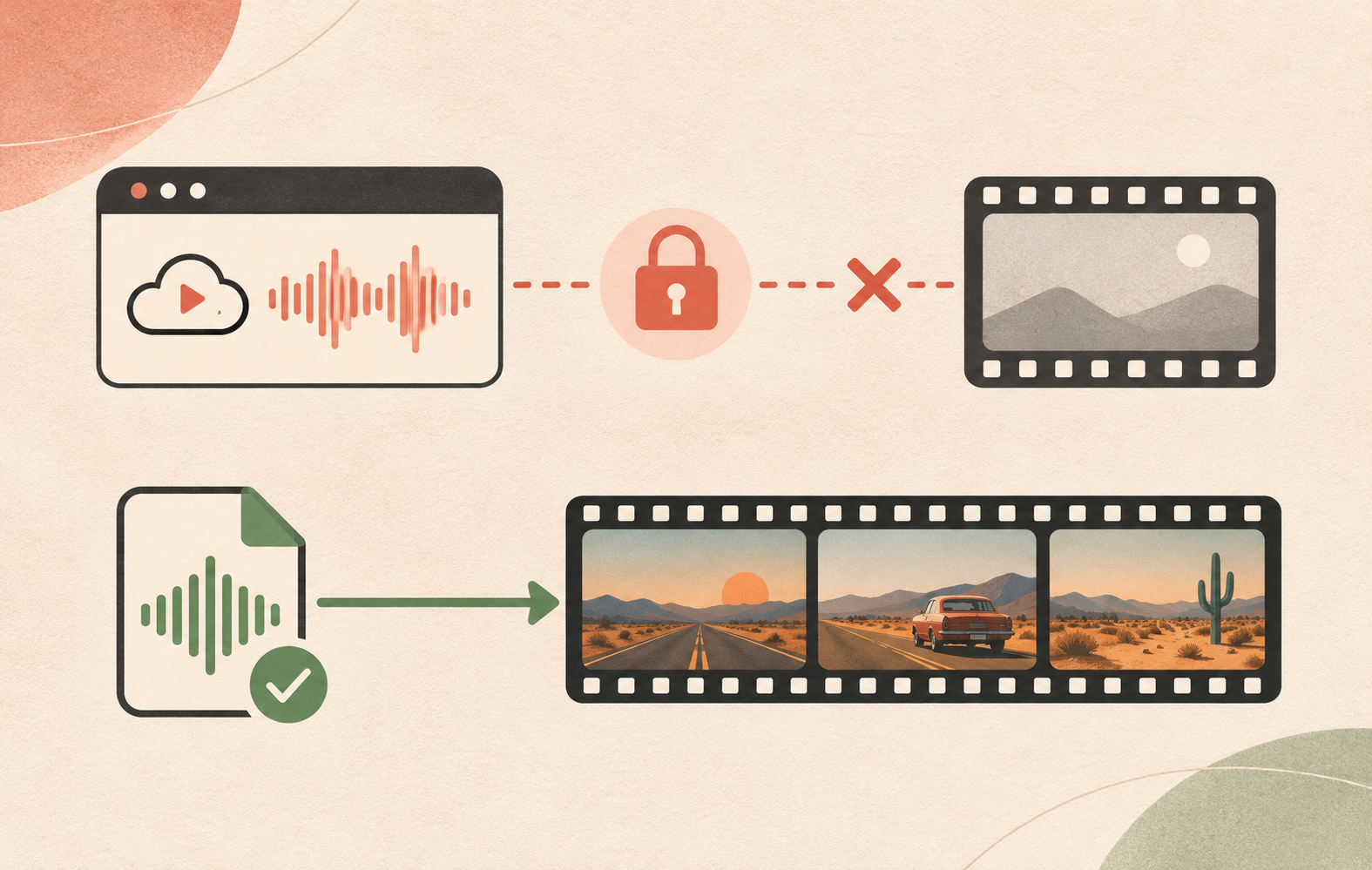
A third-party service claiming to extract audio from a Udio page does not automatically provide a permitted download or a license to reuse that recording.
What about older Udio exports and commercial rights?
Some creators still have MP3 or WAV files exported before the restrictions began.
Those files raise a separate permissions question.
An earlier download does not, by itself, prove that you have the right to make new derivative videos, upload the recording to third-party services, or monetize it.
Udio's currently published Terms of Service contain restrictions on downloading, reproducing, publishing, and distributing service outputs, including to external streaming and user-generated-content platforms.
If you have an older export, check the terms that apply to that particular recording and your intended use. Where necessary, obtain written permission or legal guidance.
Also remember: paying for a music video generation service does not grant additional rights to the underlying song.
Udio Song to Video: Which Path Can You Take?
Before opening an AI video generator, identify what you actually have.
| Your situation | Recommended next step |
|---|---|
| You have an earlier audio export with confirmed permission for video use | Prepare the file and start the video workflow |
| You have an earlier export but are unsure about its rights | Verify the applicable permission before using it |
| You only have a playable Udio song link | Do not assume the link can legally be converted into an audio file |
| You have the original recording you uploaded to Udio | Use that independent source file if you own or license it |
| You have lyrics, prompts, and musical ideas but no usable audio | Develop a visual concept while resolving the audio source |
| You can create or obtain another properly licensed recording | Start a separate music video project using that recording |
If you already have an authorized audio file
Make sure it is the final version of the recording you intend to use.
Check the duration, beginning, ending, and any extended sections. You should also keep the relevant license or permission documentation.
Once those checks are complete, you can follow the video creation steps below.
If you only have a Udio song link
A Udio sharing URL is not the same thing as an authorized audio export.
BeatViz's current creation workflows require an uploaded audio file. Pasting a Udio link is not a substitute for that requirement.
You can still prepare a storyline, collect visual references, write scene prompts, and decide how the music video should look. Just avoid using an unauthorized method to capture restricted audio.
If an official export becomes available later, review the applicable permissions before moving forward.
If you own the original recording
You might already have a recording, instrumental, or master file that you uploaded to Udio.
If that original file is independently yours to use, you can build a music video around it.
However, your original recording and the Udio-generated version may sound different. If the arrangement, vocals, or duration changed inside Udio, a video created for the original may not sync perfectly with the generated version.
Ready to create? If you have music you are authorized to use, explore the BeatViz AI Music Video Generator to see how a complete song can become a visual production.
How to Make a Video From a Udio Song With BeatViz
The following tutorial assumes you already have an eligible audio file and the rights required to use it.
BeatViz does not bypass Udio's download restrictions. Instead, it provides an AI-powered production workflow for creating visuals around audio you can legitimately upload.
Step 1: Verify your audio and prepare the project
Start with your finished stereo audio recording.
Before generating any scenes, check the following:
- •The audio file is complete and plays correctly.
- •You have permission to upload it to an external production service.
- •Your permission covers the intended use of the finished music video.
- •The lyrics match the actual vocal performance.
- •You know whether you are creating a full-length music video or a shorter promotional clip.
For the initial creative test, consider a 20–30-second section containing the strongest musical or emotional moment.
This lets you evaluate the visual direction before spending credits on a longer sequence.
Step 2: Upload your track to BeatViz
Open BeatViz Workflow.
BeatViz allows you to begin with an audio file and select the creation path that best matches your project.
Workflow includes guided creation options, while Studio Create 2.0 offers a more detailed process built around music analysis, storyboards, keyframes, and video generation.
The Studio workflow supports common uploaded audio formats such as MP3, WAV, AAC, M4A, and FLAC.
Choose the appropriate settings for your intended release, including the available video format and generation options.
A widescreen 16:9 composition is a useful starting point for a cinematic YouTube music video. If your main audience is watching on TikTok, Reels, or Shorts, consider a vertical 9:16 project instead.

Step 3: Analyze the song and build a storyboard
A good music video should respond to the song's structure, not simply display unrelated AI-generated images.
BeatViz Workflow 2.0 includes a Music Analysis stage followed by an editable Storyboard.
Before generating footage, review how the video will develop across major musical sections.
For example, imagine an original 90-second indie-pop track about leaving a familiar place and beginning a new chapter.
An illustrative storyboard might look like this:
| Song section | Visual direction | Camera approach |
|---|---|---|
| Intro | An empty railway platform at dawn | Wide establishing shot |
| Verse 1 | The main character arrives with a suitcase | Medium tracking shot |
| Chorus | A moving train passes through open countryside | Dynamic exterior shots |
| Bridge | The character sees their reflection in the window | Intimate close-up |
| Final chorus | The train enters a landscape filled with morning light | Expansive cinematic reveal |
| Outro | The character steps onto a new platform | Slow concluding shot |
These are example creative choices, not automatically detected timings from a real Udio song.
The important principle is to give each musical section a clear visual purpose.
A chorus may need more movement and wider framing, while a quiet verse might work better with a single character and subtle camera motion.
You can adjust the storyboard before committing to video generation.
For a broader explanation of music-led scene planning, see our guide to turning music into a video with AI.
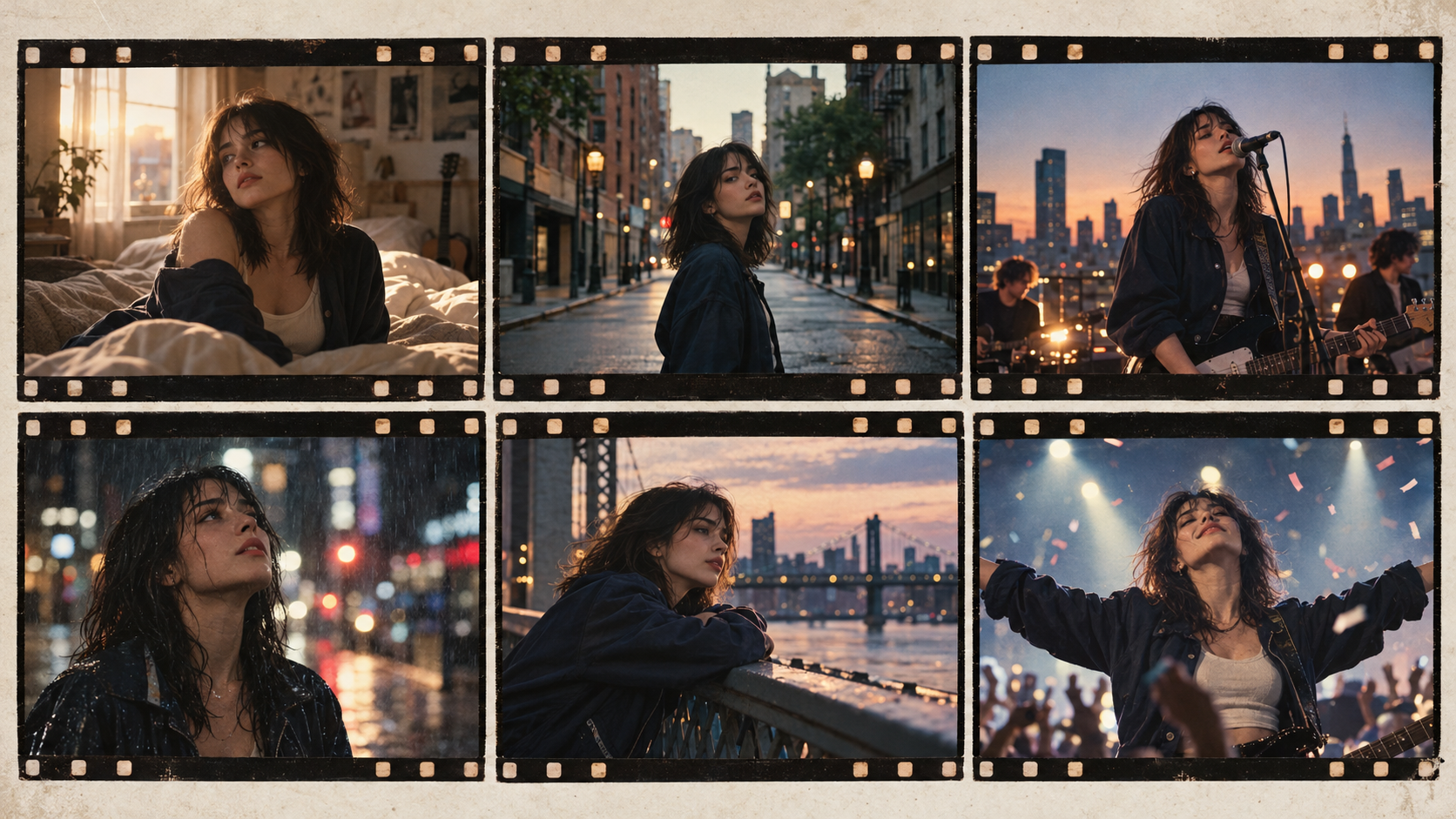
Want to build the visuals step by step? Open BeatViz Workflow and review your song's creative direction before generating the full set of video clips.
Step 4: Generate consistent keyframes and scenes
One of the biggest challenges in AI music video production is visual consistency.
A character might look convincing in the first shot, then suddenly have a different hairstyle, outfit, or facial structure in the next.
To reduce this problem, establish a consistent visual reference before generating multiple scenes.
For example, define:
- •A recurring character with recognizable facial features and clothing.
- •A stable visual style and color treatment.
- •Key locations that appear throughout the song.
- •Lighting rules for scenes that take place in the same environment.
In BeatViz Studio Create, you can review and refine the opening keyframes used for individual clips.
This provides an opportunity to correct composition or character appearance before generating the corresponding video.
A good keyframe establishes more than a beautiful image. It establishes the visual information that the next shot should preserve.
Step 5: Refine motion, lip sync, and timing
Once your video clips are generated, review them alongside the actual song.
Pay particular attention to three areas.
Motion and storytelling: Does the character's movement make sense? Does the camera follow the intended action? Does the scene contribute to the overall visual story?
Lip sync: If a singer appears on screen, check whether the mouth movements match the vocal passage. Not every scene needs lip sync. Instrumental sections, landscape shots, and narrative scenes often work better without it.
Timing: Look for awkward cuts, mismatched emotional moments, and scenes that continue too long after the music changes.
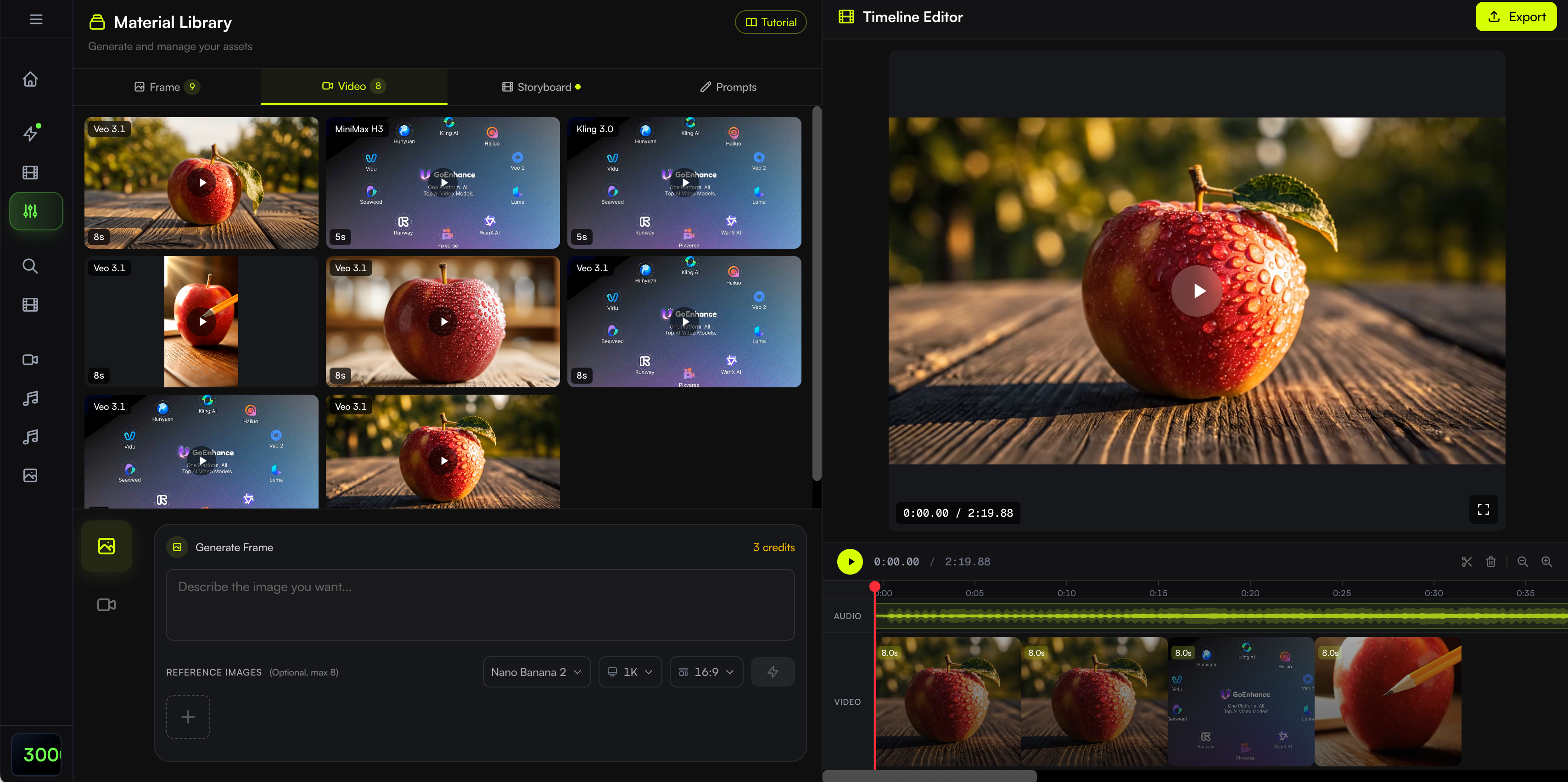
BeatViz offers different options for making these corrections.
Workflow lets you review generated scenes, while the BeatViz Editor offers more direct control over individual clips and the video timeline.
For example, if one shot has the wrong character expression, you can focus on correcting that segment instead of automatically rebuilding the entire music video.
Step 6: Export your finished music video
Before exporting, watch the complete timeline from beginning to end.
Check that the music remains synchronized, scene transitions feel natural, and no unintended visual changes distract from the song.
Think about where the finished video will appear.
YouTube music video: Use a widescreen composition, usually 16:9.
TikTok, Instagram Reels, or YouTube Shorts: Consider a separate 9:16 edit with framing designed for mobile screens.
A wide cinematic frame does not always crop well into a vertical format. Important characters and actions may disappear from view.
BeatViz supports exporting assembled music video projects, subject to the settings and entitlements of the selected workflow.

Remember that exporting a video file and having permission to publish its underlying audio are different matters. Confirm the music rights before releasing the video publicly.
BeatViz Workflow vs. AI Director vs. Editor: Which Should You Choose?
Not every music video needs the same level of automation.
The right BeatViz creation path depends on how much of the visual planning you want to control yourself.
| Creation path | Best for | Creative control |
|---|---|---|
| Workflow | Guided music analysis, storyboard development, and connected scene generation | Step-by-step review |
| AI Director | Chat-led development of visual ideas and shot direction, where available | Conversational direction |
| Editor | Detailed clip adjustments, reference frames, and timeline editing | Manual scene-level control |
If you're creating your first narrative music video, Workflow can be a practical starting point.
If you already know exactly how every shot should look, Editor may be more appropriate.
AI Director provides a different, conversational approach to creative planning where the feature is available in your account.
None of these creation paths changes the permissions attached to a Udio recording or retrieves audio from a restricted Udio link.
For a larger project, it's also worth understanding your production budget before generating every clip. Review the available options on the BeatViz pricing page, and check the in-product credit estimate for your chosen workflow.
Need more control over your shots?
Explore BeatViz Editor to refine specific scenes, work with reference images, and build your final sequence on a timeline.
What If You Cannot Download Your Udio Song?
If your Udio song cannot currently be exported, you still have useful preparation work to do.
Build a visual concept without copying restricted audio
You can write a visual treatment using your own musical ideas and notes.
Start by answering a few creative questions:
What is the song about? Who is the main character? Where does the story happen? What visual element should return during the chorus?
Then organize your ideas into a simple shot list.
For example:
Visual concept: A young traveler leaves a familiar city and crosses an empty desert highway in search of a new beginning.
Opening: The traveler stands beside an old roadside motel as the sun rises.
Verse: A quiet journey through small towns and distant landscapes.
Chorus: The road opens into dramatic mountain scenery.
Ending: The traveler reaches a new destination but pauses before entering.
This concept can later become a storyboard, regardless of which properly licensed recording you ultimately choose.
You can also prepare original character reference images, location references, and camera descriptions.
Use another recording you have permission to use
If you need to finish a project now, consider using an independently owned recording or music obtained under a license that expressly permits your intended video use.
That might be your own composition, a professionally recorded master, or music created through another service with suitable terms.
A new recording is a separate music source; it is not a way to extract or reproduce a restricted Udio output.
If you're exploring a different music generation workflow, our guide on turning a Suno song into an AI music video explains the production side of that process. You should still verify the music platform's current export and usage terms.
We also have a separate walkthrough for making a music video from a Mureka song.
Common Mistakes When Creating Udio Music Videos
Even with a properly licensed recording, several problems can make an AI-generated music video feel unfinished.
1. Confusing access with permission
Being able to hear a song, open its link, or possess an old audio file does not automatically grant permission to publish it.
Check the applicable music rights before production and distribution.
2. Generating every scene before reviewing the storyboard
It's tempting to generate an entire music video immediately.
But if the original concept is inconsistent, generating more footage will not fix the underlying problem.
Review the story, characters, and scene order first.
3. Changing visual styles too often
Mixing realistic cinematography, animation, neon sci-fi, and vintage film effects can be interesting when intentional.
When those shifts happen randomly, they often weaken the video's identity.
Choose a visual language and let the composition evolve within it.
4. Using lip sync on every vocal passage
A music video doesn't need to show a singer every time a lyric is heard.
Narrative shots, cutaways, close-ups of objects, and environmental scenes can express the emotion of the music without visible singing.
Use lip sync where it adds something meaningful.
5. Ignoring the final audio version
A song with extended sections, revised lyrics, or a changed outro may no longer match the original storyboard.
Lock the final authorized recording before doing detailed synchronization work.
6. Spending generation credits without reviewing the results
Generate in stages whenever possible.
Check the first images, inspect the opening keyframes, and preview completed clips before committing to more expensive generation.
This gives you more opportunities to correct problems early.
Can You Publish a Udio Music Video on YouTube?
This is one of the most important questions for creators planning to release a Udio music video.
Creating a video and having the right to upload it to YouTube are not the same thing.
Udio's current terms restrict the external distribution of service outputs, including on platforms such as YouTube and other social networks.
Do not assume that an active or formerly paid Udio subscription automatically provides unrestricted commercial distribution rights.
For an older recording, a separate authorization, or another unusual situation, review the terms and permissions that apply to that specific audio.
You also need to distinguish between two kinds of rights:
Music rights: Permission to use and distribute the recording and any relevant underlying composition.
Video rights: Permission to use the generated footage, images, and other visual assets.
A video generator may provide commercial rights for its own eligible output, but that does not override restrictions imposed by the music source.
Before publishing, keep records of your source audio, applicable licenses, and any permissions needed for the intended release.
If the music is not cleared for YouTube, do not publish the combined music video until that issue is resolved.
FAQ: Udio Music Video Creation and Download Limits
Can I download a Udio song in 2026?
Udio's official Help Center still lists audio, video, and stem downloads as disabled as of November 23, 2026. Check the current official notice for any later changes.
How can I make a video from a Udio song without downloading it?
You can develop the visual concept, storyboard, and prompts, but a synchronized BeatViz music video requires an authorized local audio file. A Udio song link alone does not satisfy that requirement.
Can I use an old Udio MP3 to make a music video?
Possibly, if the file was lawfully obtained and you have permission covering the planned video use. An old download is not automatic proof of continuing distribution rights.
Does BeatViz support Udio song links?
BeatViz's documented music video workflows use uploaded audio files rather than direct Udio link import.
Can I monetize a Udio music video on YouTube?
Do not assume you can. Udio's current terms restrict commercial use and external distribution of outputs. You would need rights that specifically permit the intended use.
Do I need separate stems to create a music video?
Usually not. A completed stereo recording is sufficient for a typical music-to-video workflow. Stems are more relevant when you need to modify or remix individual parts of the music.
Which is better for a full music video: Workflow or Editor?
Workflow is useful for guided scene planning and generation. Editor is more suitable when you want detailed control over individual shots, reference images, and timeline arrangement.
How much does a Udio music video cost to make with AI?
The cost depends on the authorized source audio's length, your chosen video-generation models, resolution, number of clips, lip-sync settings, and regeneration attempts. Check BeatViz pricing and the estimated credits shown for your selected creation workflow.
Can BeatViz make a music video without changing my song?
BeatViz is designed to build visuals around the uploaded audio. For a project where preserving the original recording matters, use the final approved source file and review the combined result before exporting.
Turn Your Music Into a Visual Story With BeatViz
Udio's download limitations have changed the practical path from AI music generation to music video production.
But the creative principles behind a strong music video remain the same.
Start with a recording you are authorized to use. Understand its structure. Build a visual concept that supports the music. Keep characters and locations consistent. Then refine the individual shots until the sequence feels like one complete work.
You don't need a different visual idea for every line of the song.
Sometimes one character, one recurring location, and a carefully planned change in perspective can tell a more memorable story than dozens of unrelated AI-generated clips.
With BeatViz, you can use guided music analysis, scene generation, keyframes, and editing tools to develop that visual story.
Your music has a story. Give it a screen.
If you have a finished song that you're authorized to use, create your next AI music video with BeatViz — from your first visual concept to the final edited sequence.
And if you're still deciding how to approach the project, explore our complete guide to turning music into video with AI before you begin.