Back to Blog

Beatviz Tutorial

Create Audio-Driven Videos with Confidence

Getting Started

Create a New Task

Every Beatviz project starts with a task. This is where you define how the AI should interpret your audio.

Select a Template

Templates define the AI's rendering behavior.

Storytelling

  • Designed for narration and spoken content
  • Balanced performance and cost

Singing

  • Optimized for music and vocals
  • Superior lip-sync accuracy
  • Higher credit usage due to advanced rendering

Choose Singing when visual mouth movement quality matters.

Template selection UI

Standard vs Pro Mode

Before generation, choose a quality tier:

Standard Mode

  • Faster rendering
  • Lower credit cost

Pro Mode

  • Higher visual fidelity
  • Increased credit usage

Select based on quality requirements and budget.

Mode selection UI

Configure Presets: Character

Upload a character image in the Preset section.

This image is used to:

  • Guide first frame generation
  • Maintain character identity across video segments

Without a character preset, the AI may introduce inconsistent or random characters.

Configure Presets: Style

Styles define the emotional and cinematic direction of the video.

Available examples include:

EpicCinematicFunnyHappySad

Styles influence lighting, mood, and visual rhythm.

Think of styles as high-level creative constraints for the AI.

Style selection dropdown

Review First Frame & Video Prompts

After configuration, Beatviz automatically:

  • Analyzes your audio
  • Generates a first frame image
  • Produces a corresponding video prompt

Always review these before generating video.

First Frame Image: Why It Matters

The first frame image sets the visual foundation of the video.

It directly affects:

  • Character appearance
  • Scene composition
  • Overall aesthetic consistency

Important: If the first frame does not contain your intended character, regenerate it before proceeding. This step prevents downstream inconsistencies.

Regeneration & Quality Controls

Beatviz supports iterative refinement without restarting your task.

Regenerate a Video Segment

If a generated clip does not meet expectations, you can:

  • Regenerate the current segment
  • Adjust the first frame image
  • Edit the video prompt

This allows focused improvements while preserving previous work.

Reference Image vs First Frame Image

In Standard Mode, regeneration supports two image types.

Reference Image

  • Guides character appearance
  • Background is optional
  • AI relies more on prompts

First Frame Image

  • Becomes the opening frame
  • Character and background both matter
  • Strongly constrains visual output

Use reference images for flexibility, and first frame images for precision.

Reference vs First Frame comparison

Draft Recovery

If your browser closes or a technical issue occurs, your progress is preserved.

Unfinished tasks can be recovered at: https://beatviz.ai/creations

This enables seamless continuation without reconfiguration.

Draft recovery page

Simple Mode vs Custom Mode

Beatviz provides two main video generation modes:

Key Differences

Simple Mode

In Simple Mode, you only need to upload an audio file. Beatviz's AI agent will automatically:

  • Analyze the audio
  • Generate suitable video prompts based on rhythm and structure
  • Create first-frame images
  • Produce a complete video with one click

This mode is designed for speed and ease of use, while still allowing you to edit and adjust the AI-generated content later if needed.

Custom Mode

In Custom Mode, the AI does not analyze your audio automatically. Instead:

  • You fully control every video segment
  • You manually write prompts for each clip
  • You decide whether to use first-frame images
  • You design and build the video structure from scratch

Although Simple Mode also allows manual editing, its initial setup is assisted by AI agents.

Custom Mode provides zero agent assistance and is intended for creators who want complete creative freedom and precision.

Creating a Task in Custom Mode

To create a Custom Mode project:

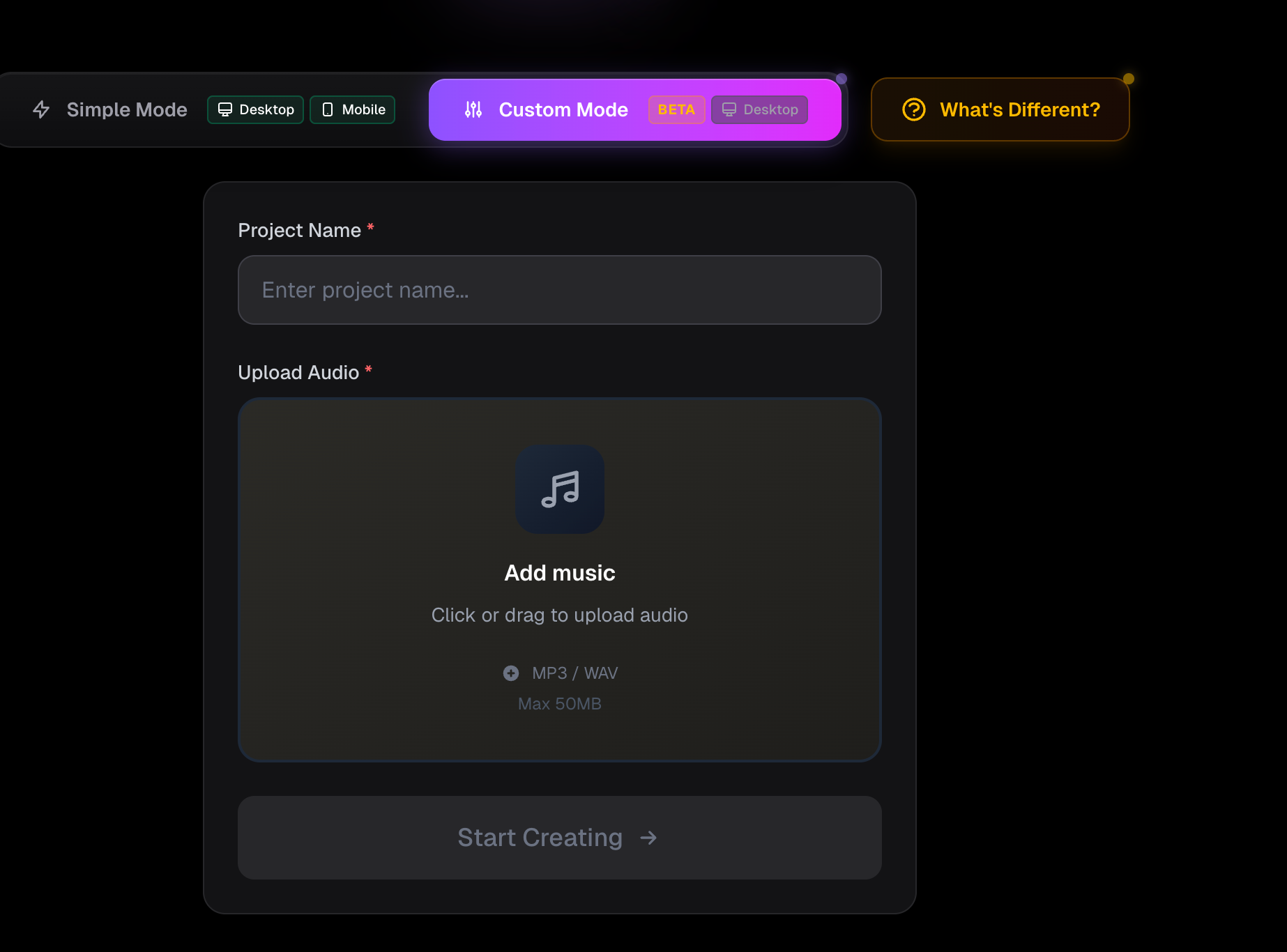
  1. Visit https://beatviz.ai/create-custom
  2. Upload your audio file
  3. Enter a project name
  4. Click Create Task
Task creation interface

Custom Mode Interface Overview

The Custom Mode interface is divided into two main sections:

  • Left Panel: Image and video generation workspace
  • Right Panel: Audio timeline (track) workspace

The goal is to generate visual content on the left and align it precisely with your audio on the right.

Custom Mode interface overview

Left Panel: Generation Workspace

The left panel contains three core functional areas:

  1. First-Frame Image Generation
  2. Video Generation
  3. Audio Analysis (reference only, no auto-generation)
  • The bottom section is the generator, where you input prompts and settings
  • The top section displays generated images and videos

This panel is where all visual assets are created before being placed on the timeline.

Right Panel: Audio Timeline

The right panel is centered around the audio timeline at the bottom.

Here you can:

  • Drag generated videos from the left panel onto the timeline
  • Align video clips with specific segments of your audio
  • Rearrange video order freely after placement

First-Frame Image Generation in Custom Mode

To generate a first-frame image:

  1. In the generator area, select Image
  2. Choose your preferred image model
  3. Enter your prompt
  4. Optionally upload a reference image
  5. Click Generate

First-frame images can later be reused to guide video generation.

Video Generation in Custom Mode

Video generation follows a similar workflow:

  1. Enter your video prompt
  2. Select a video model
  3. Optionally choose a first-frame image
  4. Generate the video

About First-Frame Images

A first-frame image defines the visual starting point of a video clip.

It strongly influences:

  • Composition
  • Character appearance
  • Overall visual direction

Using a well-designed first frame can significantly improve video consistency and quality.

First-frame image selection for video generation

Applying Videos to the Audio Timeline

Once your video clips are generated:

  1. Drag them from the left panel into the timeline
  2. Align each clip with the desired audio segment

You can also:

  • Change clip order at any time
  • Replace or remove clips freely

Lip Sync Feature in Custom Mode

To use the lip sync feature, two steps are required:

Step 1: Select Lip Sync Audio

In the right-side audio timeline:

  • Select the specific audio segment that requires lip synchronization
  • Beatviz will use this selected audio to guide the AI's lip movement generation

Step 2: Define Visual Direction

You must also provide:

  • A prompt describing the character and scene
  • An optional reference image

These inputs define the overall visual style while the selected audio controls mouth movement.

Ensuring Character Consistency

Character consistency is primarily controlled by the first frame image.

How Consistency Is Determined

  • If the first frame includes your character, the AI will maintain it throughout the video.
  • If the first frame lacks a character but prompts reference one, the AI will generate a random character.
Consistent vs inconsistent character example

Best Practice

Always confirm:

  • The character is clearly visible in the first frame
  • The image matches the prompt description

This is the most reliable method for visual continuity.

You can also:

  • Use the Import from Library button to import images generated from previous tasks
  • Utilize AI to regenerate new images when needed
Import from library and AI regeneration

Improving Lip Sync Quality

For optimal lip-sync results:

  • Use Singing mode
  • Especially for music and vocal-heavy content

Singing mode consumes more credits due to:

  • Longer render time
  • Advanced facial animation models

The quality improvement is typically substantial.

Summary

This tutorial is structured for modular reading and visual learning. Each section is designed to stand alone and pair naturally with short GIF demonstrations, making it ideal for onboarding, documentation, and product education.

Beatviz Tutorial: Create Audio-Driven Videos with Confidence