Classic mode tutorial
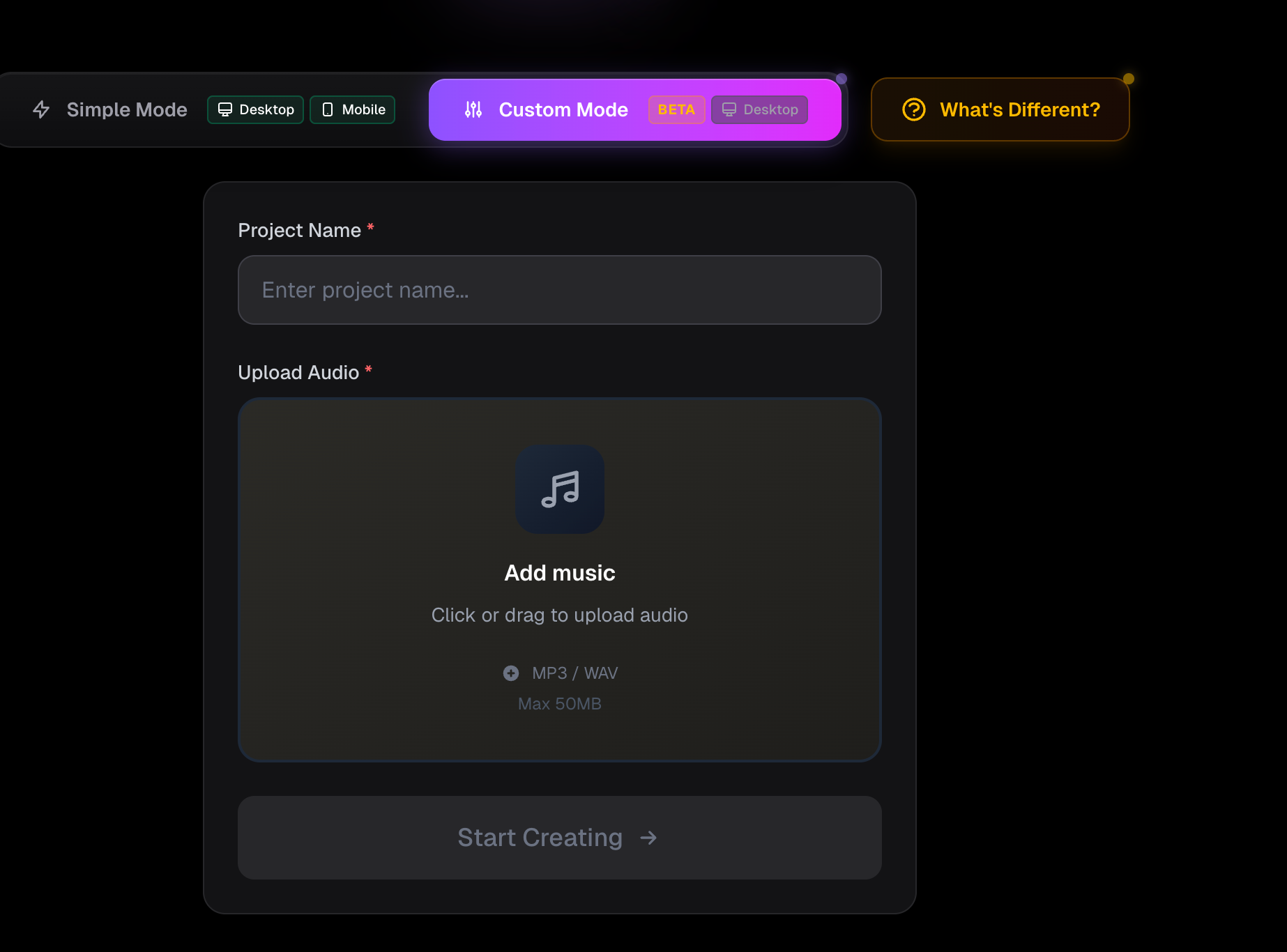
To create a Editor Mode project:
- Visit https://beatviz.ai/create-custom
- Upload your audio file
- Enter a project name
- Click Create Task
Editor Mode Interface Overview
The Editor Mode interface is divided into two main sections:
- Left Panel: Image and video generation workspace
- Right Panel: Audio timeline (track) workspace
The goal is to generate visual content on the left and align it precisely with your audio on the right.
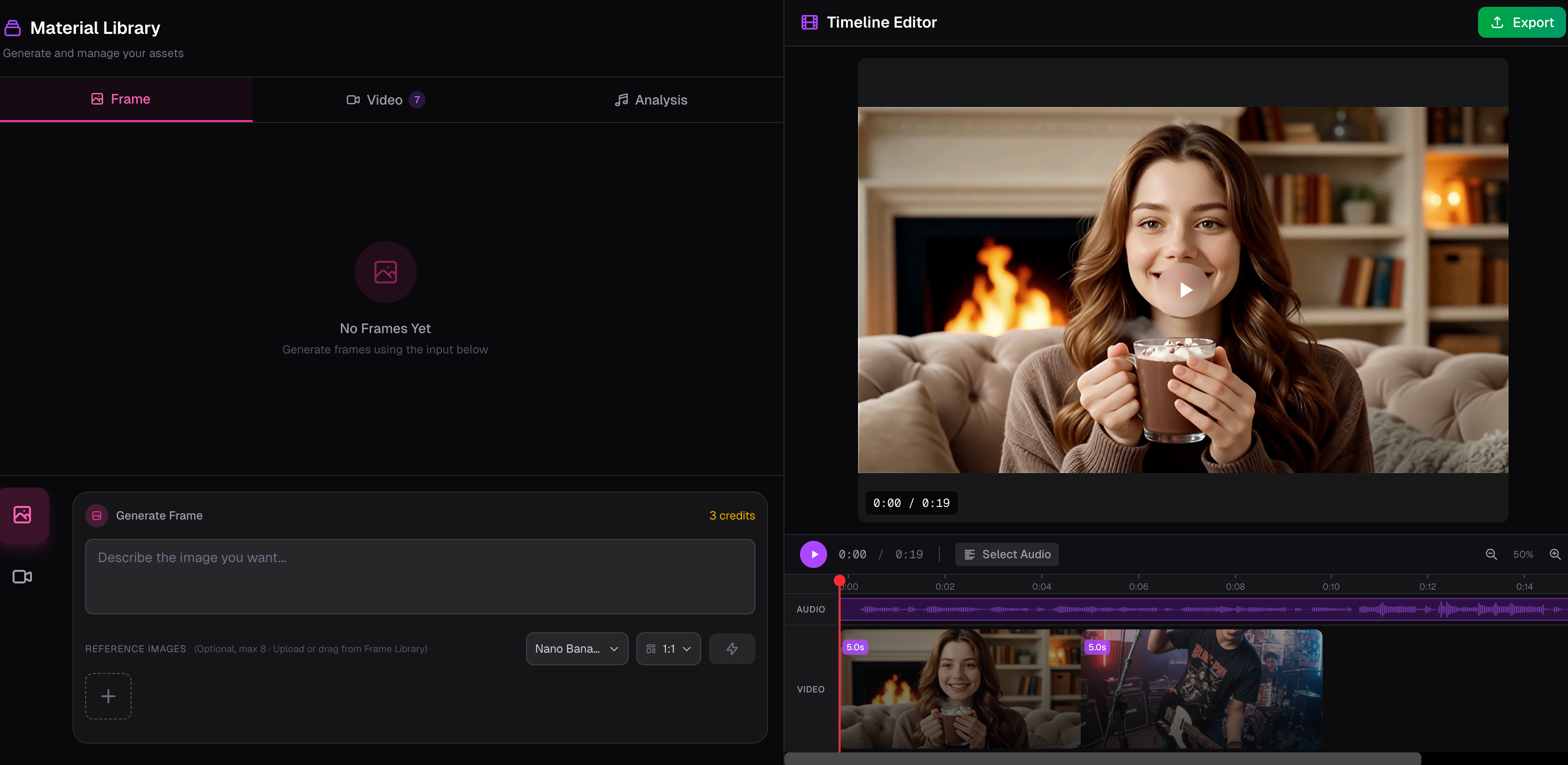
Left Panel: Generation Workspace
The left panel contains three core functional areas:
- First-Frame Image Generation
- Video Generation
- Audio Analysis (reference only, no auto-generation)
- The bottom section is the generator, where you input prompts and settings
- The top section displays generated images and videos
This panel is where all visual assets are created before being placed on the timeline.
Right Panel: Audio Timeline
The right panel is centered around the audio timeline at the bottom.
Here you can:
- Drag generated videos from the left panel onto the timeline
- Align video clips with specific segments of your audio
- Rearrange video order freely after placement
First-Frame Image Generation in Editor Mode
To generate a first-frame image:
- In the generator area, select Image
- Choose your preferred image model
- Enter your prompt
- Optionally upload a reference image
- Click Generate
First-frame images can later be reused to guide video generation.
Video Generation in Editor Mode
Video generation follows a similar workflow:
- Enter your video prompt
- Select a video model
- Optionally choose a first-frame image
- Generate the video
About First-Frame Images
A first-frame image defines the visual starting point of a video clip.
It strongly influences:
- Composition
- Character appearance
- Overall visual direction
Using a well-designed first frame can significantly improve video consistency and quality.
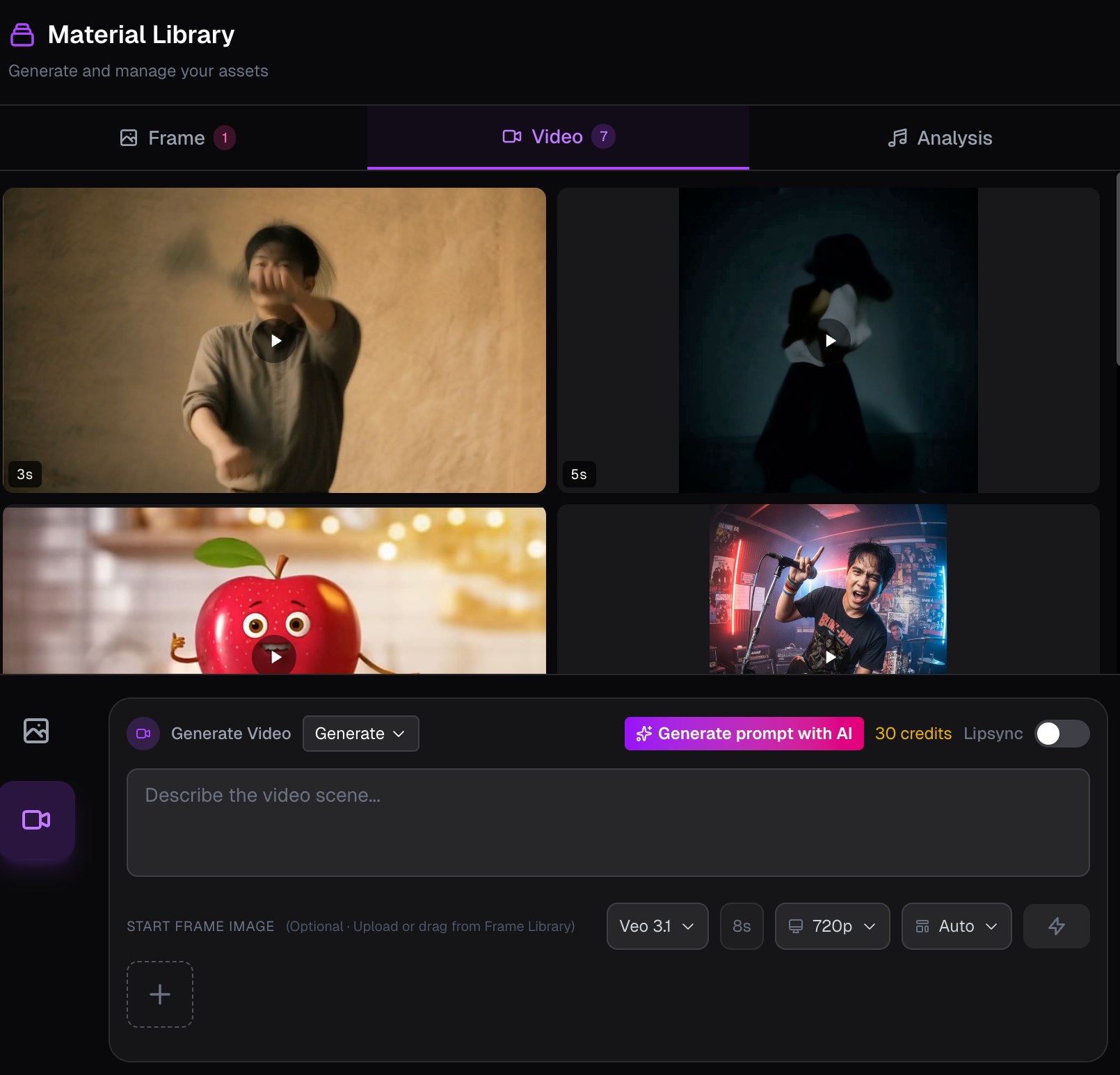
Applying Videos to the Audio Timeline
Once your video clips are generated:
- Drag them from the left panel into the timeline
- Align each clip with the desired audio segment
You can also:
- Change clip order at any time
- Replace or remove clips freely
Lip Sync Feature in Editor Mode
LipSync uses the selected timeline clip and the audio under it. Clips longer than 15 seconds cannot be lipsynced (20 credits per second, partial seconds round up).
First put a video on the timeline. Trim it to 15 seconds or less if needed.
Two ways to LipSync
1. From the left panel
Click the clip on the timeline, turn on LipSync in the left panel, then generate. Audio is taken from the same time range automatically.
2. From the timeline
Right-click the clip and choose LipSync. This runs the same job as the left panel — no extra setup.
While LipSync is running, the clip is locked. When it finishes, the clip is replaced in place.
Chat mode tutorial
Chat uses the same Editor project as Classic. You describe the shot. BeatViz prepares the prompt, shows a card, and generates only after you confirm. Classic is still there when you want to drive the timeline yourself.
- Create the project the same way as Classic: upload the song, name it, and choose the aspect ratio. That ratio is used for every image and video in the project.
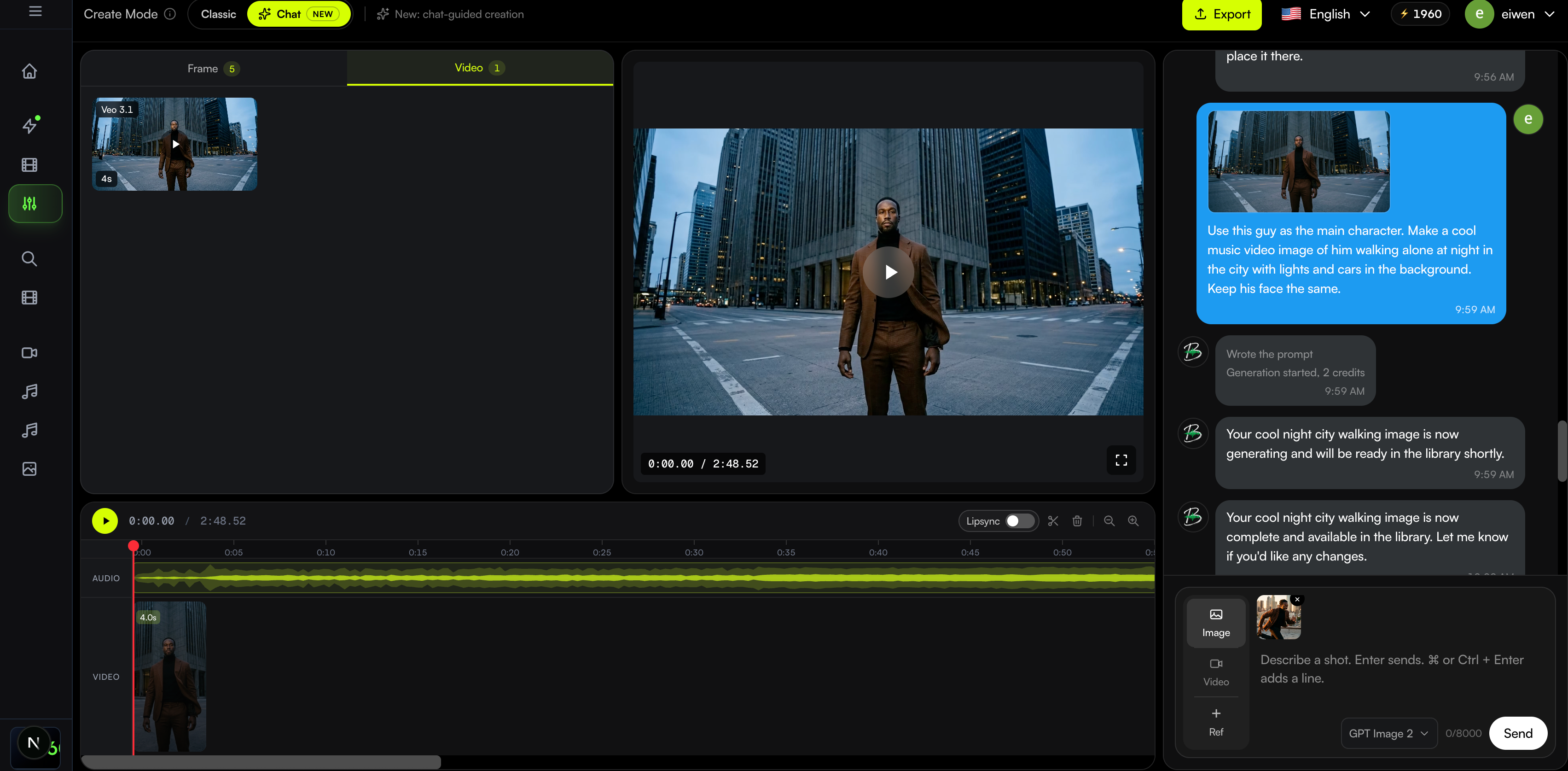
- On a computer or tablet, use Create Mode at the top. Classic is the timeline editor. Chat is the new mode. Both open the same project. The note beside the switch says chat-guided creation is new.
- On a phone, Editor opens Chat. There is no Classic / Chat switch.
The first time you open Editor on a phone or tablet, a note suggests using a computer. Close it once and it stays closed in both modes.
The Chat screen
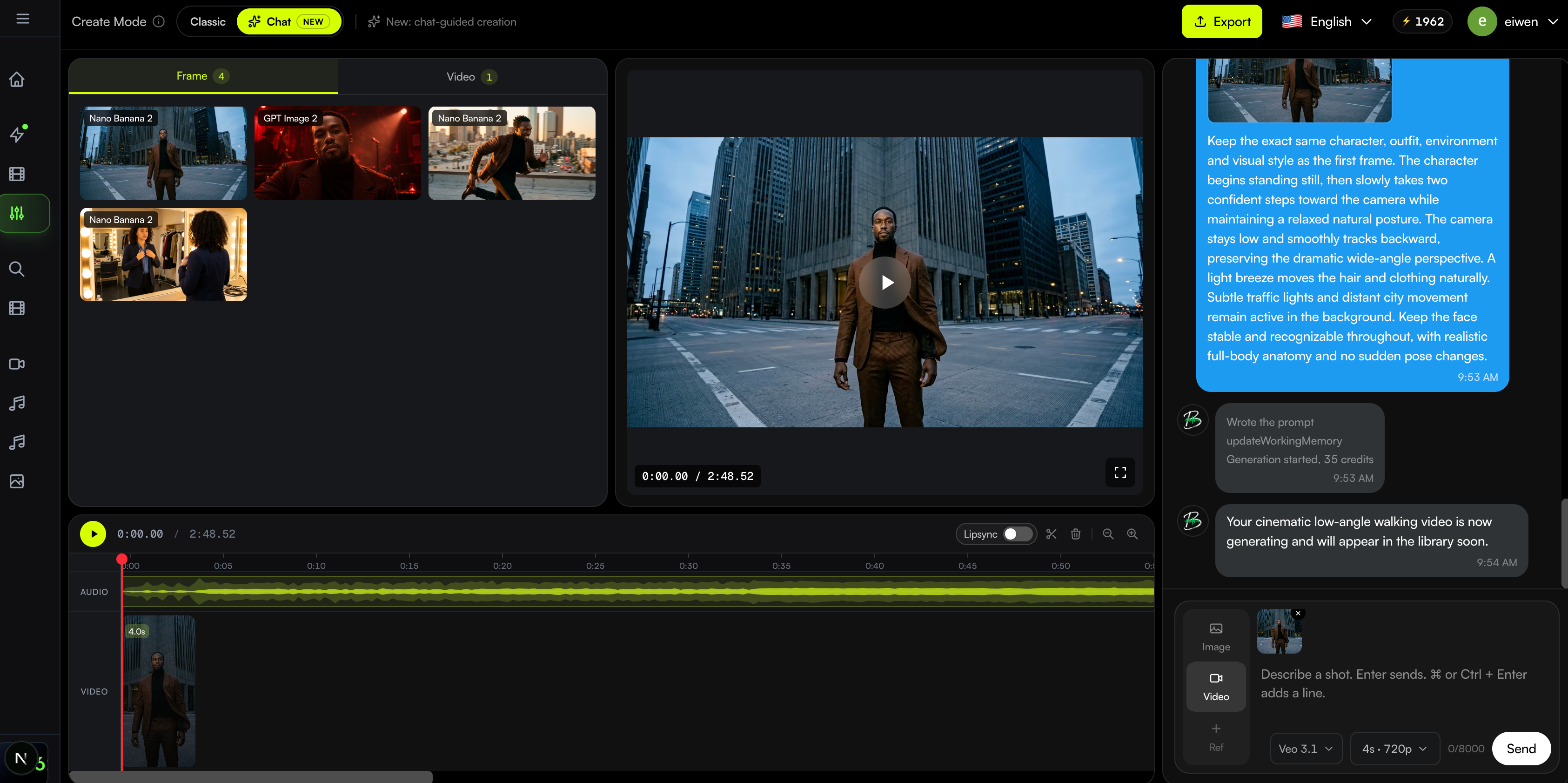
Chat keeps the preview and the timeline. What changes is where the materials and the conversation sit.
- On a computer, materials sit next to the preview, the timeline runs along the bottom, and chat is the column on the right.
- On a tablet, chat is narrower so the preview gets more of the width. Materials stay beside the preview.
- On a phone, the preview and timeline stay on screen. Library and Chat are buttons on the bottom bar. Each opens a panel from the bottom. The chat panel is the taller one. If a shot is still generating and the library is closed, Library blinks.
Describe a shot
The box under the conversation is where you ask for a shot.
- Enter sends the message. On a Mac, Command + Enter starts a new line. On Windows, Ctrl + Enter starts a new line. Shift + Enter also starts a new line.
- If you already wrote the subject, the action, and the camera, light, or style, Chat uses that text as the prompt. It is not rewritten.
- If you only wrote an idea, Chat turns it into a generation prompt and shows that prompt on the confirmation card. You still confirm once. Writing the prompt does not spend credits.
- The first time a project has no messages, BeatViz writes a short welcome. Wait until it finishes, then type.
- Replies follow the language of your message.
Image, video, and reference photos
The switches on the left of the box decide what the next message generates.
- Image keeps the image model. You can attach up to four reference photos.
- If the project has a character photo, Image mode places it in the first slot. Delete it when this shot should not use the character. It will not come back in this project, including in Classic.
- Video allows one reference photo. Choose the video model, then the duration and resolution. Each row shows its credit cost.
- Drag a photo from the library, or a file from your computer, onto the box. The thumbnail stays until you remove it. The confirmation card shows the reference that will be used. If you remove it, that message has no reference.
Confirm before credits are spent
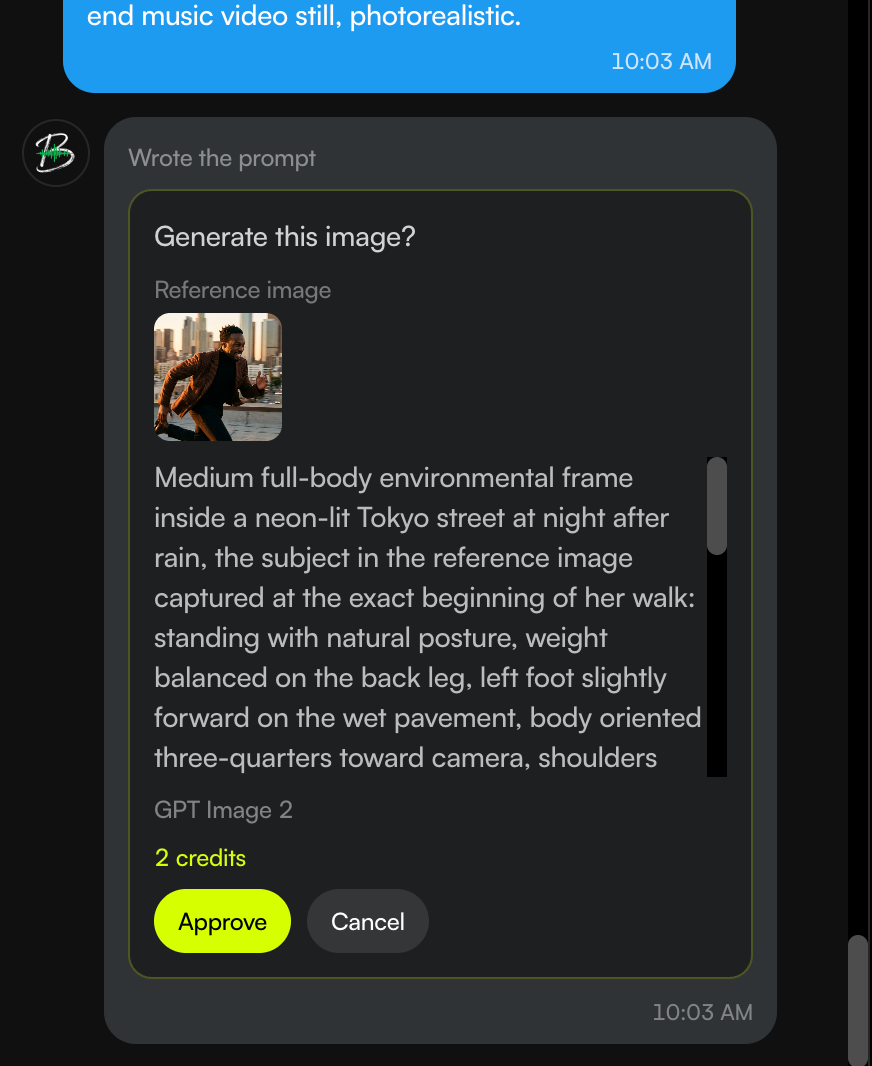
Nothing is generated, and no credits are spent, until you confirm the card.
- The card shows the prompt, the reference photo if there is one, the model, and for video the duration and resolution.
- Confirm starts the job. Decline discards the card and does not charge you.
- If the balance is too low, the pricing window opens instead.
While it generates, and when it finishes
After you confirm, you can keep typing. Chat does not lock the box while it tells you the job started, finished, or failed.
- When the job is submitted, Chat says it has started and is still generating.
- When it succeeds, the file appears in the library. On a phone, open Library to see it. Tapping a finished video plays it in the preview and closes the library.
- When it fails, Chat tells you the reason and whether the credits were returned.
Add a video to the timeline
Still images stay in the library. Only a finished video can go on the timeline.
- On a computer or tablet, drag a finished video from the library onto the timeline.
- On a phone, tap + to the right of the last clip. The library opens on videos. Tap a finished video and it is added at the end.
- Lip sync for a clip already on the timeline is in section 2.8.
Lip sync in Chat
Chat lip sync uses the same generation as Classic. On the timeline, just left of the scissors, there is a switch labeled Lipsync.
- Put a finished video on the timeline first. Trim it if it is longer than 15 seconds, and keep playback at 1x.
- Slide the Lipsync switch to the right. Every video clip on the timeline waits for you to choose one. Slide it back to the left to leave.
- Click that clip. The window shows the credit cost: 20 credits per second, rounded up, with a maximum of 15 seconds. Confirm starts it. Cancel closes the window and does not charge you.
- The clip switches to Lipsyncing and stays locked. When it finishes, that same clip is replaced by the lip-synced video. A new video also appears in the library. If it fails, the credits come back and the original clip stays.