Redigera bild- och videopromptar i Workflow 2.0 på en gång
After Generate Keyframes, every clip has a frame prompt (opening still) and a video prompt (MiniMax motion). Edit one clip, or open the Batch editor and rewrite every prompt in one window.
Saving prompts does not generate images or video and does not spend Credits. Generate after the text looks right.
Redigera ett klipp eller alla klipp
One clip
- Keyframe: click a tile, then Edit Image for the frame prompt. The inspector Video Prompt is also editable.
- Video: click a clip on the timeline. Image tab = frame prompt. Video tab = video prompt.
Every clip
- Keyframe toolbar: Batch edit images
- Video toolbar: Batch edit videos
The window is the same Batch editor. Keyframe opens Image. Video opens Video. Switch tabs inside the window.
Click a clip on the board or timeline for one shot. Use Batch editor when the same wording should change across the song.
Öppna batchredigeraren
Generate Keyframes first. If prompts are missing, the editor says Generate keyframe prompts first.
The overlay lists every clip with its time range and current still. Unsaved rows show Unsaved. Save writes the selected keyframe run only.
Close, click the overlay, or Discard to drop local edits. Save first to keep them.
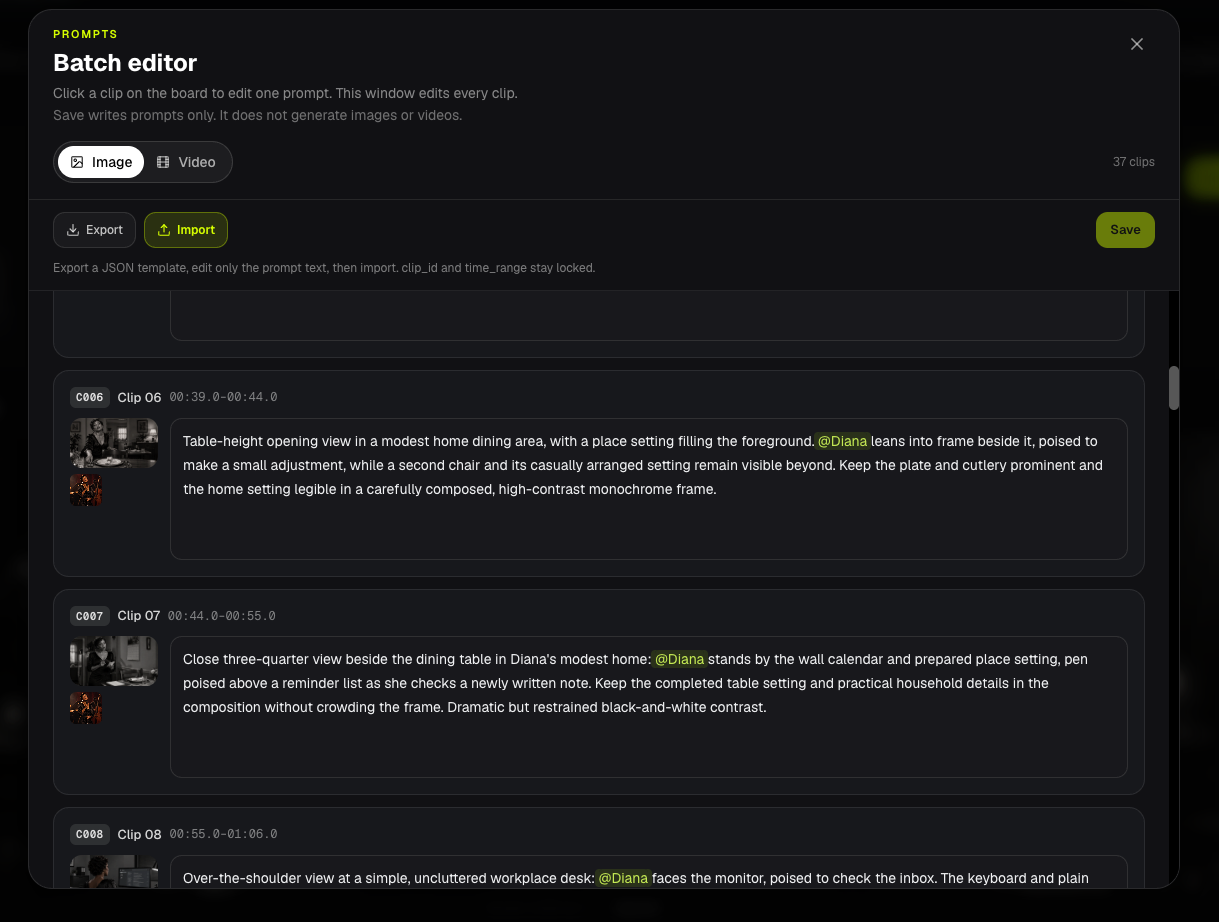
Save genererar inte
Save / Save prompts updates prompt text on the current keyframe run. It does not call GPT Image, MiniMax, or the 6-credit prompt pack.
For a new still, use Edit Image or generate that frame after saving. For new motion, use Generate / Generate Videos.
Nämn karaktärer med @
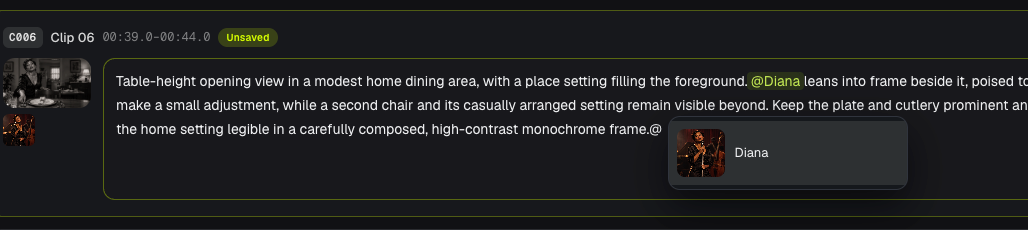
In a prompt field, type @ to pick a character who already has a reference photo on this clip.
The chip shows @Diana. BeatViz stores Diana (Image N) for the model.
Image N is not the order you typed @. It comes from this clip's storyboard @mentions, in Music Analysis character-list order.
- Image / frame prompt: Image 1 is the first tagged character photo.
- Video prompt: Image 1 is this clip's opening frame. Character photos start at Image 2.
Only characters tagged in that clip's storyboard description appear. Tag them on the storyboard, then Generate Keyframes again, if someone is missing.
Storyboard @ rules: Edit Cuts & Descriptions. Identity lock: Keep Characters Consistent.
Exportera och importera en promptfil
Export downloads a UTF-8 .json template. Each clip keeps clip_id and time_range. Edit only the prompt strings.
Import writes prompt text onto matching clip_id rows. It cannot add clips, delete clips, or change timing.
The file must include every current clip_id. Extra IDs, missing IDs, empty prompts, or over-long prompts are rejected. Use a .json under 512 KB.
Import fills the editor. Click Save to write the run. Import alone does not generate.
FAQs
Does Save spend Credits?
No. Save only stores prompt text.
Why is a character missing from the @ list?
That person is not @mentioned in this clip's storyboard description, or they have no reference photo. Fix the storyboard, then Generate Keyframes so the clip gets an Image N slot.
Can I import a file I edited in ChatGPT?
Yes, if you keep the exported clips array and every clip_id. Change prompt text only.
Fortsätt lära: ← Föregående: Generera videoklipp · Nästa: Läppsynk →
Relaterade guider
Prova BeatViz Workflow 2.0
Ladda upp en låt, välj Studio Create · 2.0 och gå vidare via Music Analysis, Storyboard, Keyframes och MiniMax-klipp.